Features

A place for every app.
Room to make it yours.

The familiar Mac app grid, with a little more possibility. Find your apps, arrange them your way, and keep everything feeling at home.

Explore all features
Two modes

Full screen or floating.

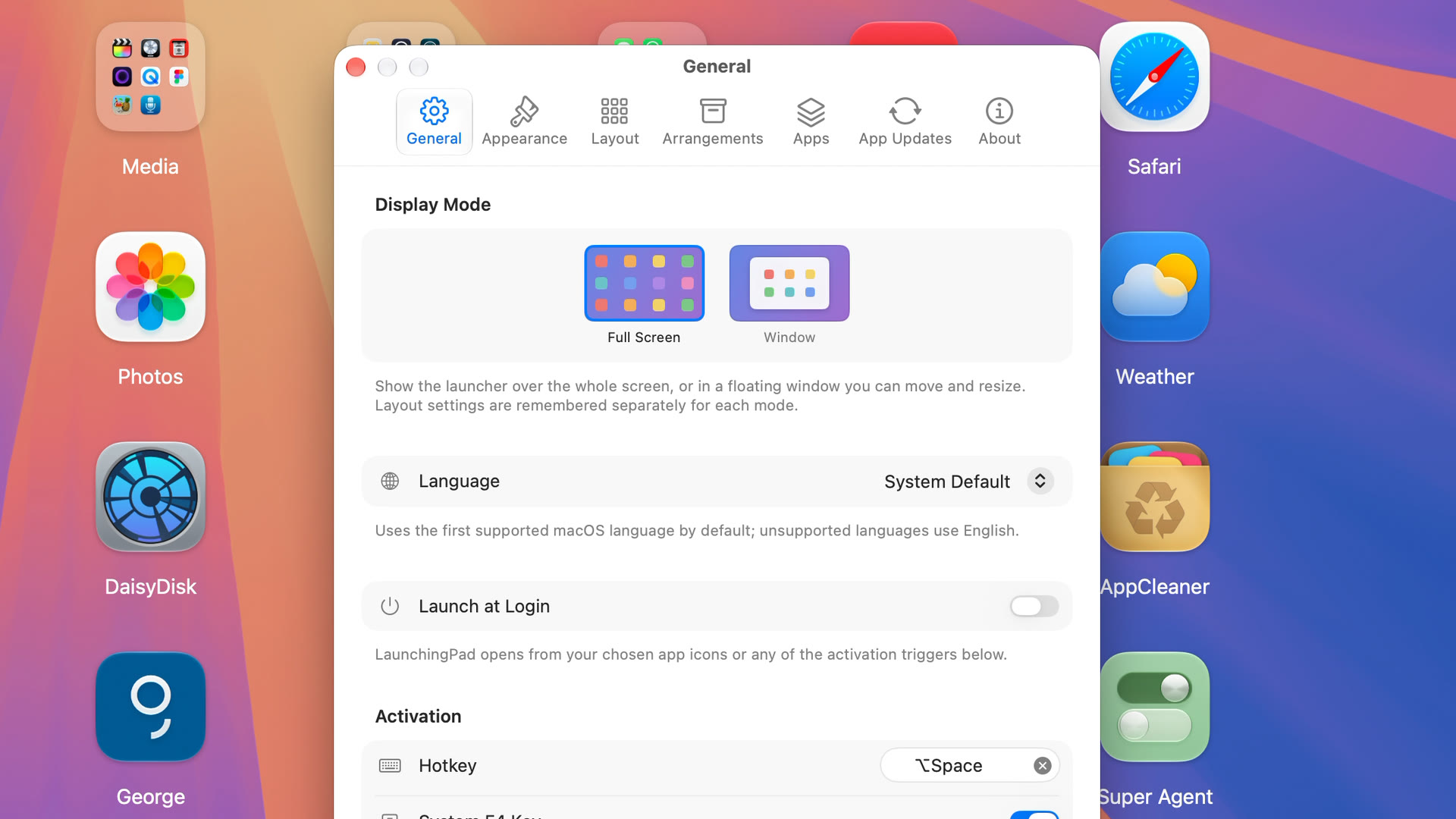
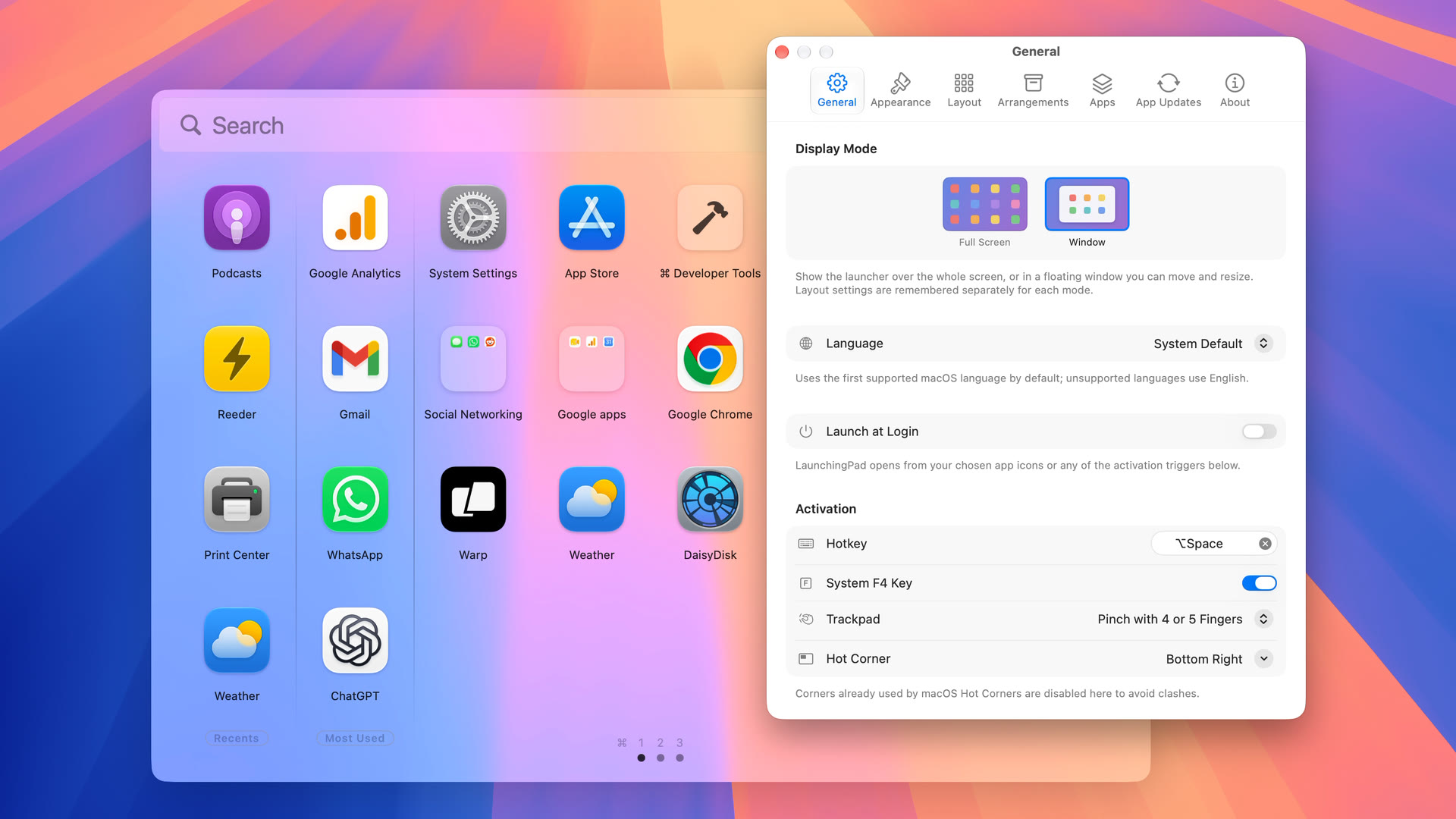
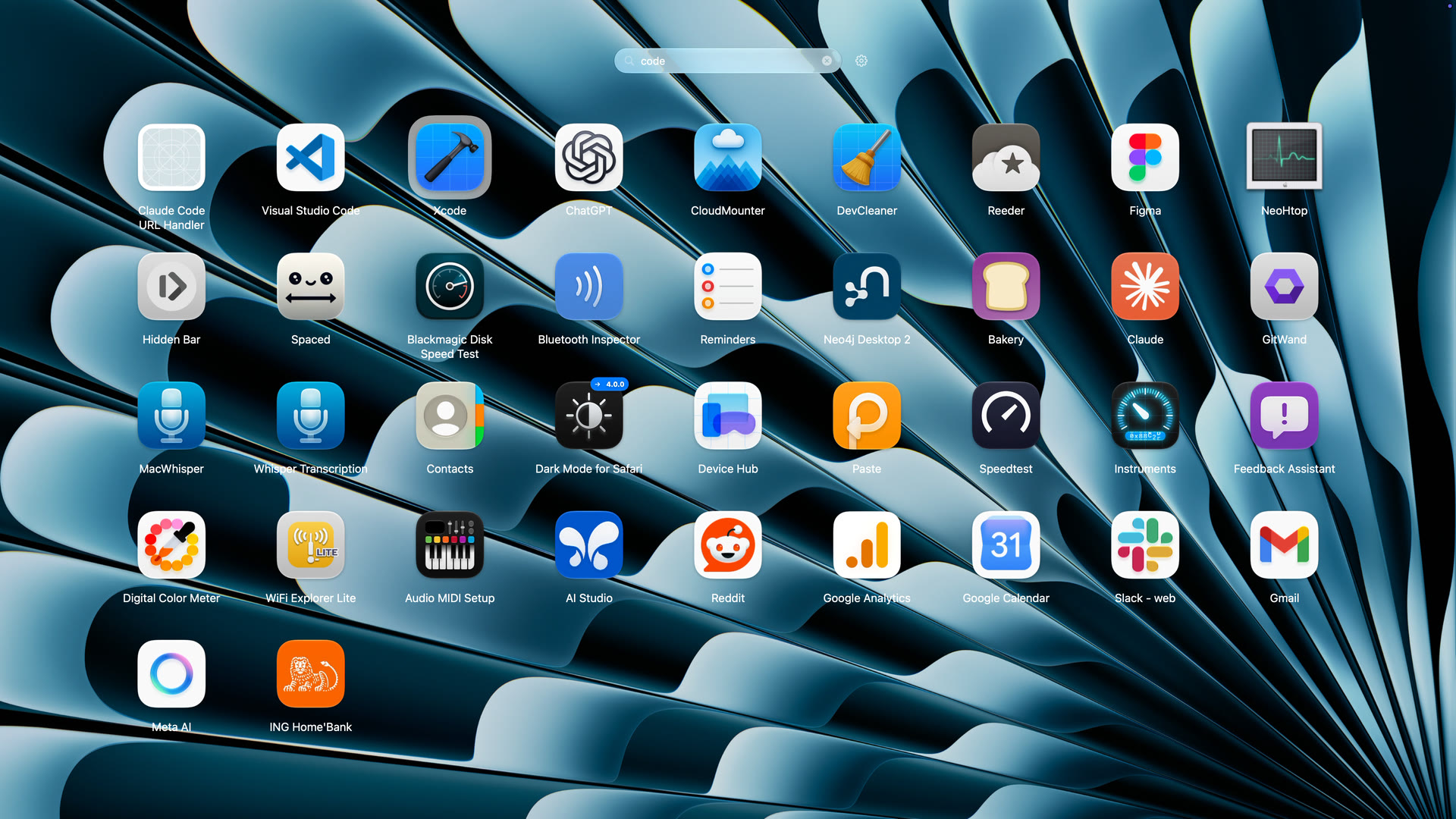
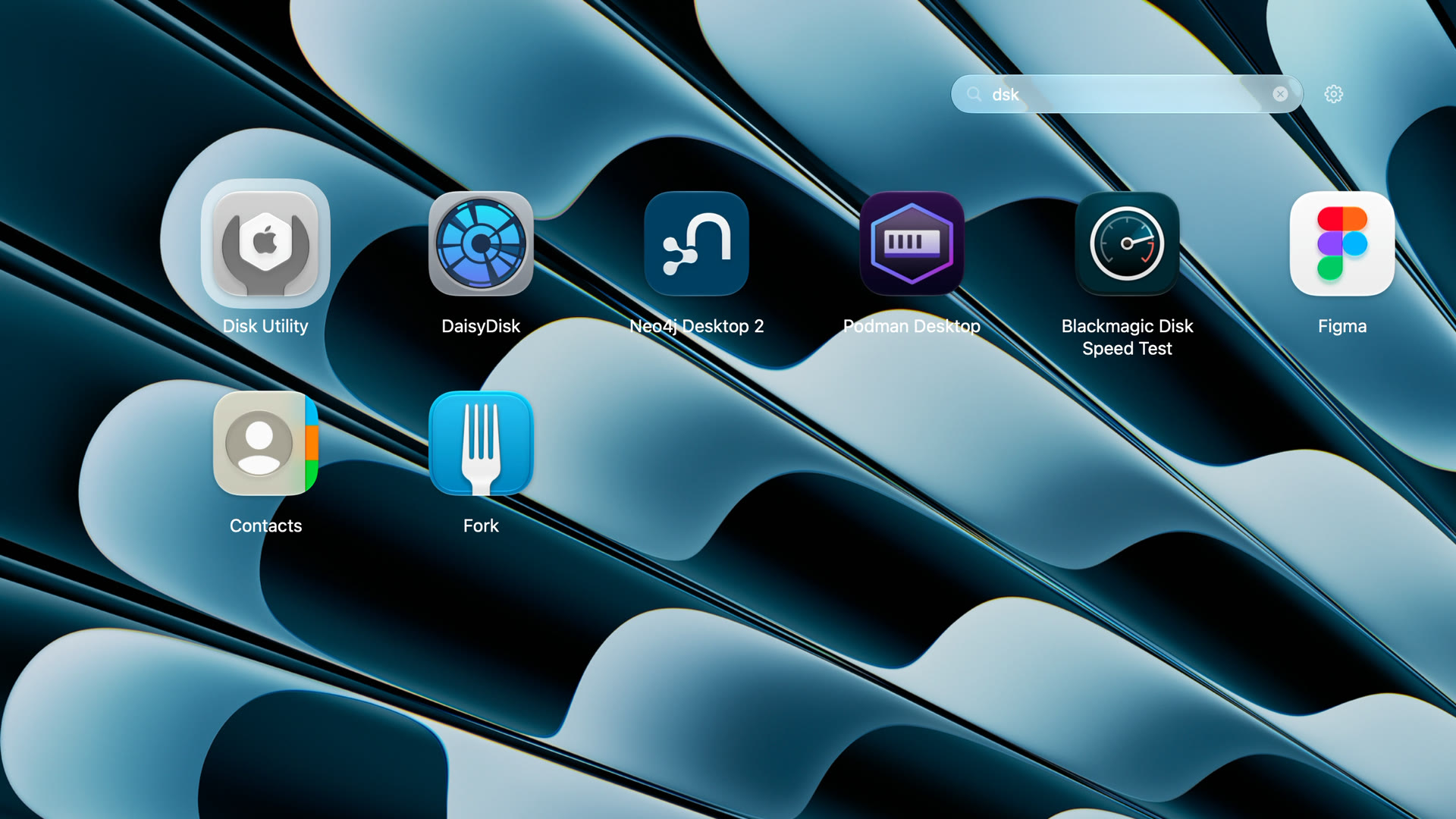
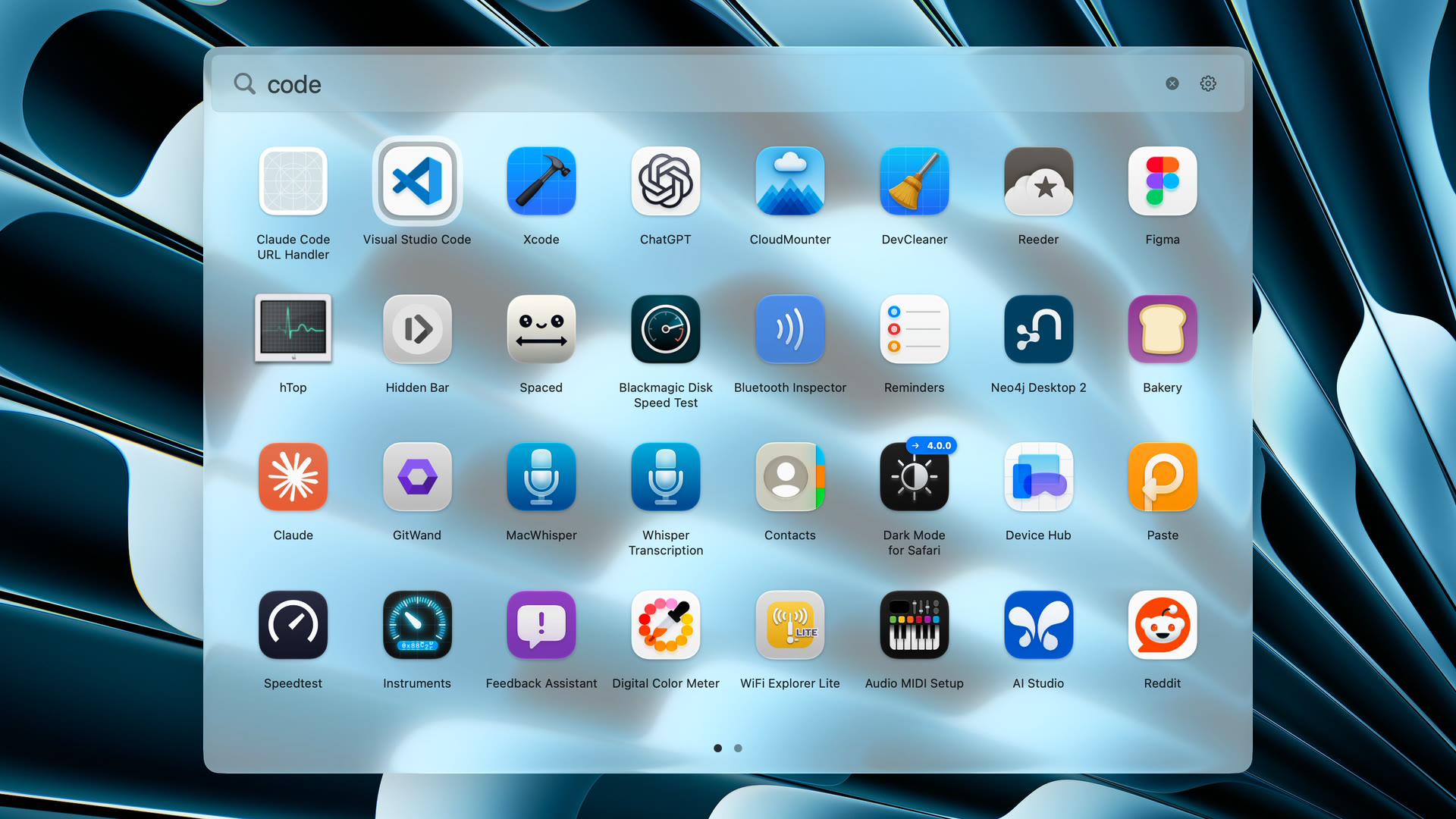
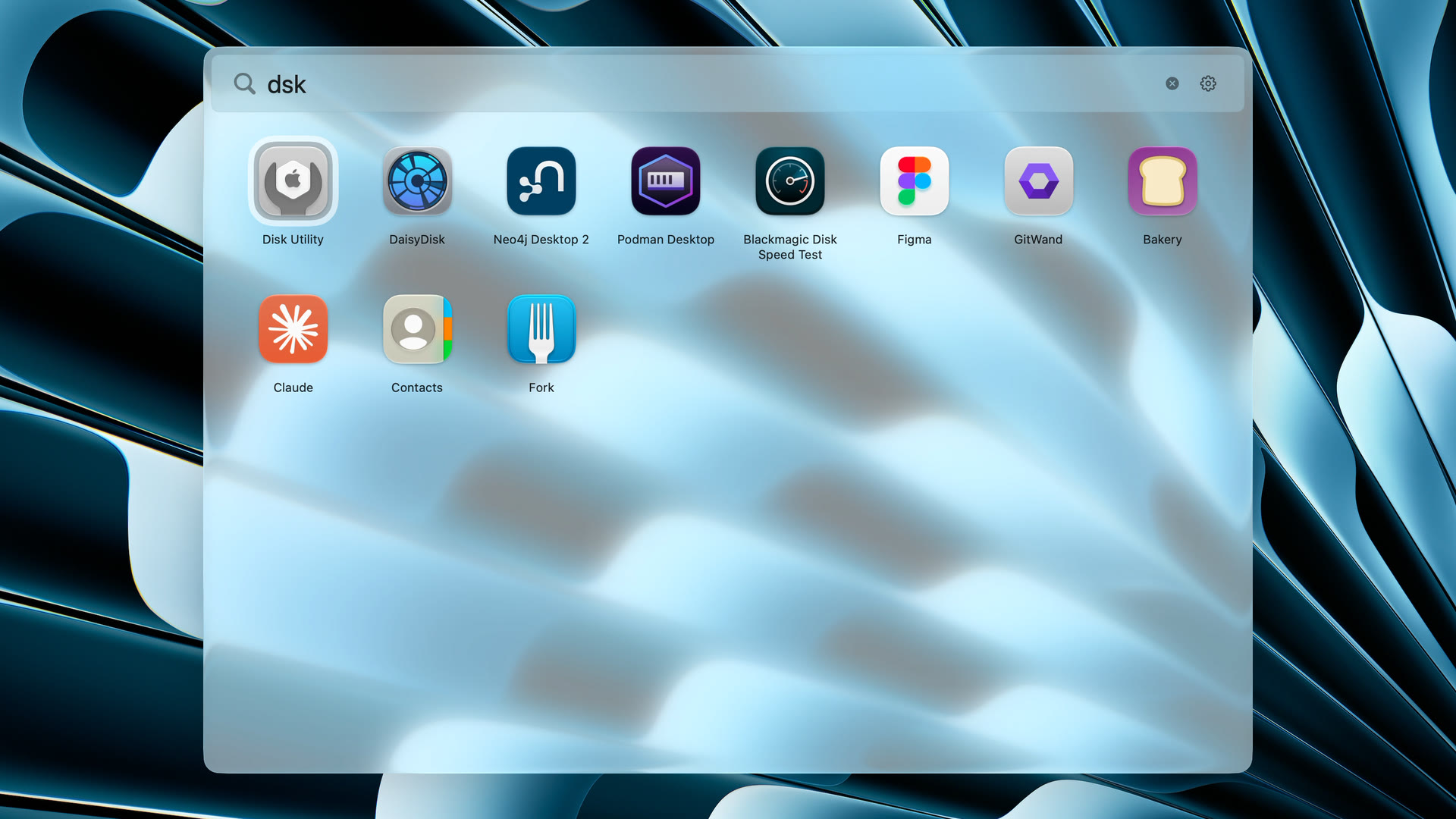
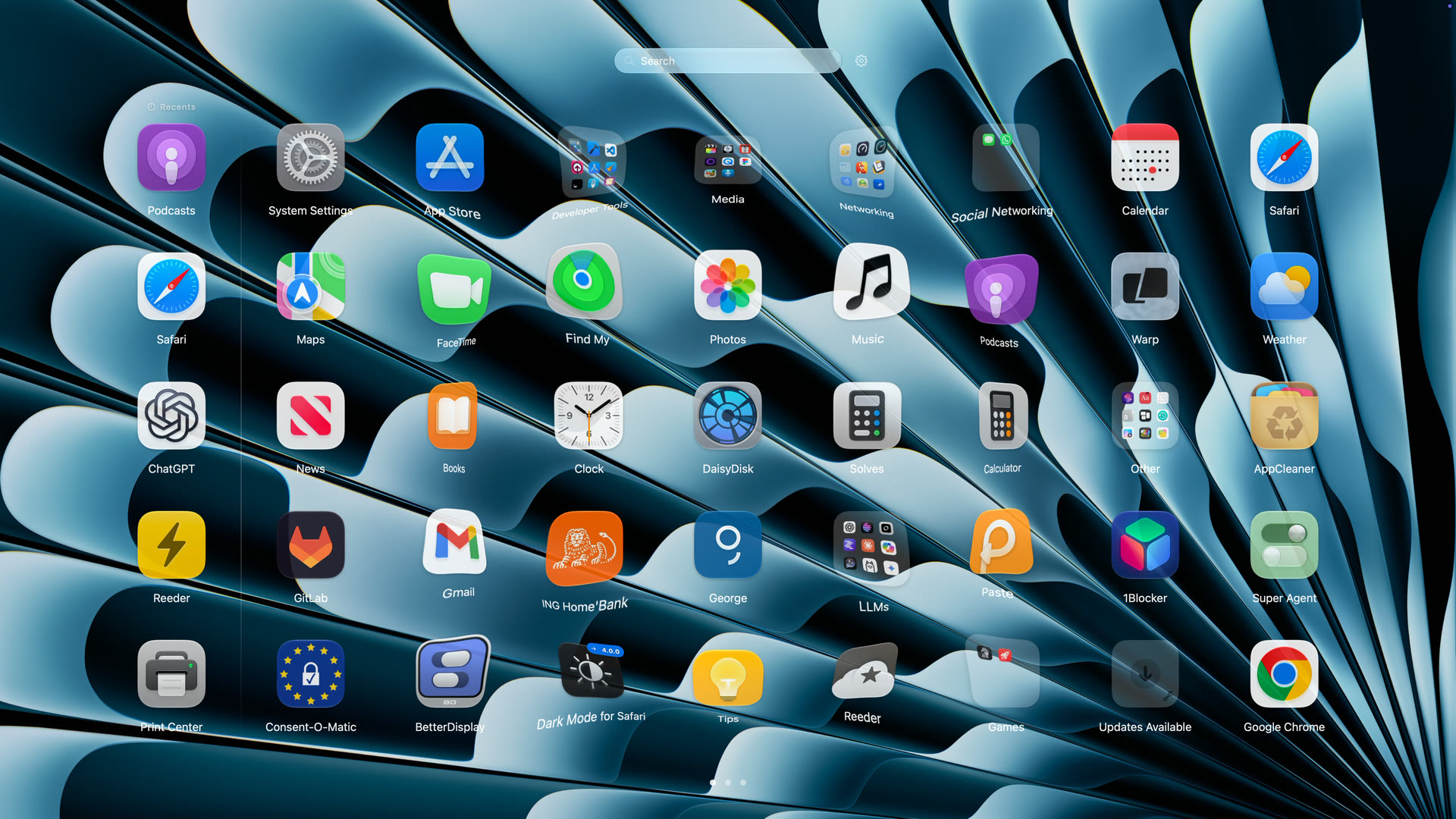
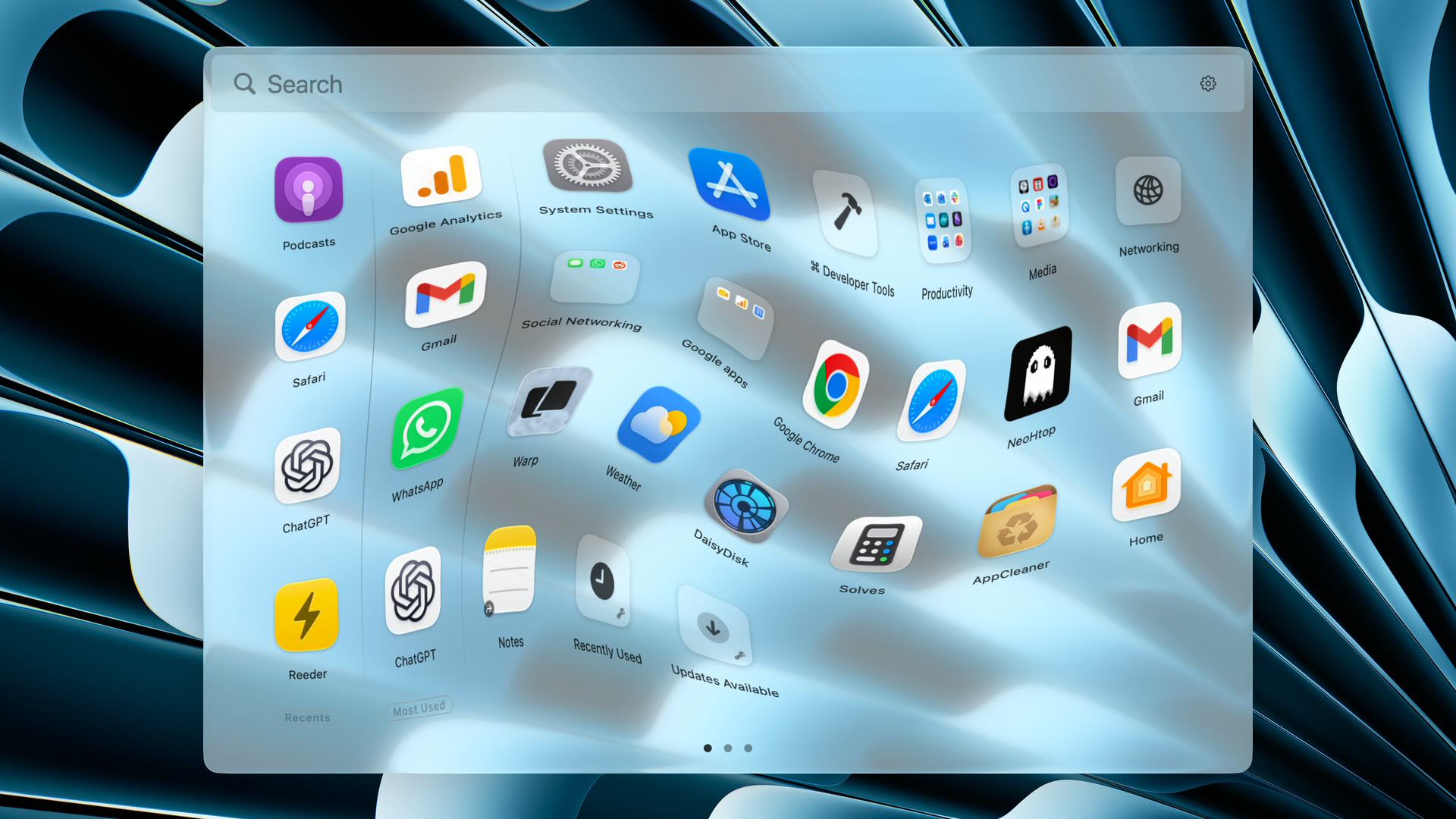
Use the classic grid over your whole screen, or keep LaunchingPad in a window you can move and resize over your work. Switch any time in Settings → General or View → Display Mode. The screenshots on this page show both.

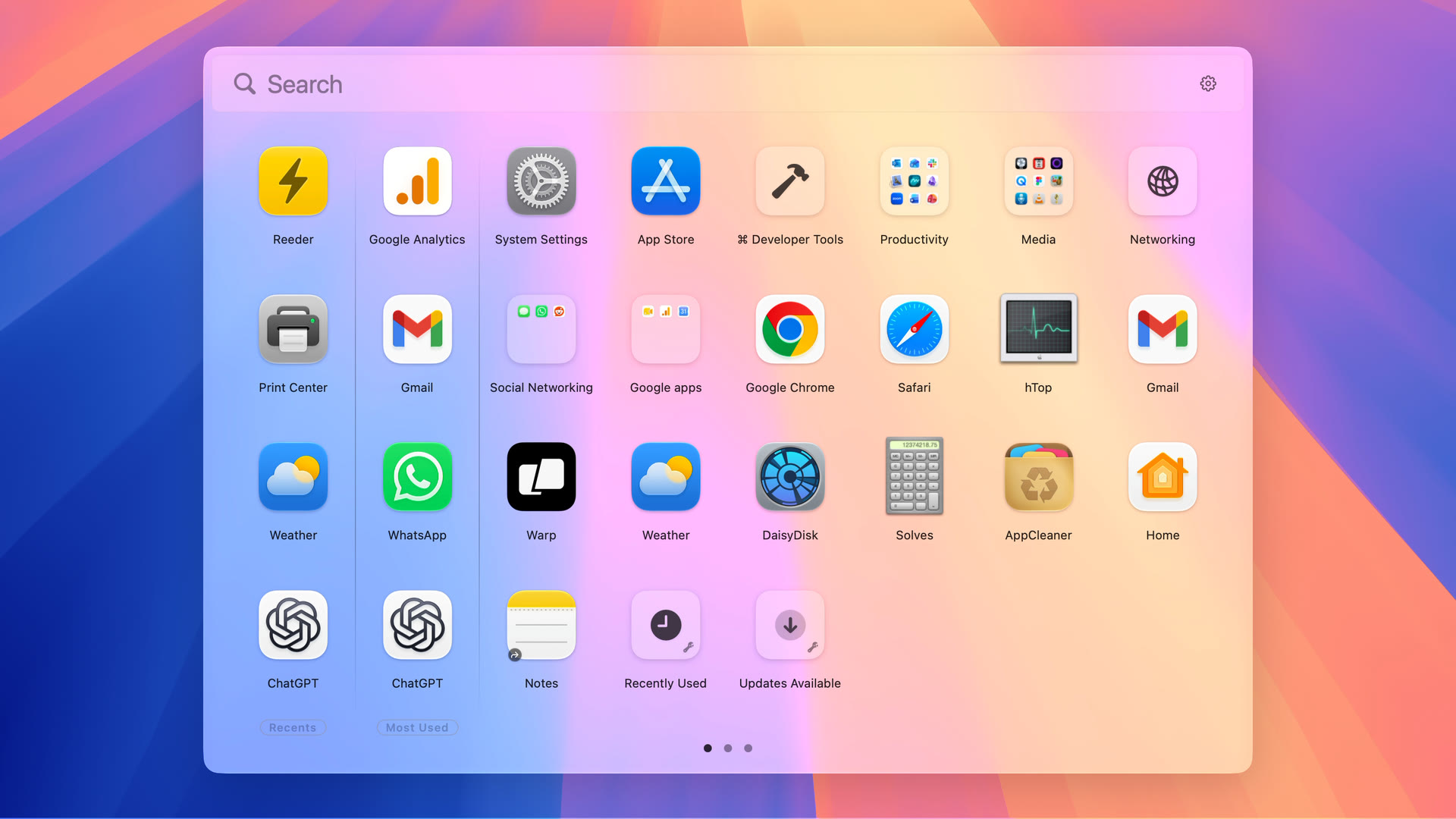
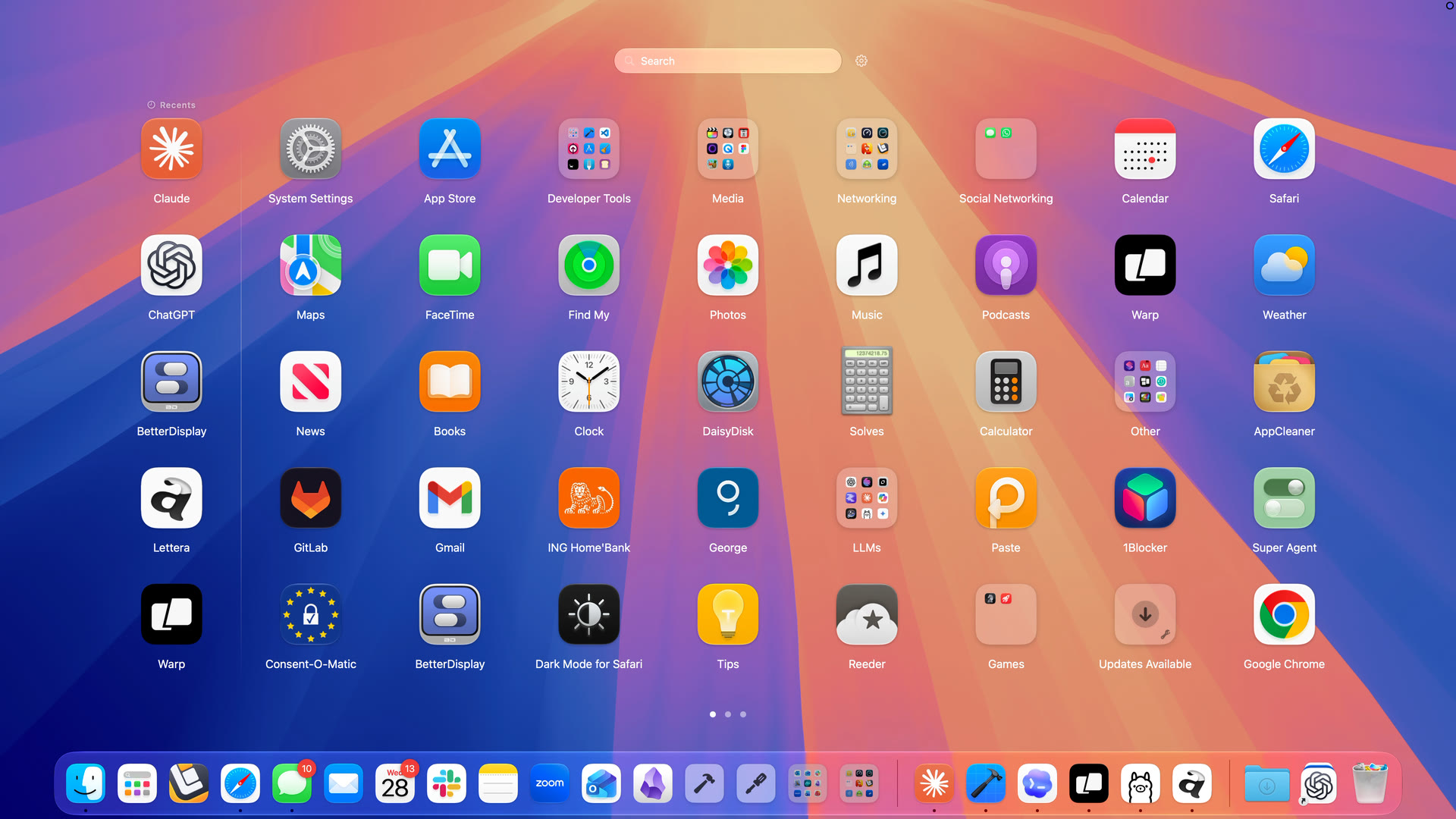
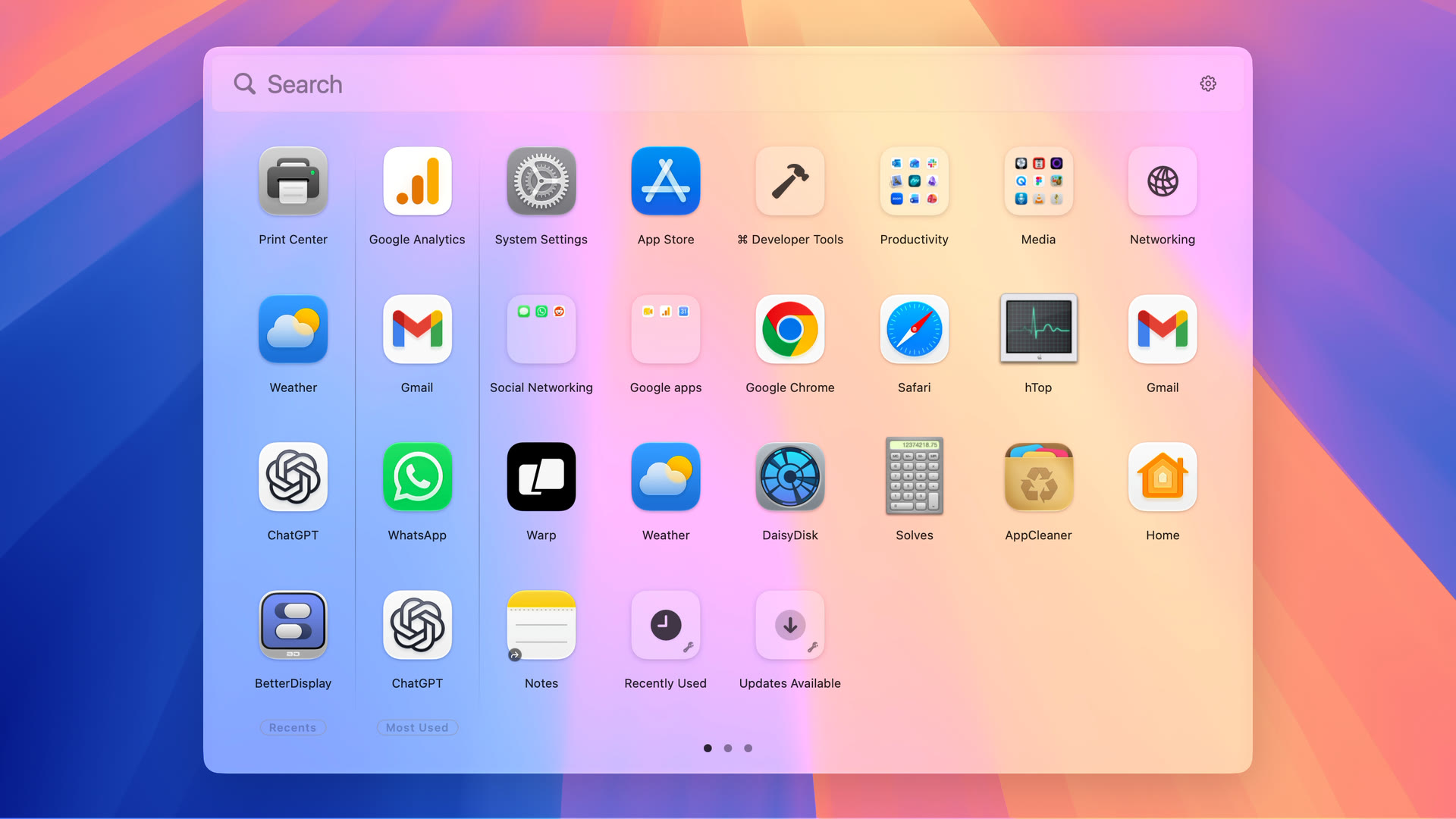
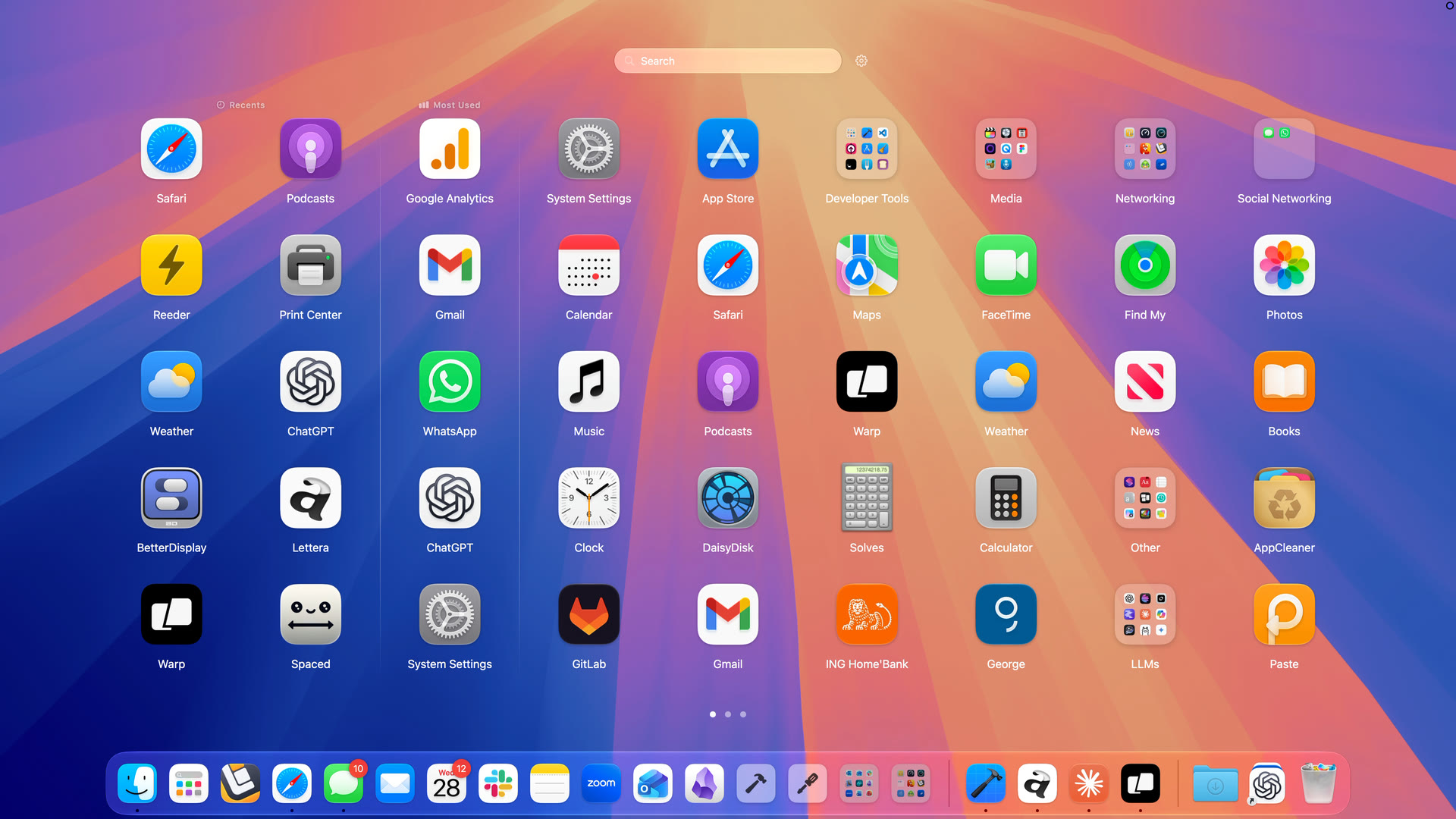
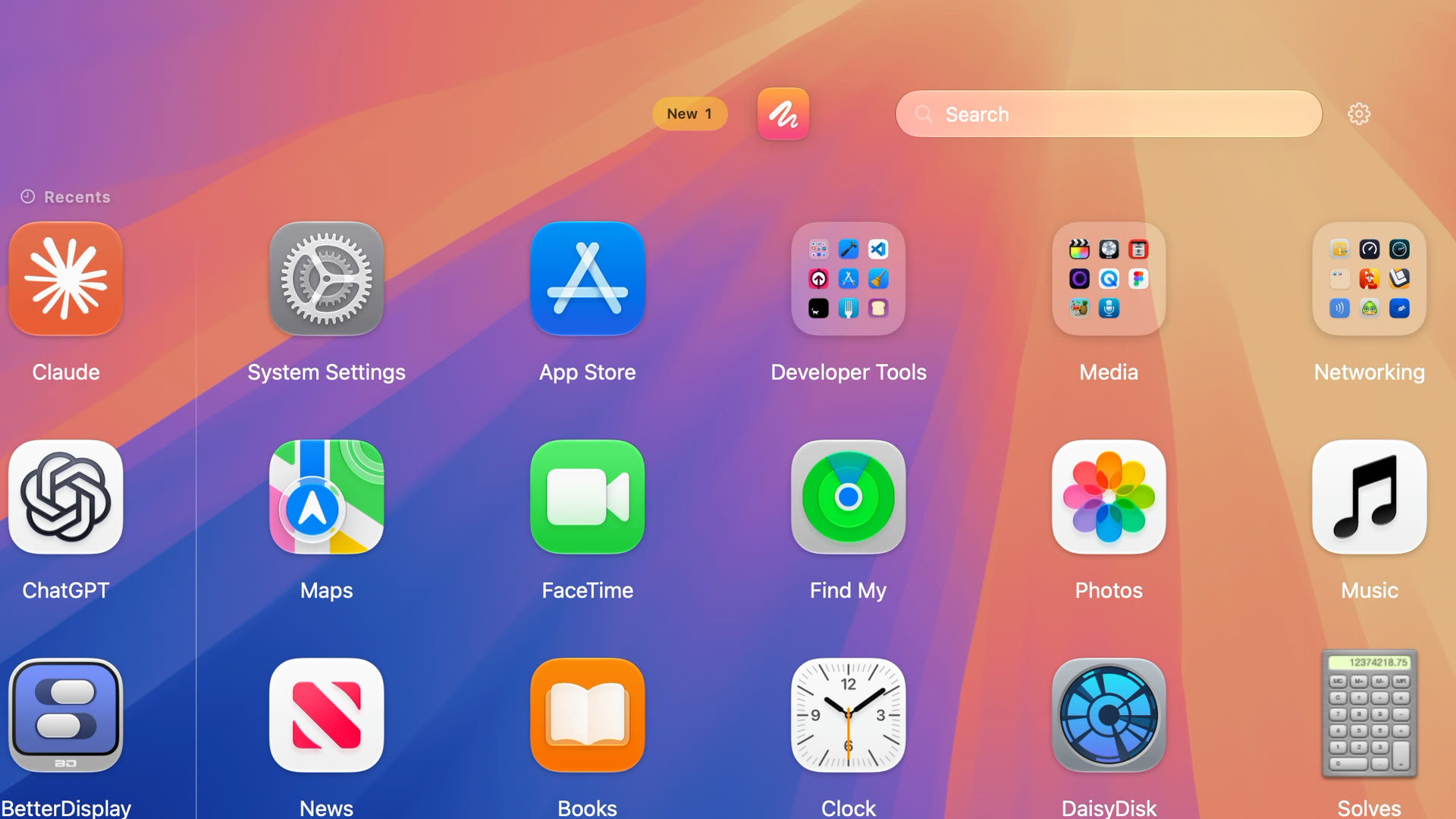
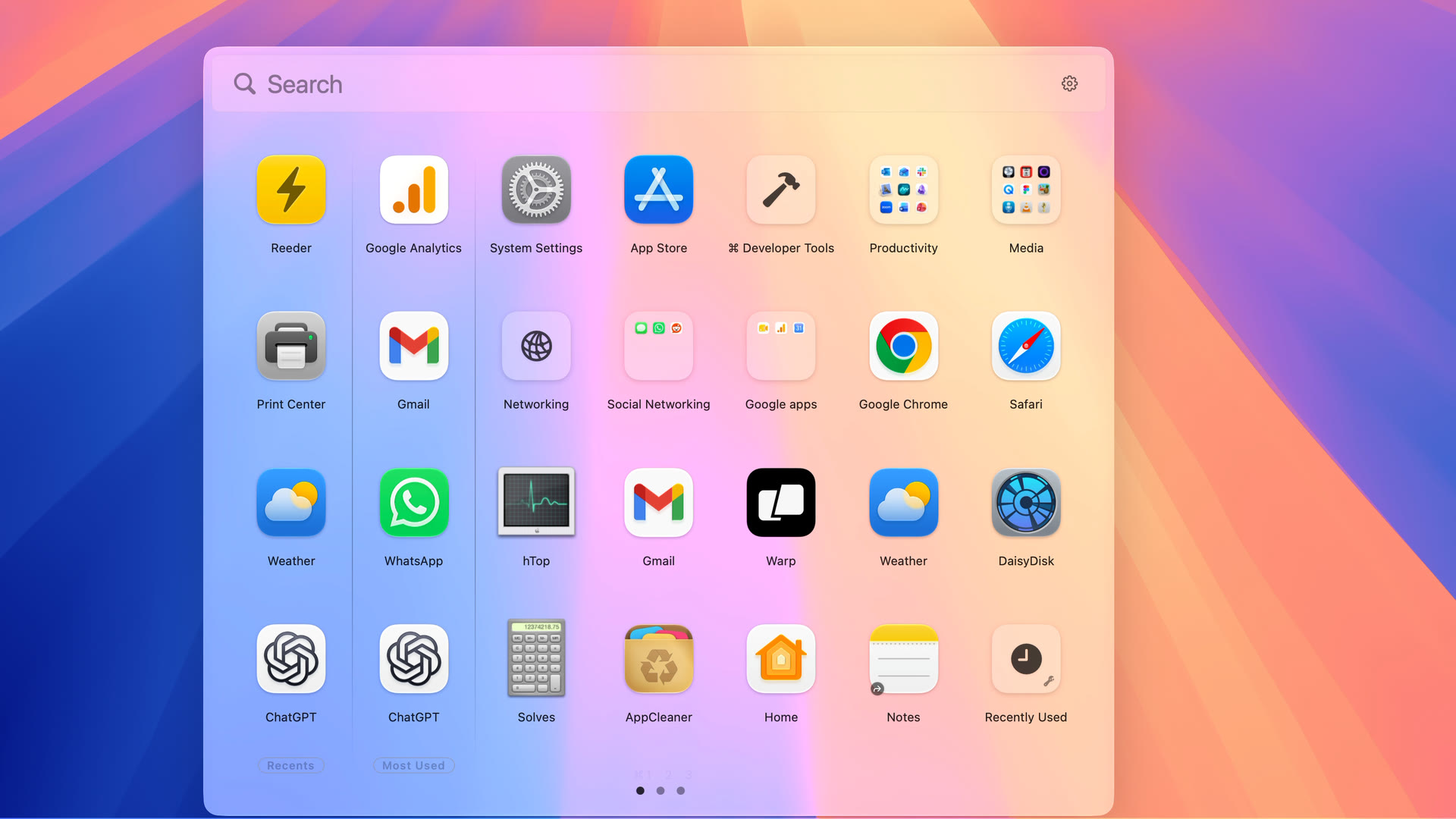
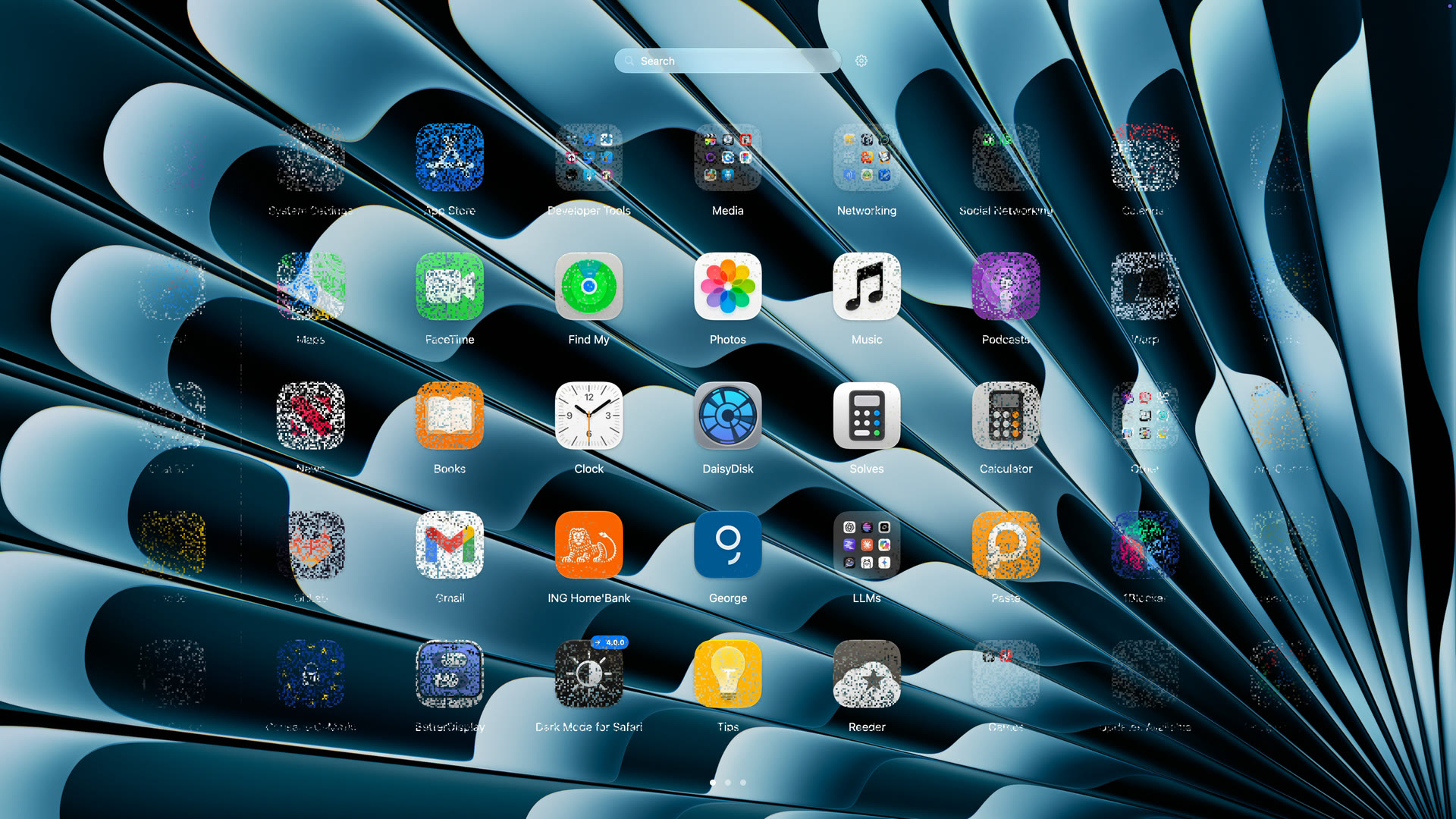
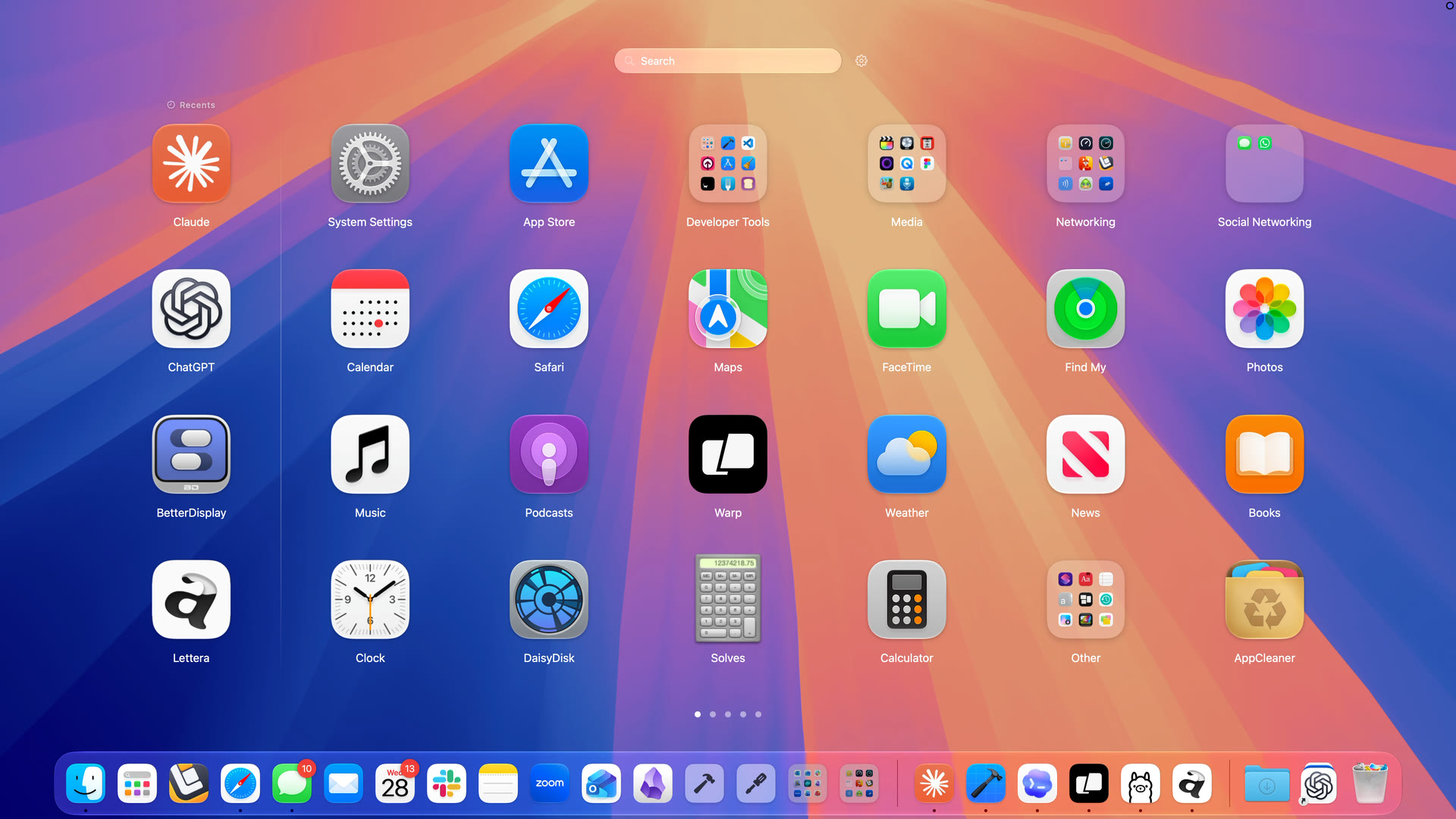
  • Full ScreenThe familiar app grid over your wallpaper, with pages, a configurable grid, and Recents and Most Used columns pinned beside it.
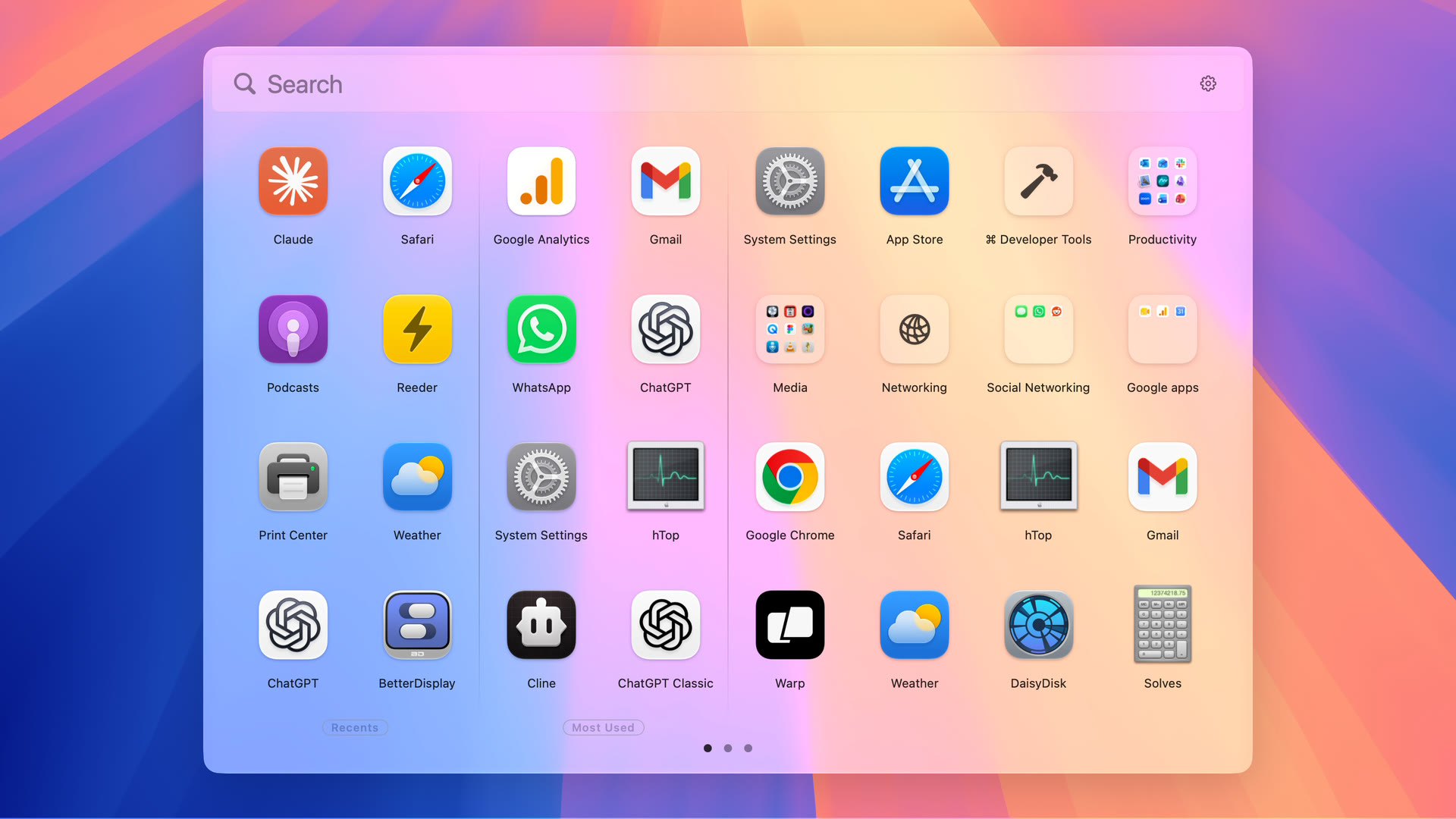
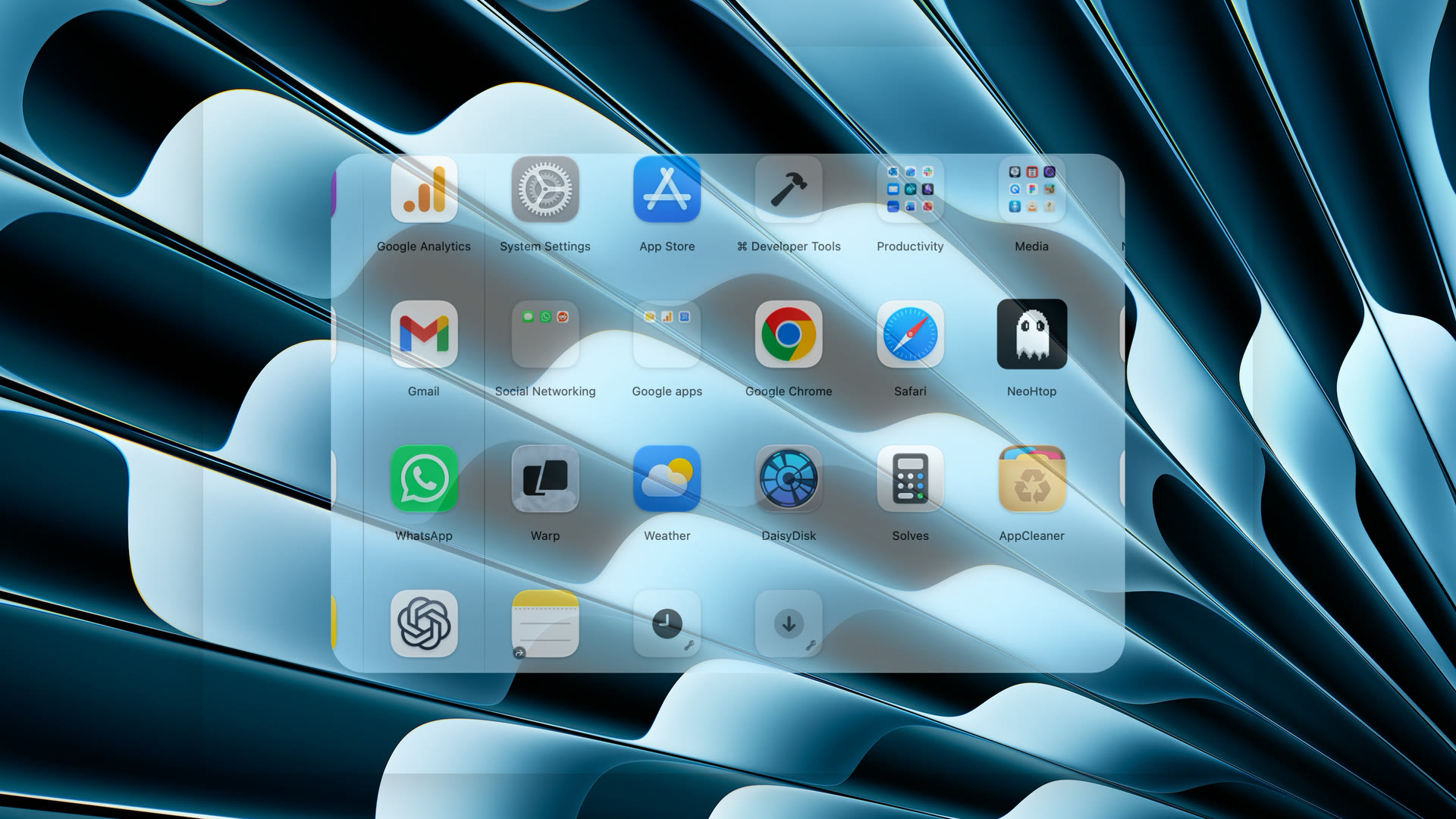
  • WindowA floating, resizable launcher with a native macOS frame and soft shadow that reopens where you left it.
  • Two layoutsEach mode remembers its own arrangement, folders, and grid settings, so changes in one stay there.
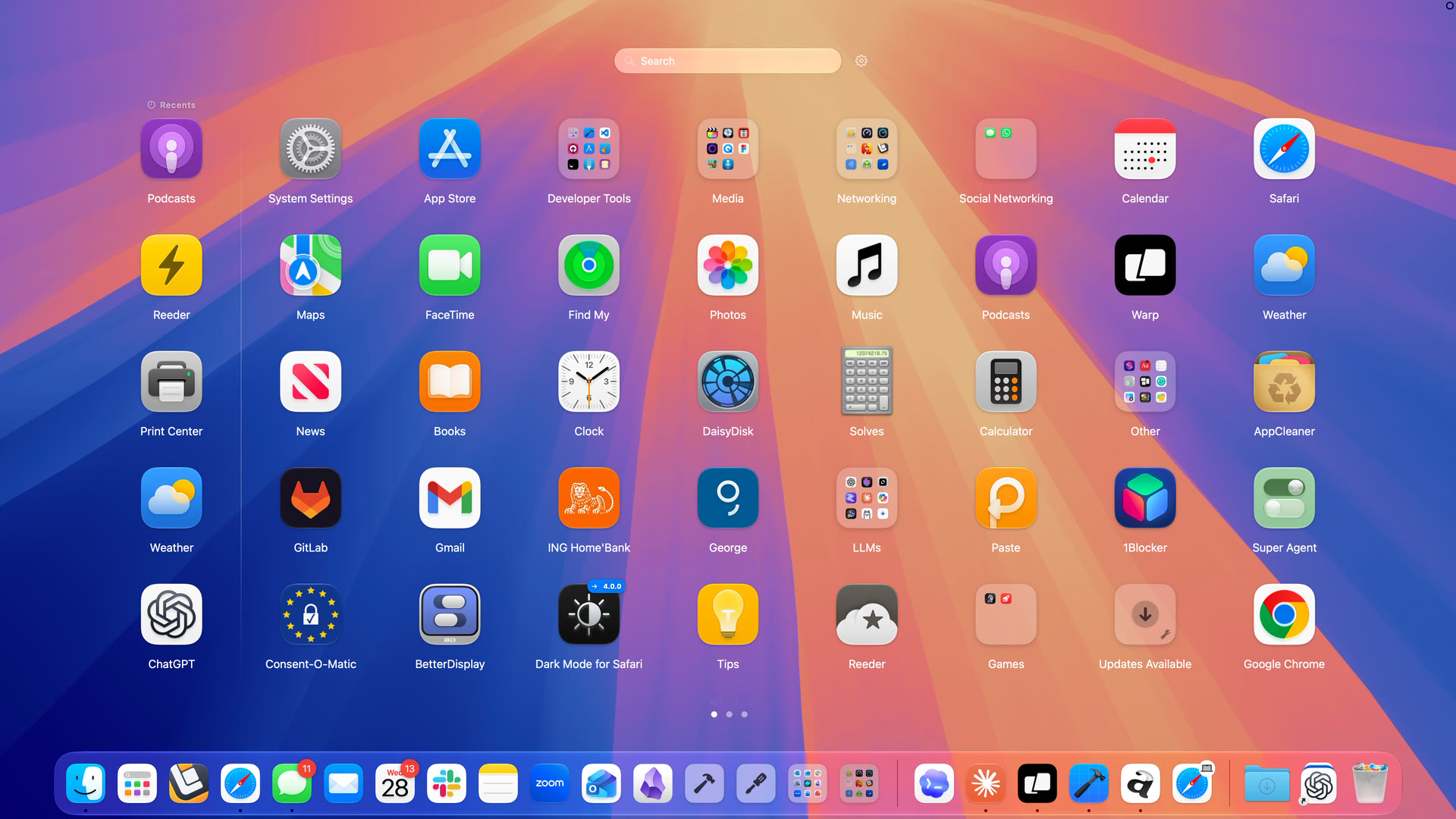
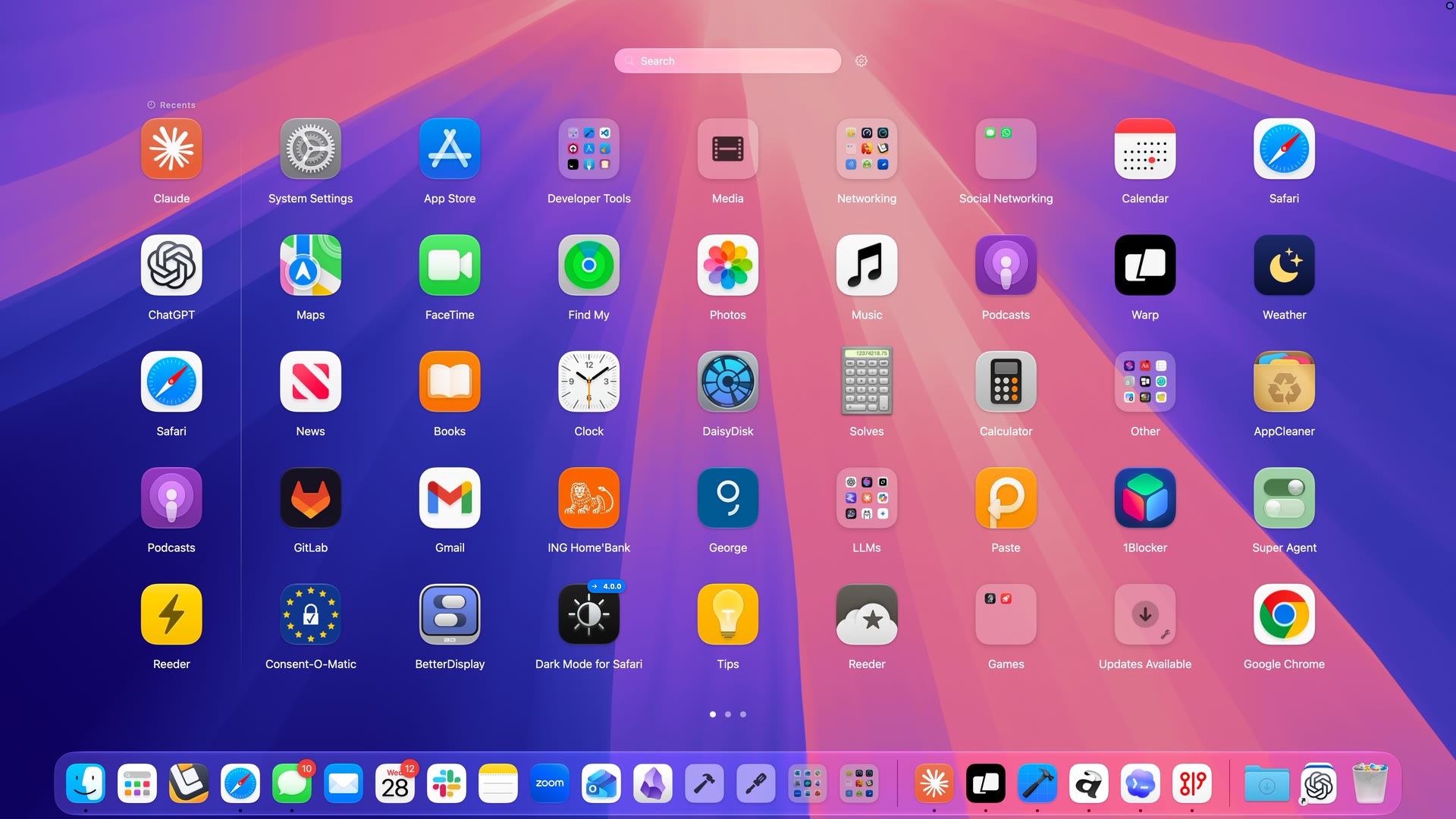
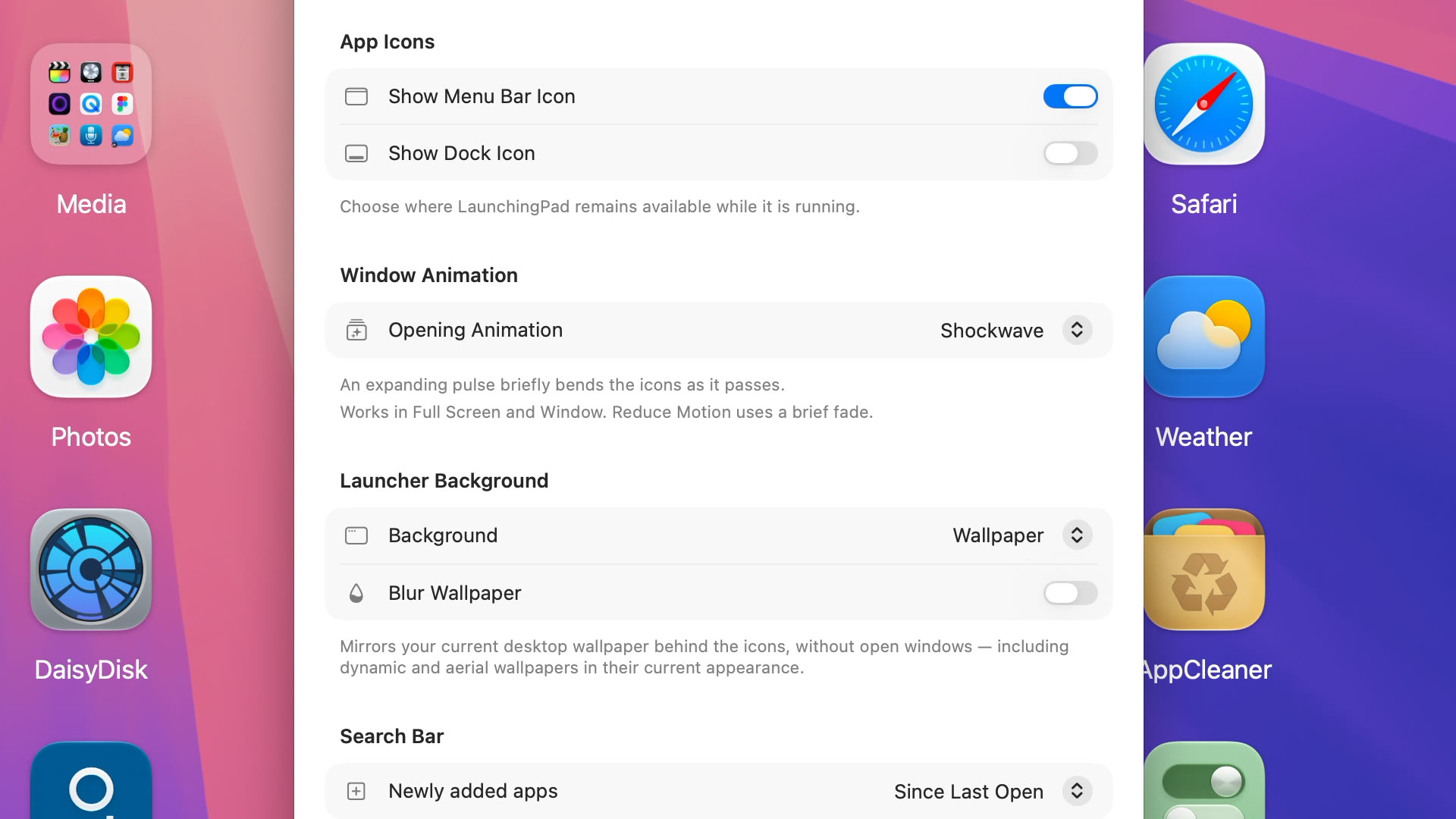
LaunchingPad in Full Screen mode: a five-row app grid with a Recents column and folders such as Developer Tools and Media, above the Dock. LaunchingPad in Window mode: a floating, rounded launcher window with a search field, an app grid and Recents and Most Used columns over the desktop. LaunchingPad’s General settings pane with the Display Mode picker offering Full Screen and Window. After choosing Window under Display Mode, the LaunchingPad grid reappears as a floating window beside the General settings pane.
The classic grid across the whole screenFull Screen

Show the grid instantly.

Opening a launcher should be instant. LaunchingPad gives you several ways to bring up the app grid — full screen or in its window — then places it on the display and Space you are already using. It works like a native macOS app launcher, so your current workflow stays in place.

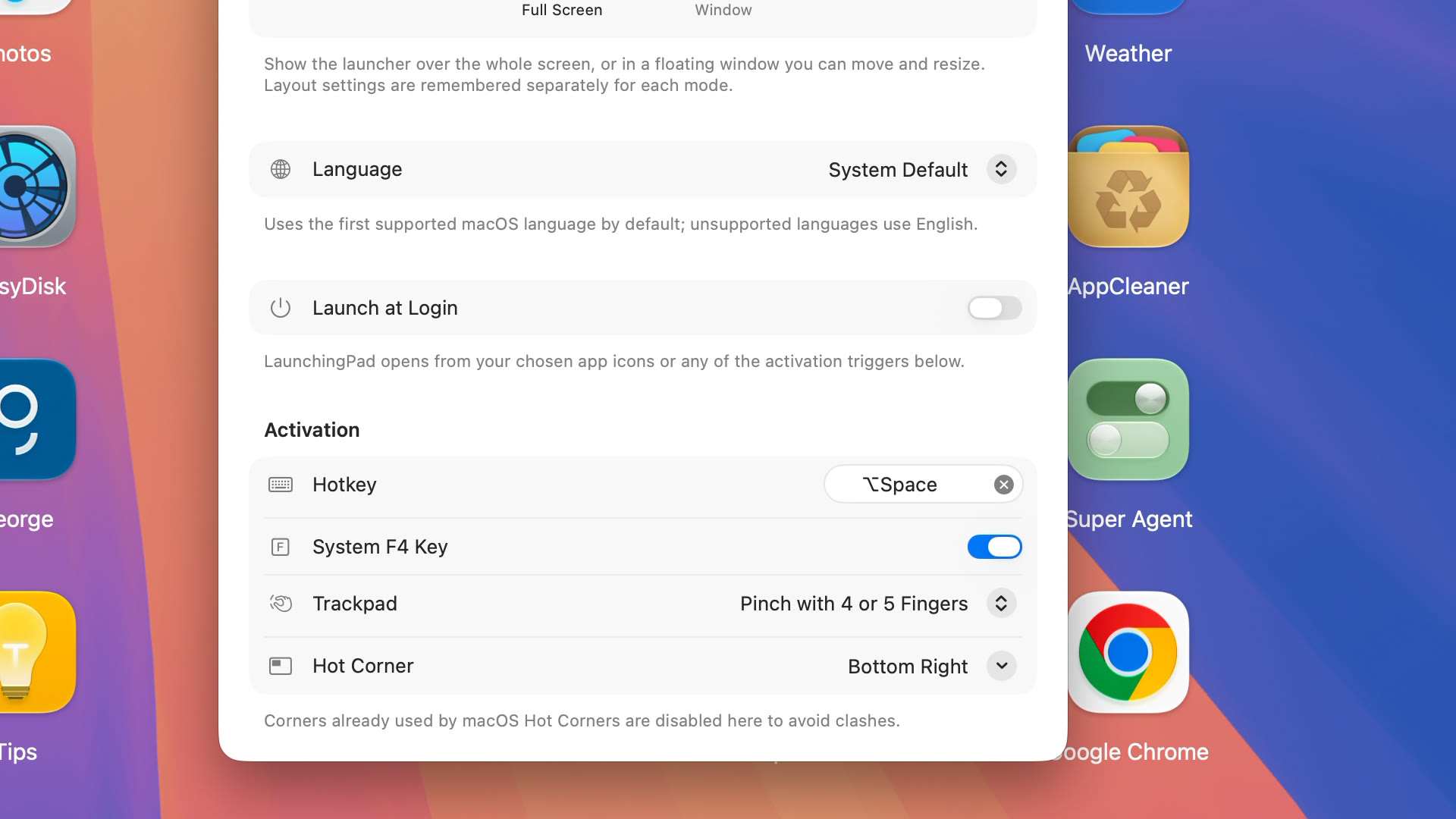
  • HotkeyUse Option-Space out of the box, or record a shortcut that fits your muscle memory.
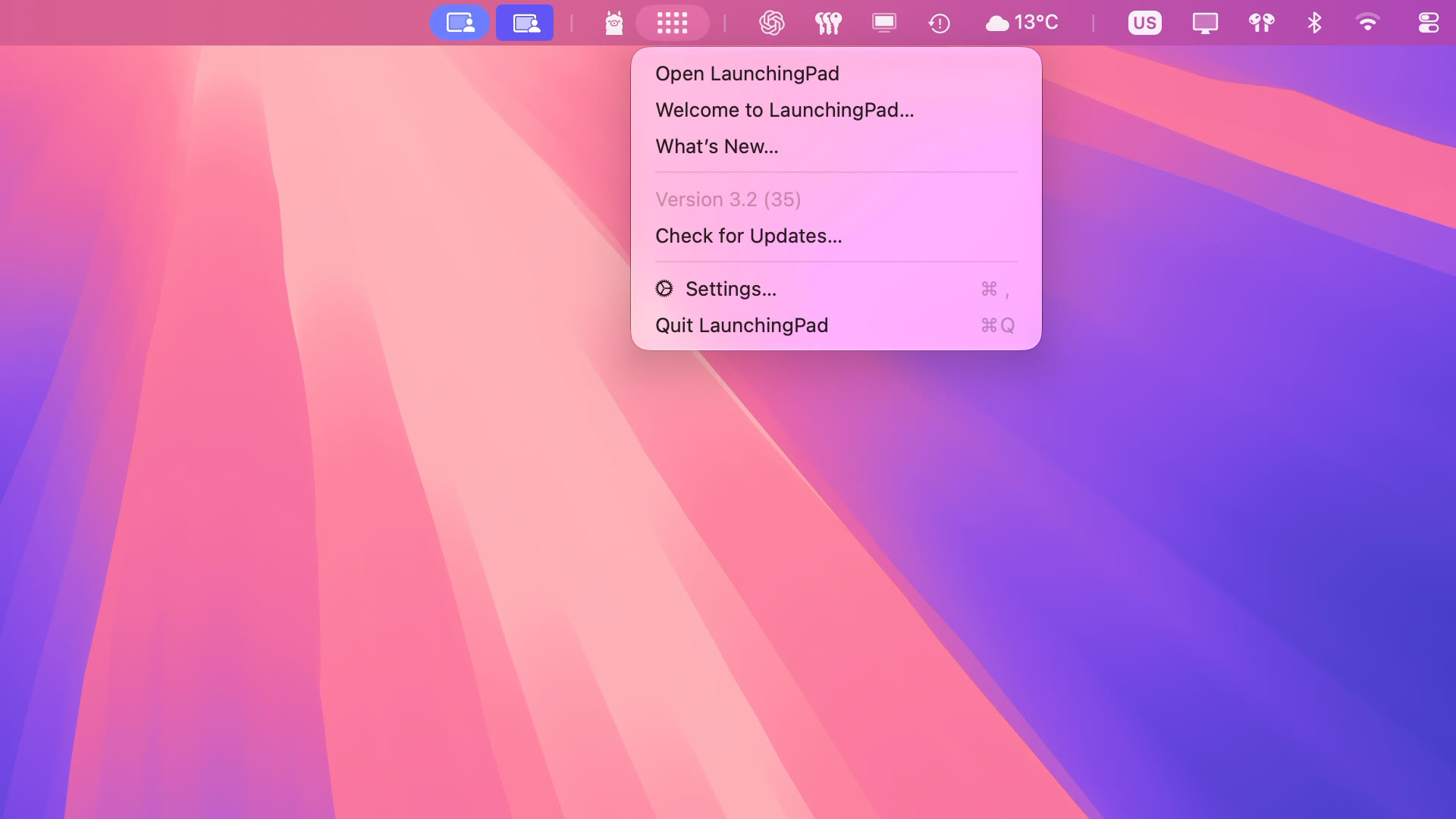
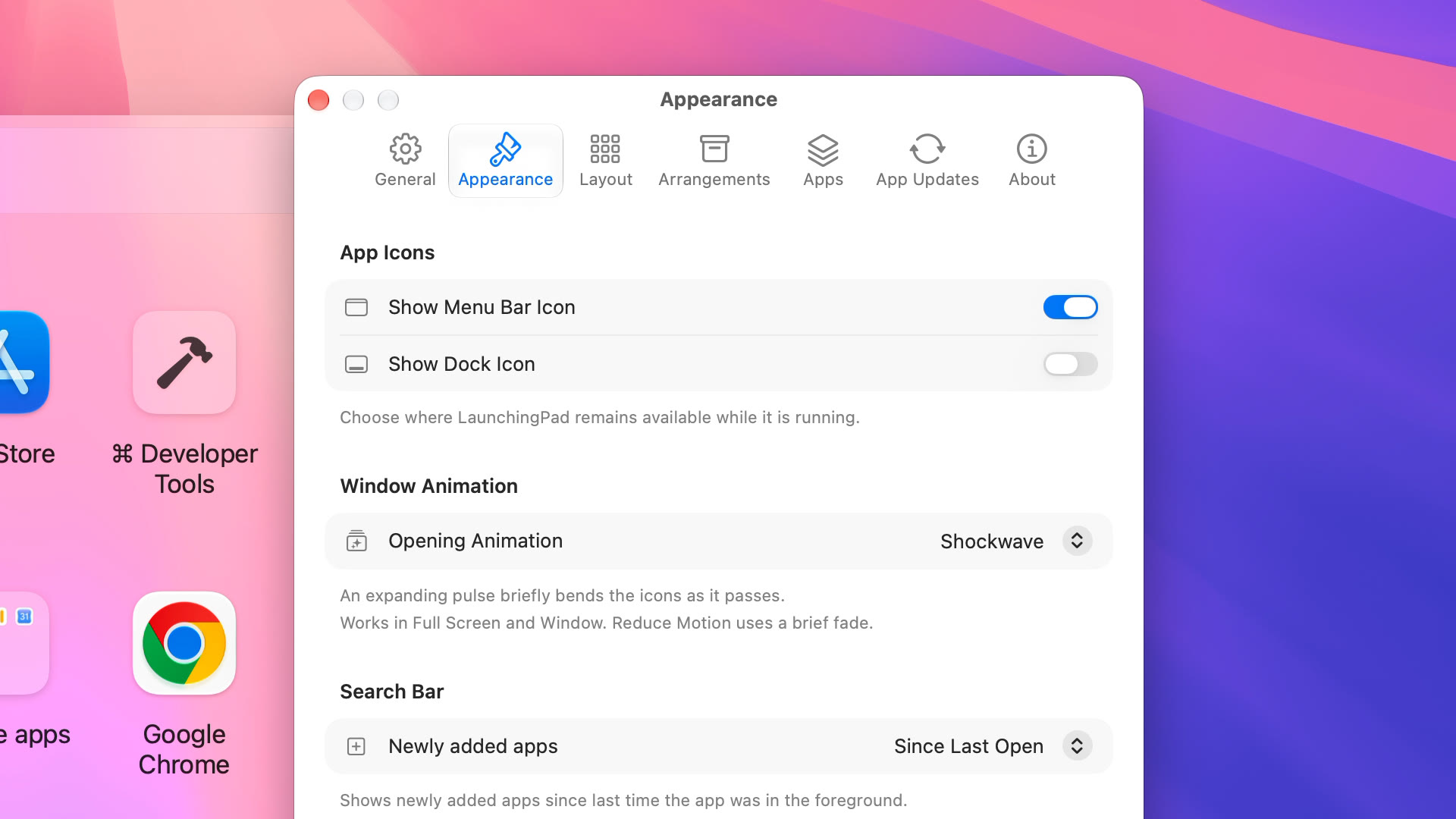
  • GesturesOpen LaunchingPad with a trackpad pinch, the F4 key, a hot corner, or its menu bar or Dock icon — show either, both, or neither.
  • ReopenOptionally return to the same page and open folder stack when you call the launcher again soon after closing it.
  • DismissPress Esc, click outside the grid, or switch apps. Focus returns to the app you were using.
The LaunchingPad full-screen app grid, opened with the Option-Space hotkey over the desktop wallpaper. LaunchingPad opened in Window mode with the hotkey, floating above the Dock on the current desktop. Activation settings in LaunchingPad’s General pane: the Option-Space hotkey, System F4 Key, a trackpad pinch and a hot corner. LaunchingPad’s menu bar menu with Open LaunchingPad, What’s New, Check for Updates, Settings and Quit LaunchingPad. LaunchingPad’s Appearance settings with Show Menu Bar Icon switched on and Show Dock Icon switched off.
Option-Space brings up the gridFull Screen

Keep daily apps close.

LaunchingPad can reserve dedicated space for the apps you just opened and the apps you launch most often. It is useful when your full app library is large, but your daily tools are predictable: browser, editor, calendar, chat, terminal, notes, design tools, and whatever else you touch all day.

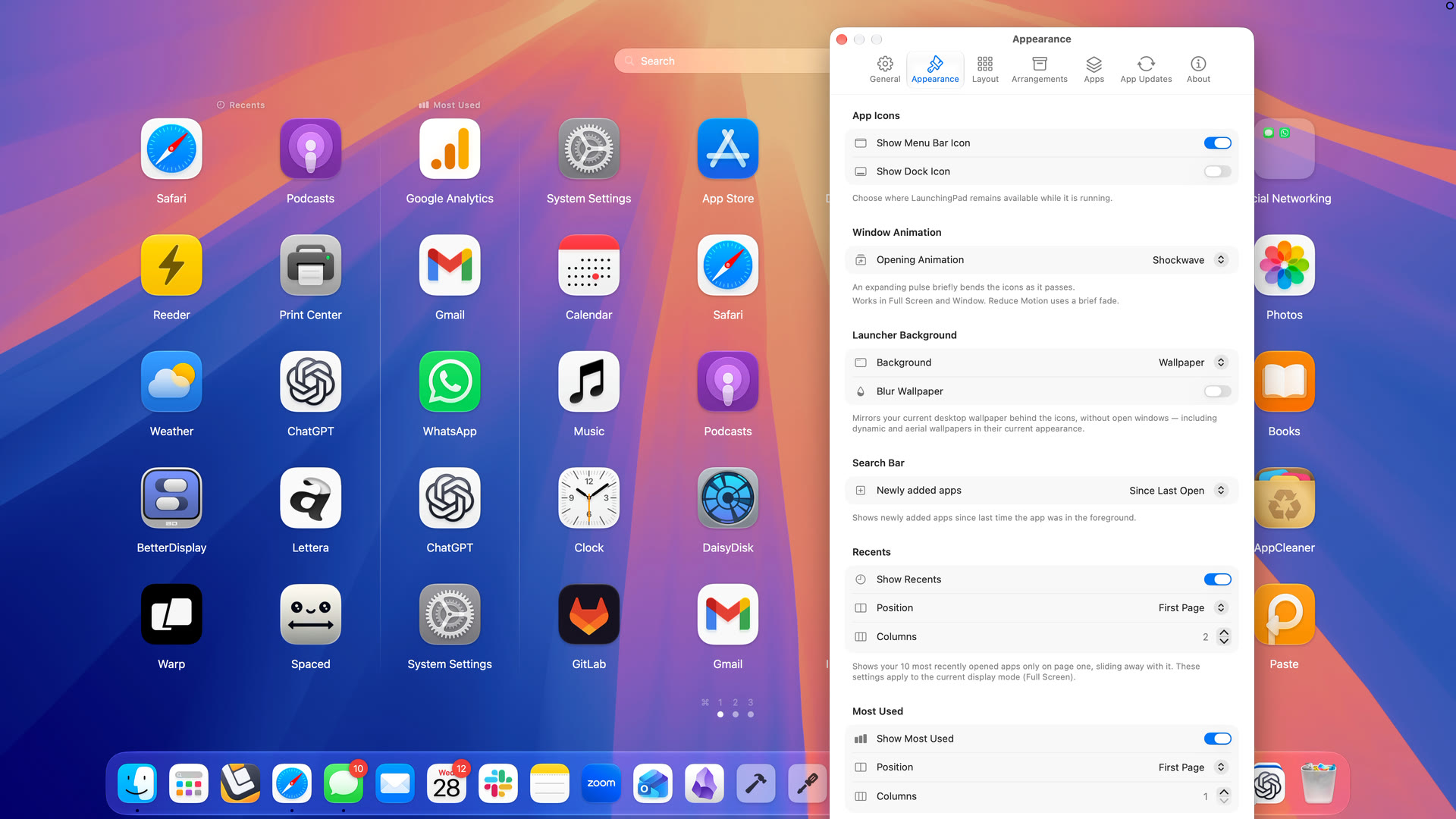
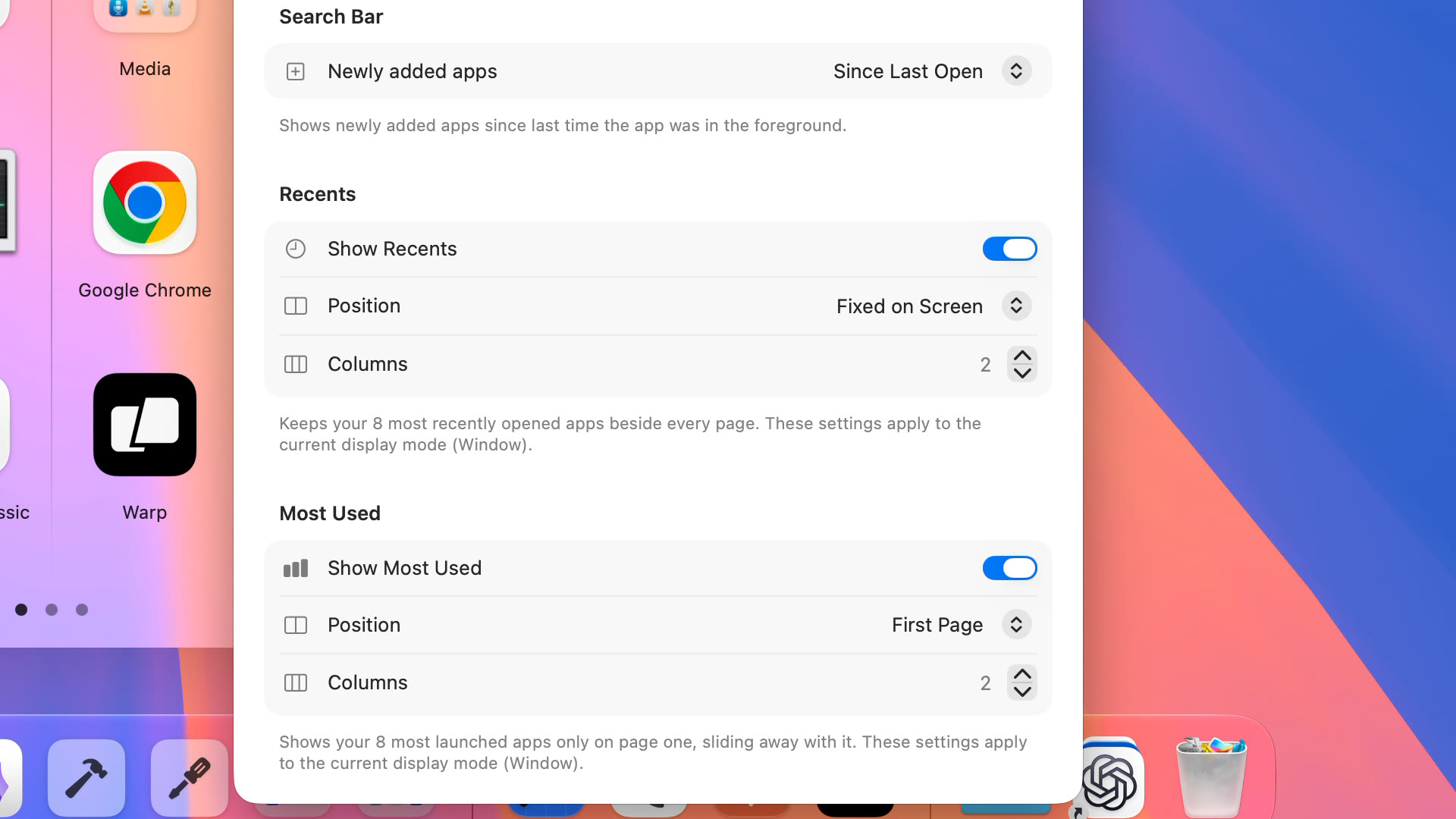
  • RecentsShow recently opened apps in one to three columns, fixed beside every page or only on page one.
  • Most UsedSurface your most launched apps without manually pinning or duplicating icons.
  • Built for large librariesSpecial sections reduce the need to search for the same apps repeatedly, while the main grid remains fully organized by pages and folders.
  • Layout-awareWhen Recents or Most Used changes size, LaunchingPad repaginates without breaking your custom page order.
  • Context-awareRecent and frequent app tiles still support actions like reveal, move to folder, launch, and search-mode workspace reveal.
  • New AppsHighlight newly added apps in the search bar, either from the latest foreground session or apps installed today.
LaunchingPad’s Full Screen grid with two Recents columns and a Most Used column pinned to the left of the first page. LaunchingPad Appearance settings beside the Full Screen grid, with Show Recents on, Position set to First Page and two columns. LaunchingPad window with Recents and Most Used columns, two columns each, beside the main app grid. Recents and Most Used settings for Window mode: Recents fixed on screen, Most Used on the first page, two columns each. A “New 1” badge and the newly installed app’s icon beside LaunchingPad’s search field in Full Screen mode.
Recents and Most Used beside the gridFull Screen

Put every app in its place.

LaunchingPad gives your Mac app library a stable, spatial layout again. Arrange apps across pages, create named folders, use smart folder name suggestions, and undo layout edits without rebuilding your launcher from scratch. Organizing a big library →

  • FoldersCreate folders by dragging apps together, rename them inline, and keep related tools grouped.
  • SuggestionsFolder name suggestions help turn groups of apps into readable categories without manual typing.
Spatial memoryPages and folders stay where you put them, so frequently used apps become easy to find without searching.
Clean categoriesUse folders for projects, clients, toolchains, creative apps, admin utilities, or any grouping that matches how you work.
Safe editingUndo support makes it practical to reorganize a large library without worrying about one bad drag.
PagesDrag apps across launcher pages and keep work, media, dev, system, and utility apps separated.
UndoUse Command-Z, Shift-Command-Z, or Command-Y to reverse layout edits.

Folders can contain folders.

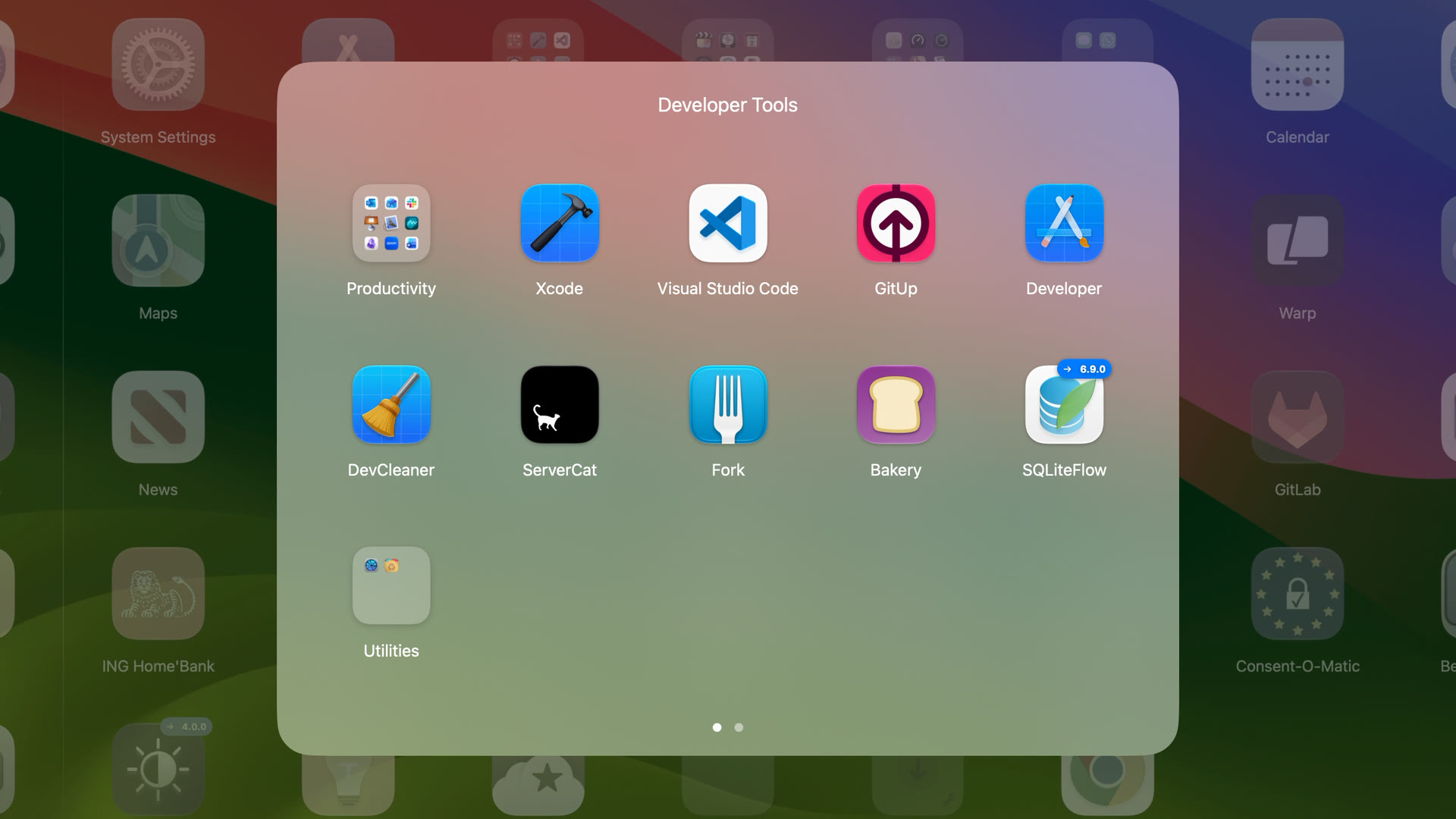
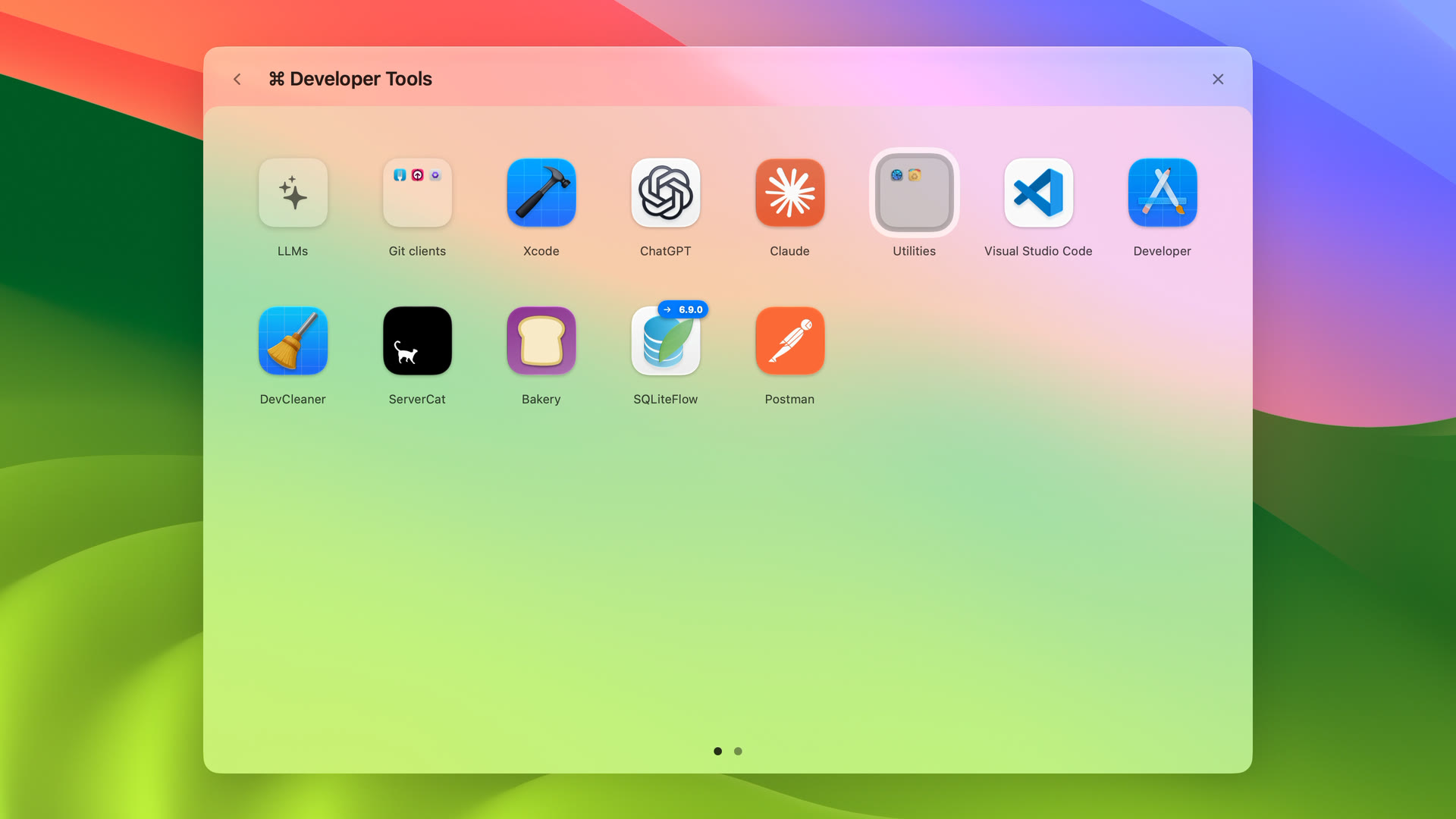
Large app libraries need more than one flat folder level. LaunchingPad supports folder-in-folder organization, so a broad group like Design, Development, Games, or Utilities can hold smaller subfolders without crowding the main grid.

  • Parent foldersMove folders into other folders to build deeper app categories without losing the visual grid.
  • Spring-loaded dragDrag over a folder target and LaunchingPad can open the destination while the drag is still active.
  • Folder pagesOpen folders can have their own pages, rows, columns, icon scale, and spacing.
  • Break apartMove nested folders back out or break groups apart when your app library changes.
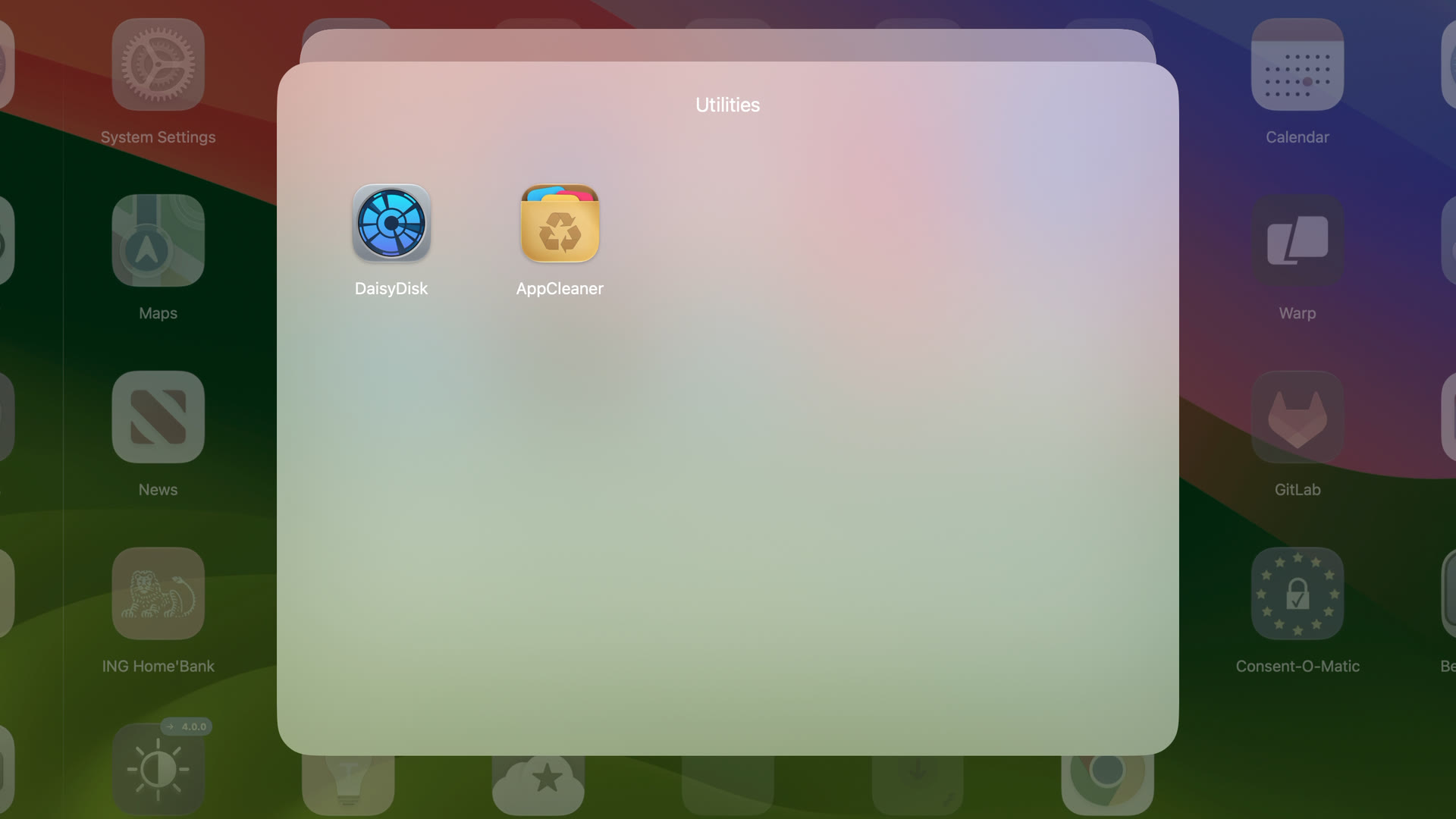
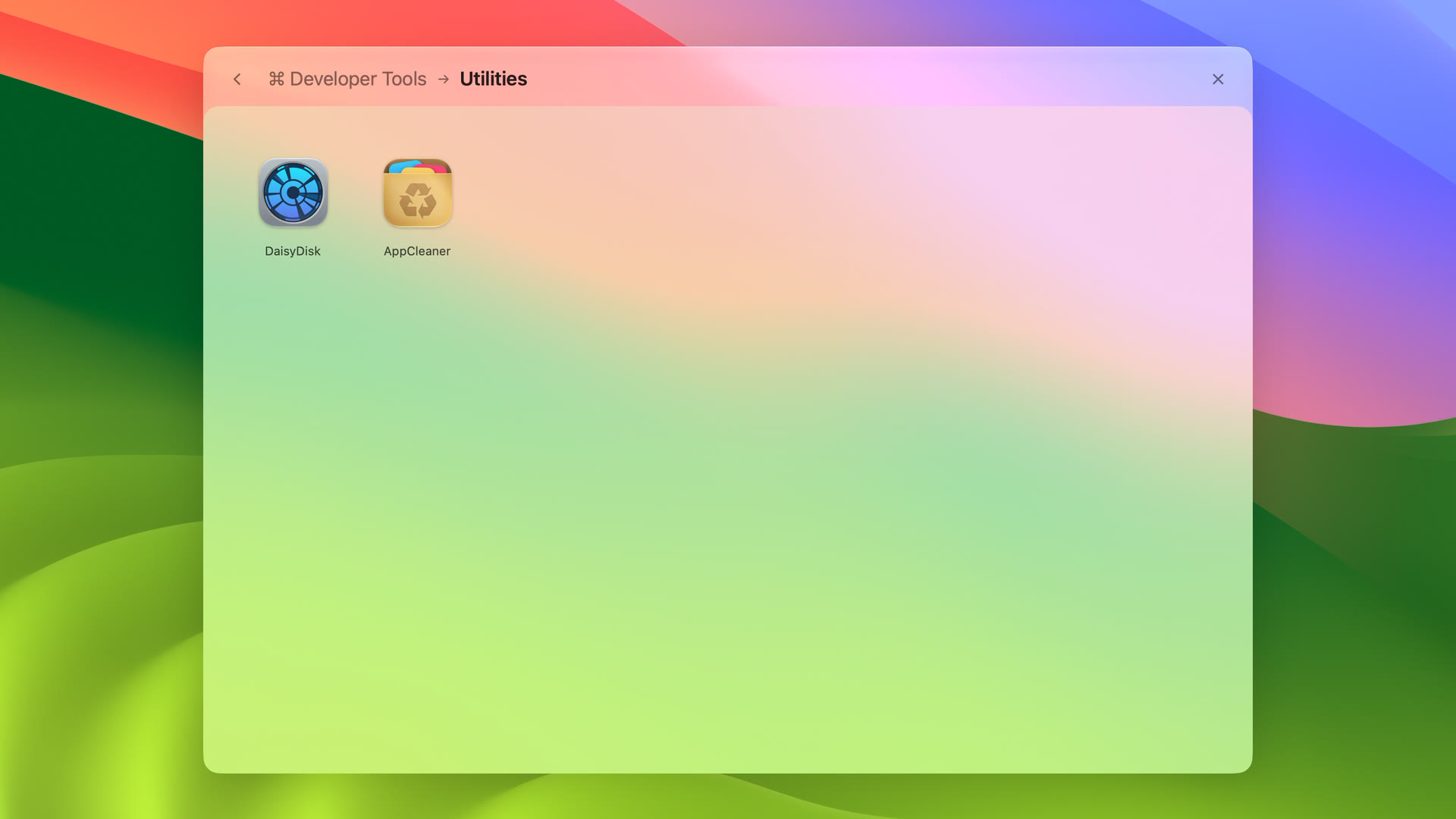
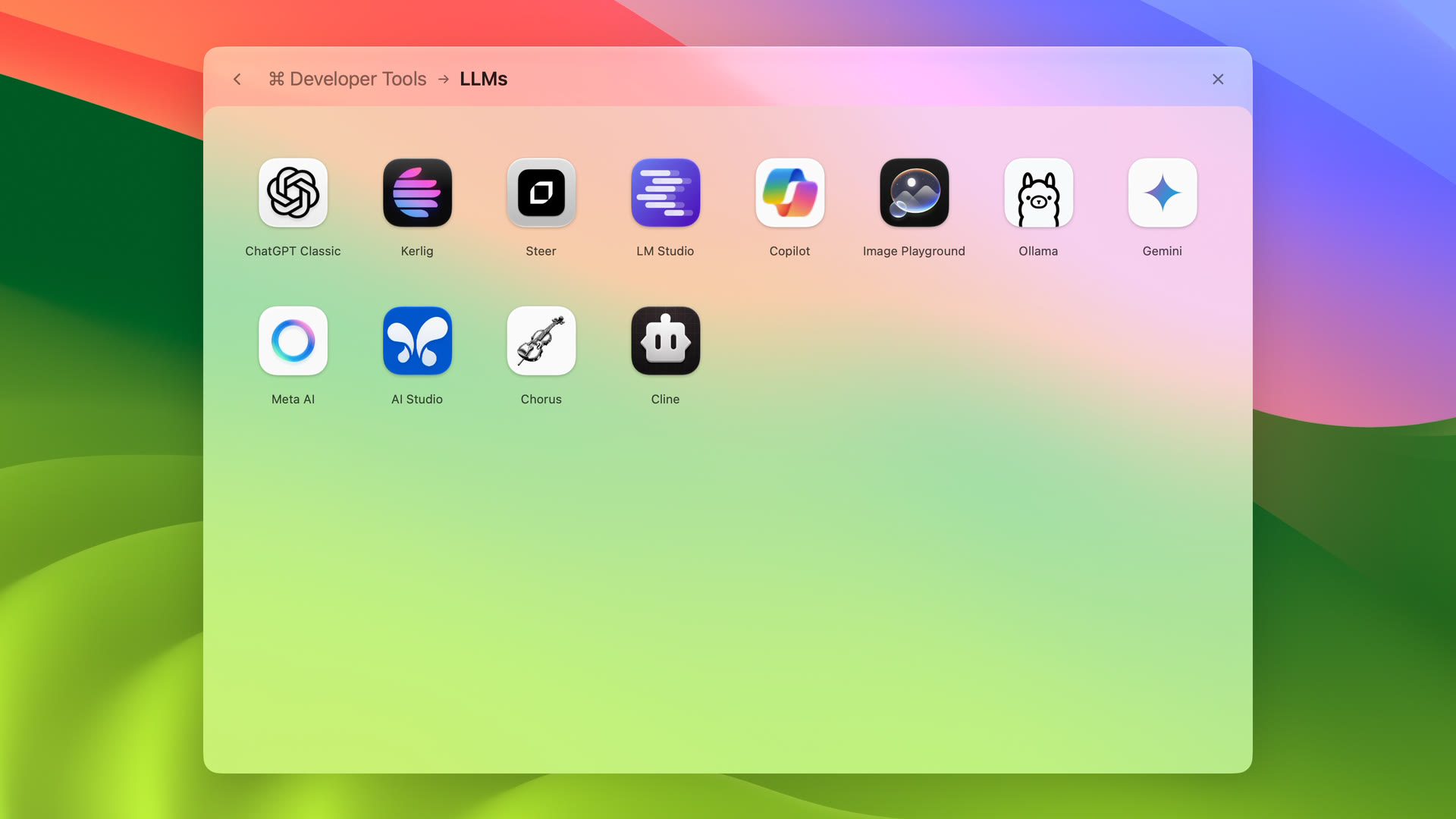
The Developer Tools folder open in Full Screen, holding Xcode, Visual Studio Code and other apps plus the Productivity and Utilities subfolders. The Utilities subfolder open on top of its parent folder in Full Screen, showing DaisyDisk and AppCleaner. LaunchingPad’s window showing the Developer Tools folder with LLMs, Git clients and Utilities subfolders among its apps. A breadcrumb trail reading Developer Tools → Utilities at the top of an open subfolder in Window mode. The LLMs subfolder of Developer Tools open in LaunchingPad’s window, listing ChatGPT Classic, LM Studio, Ollama, Gemini and other AI apps.
A folder that holds subfoldersFull Screen
New in 3.0

Smart Folders fill themselves.

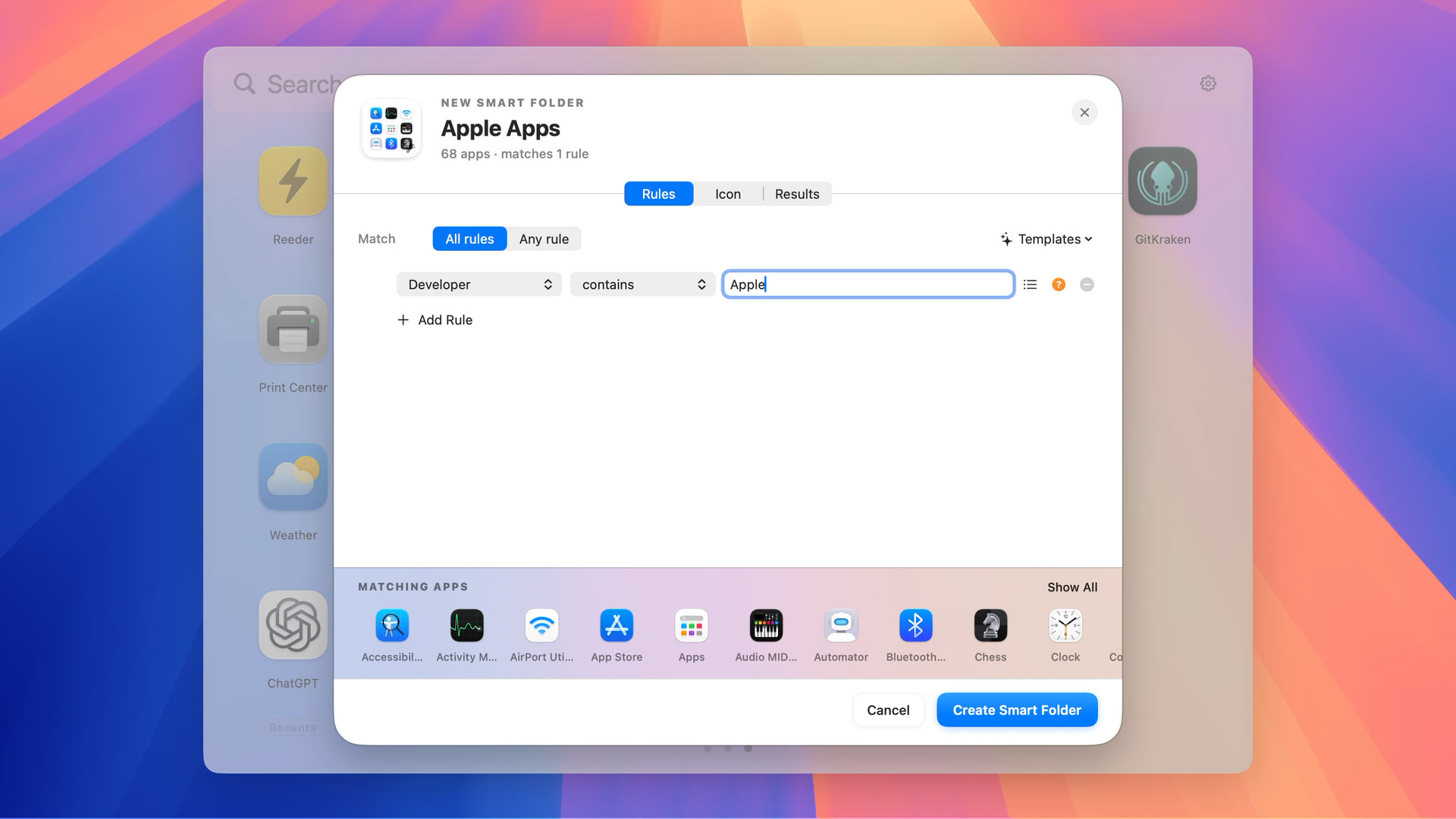
A Smart Folder is a saved set of rules instead of a fixed list. Describe what belongs and it keeps itself up to date as apps are installed, updated, used, or removed — without moving apps out of their regular folders. Press Command-N to make one.

  • RulesFilter by name, developer, category, install source, distribution channel, architecture, update status, launch count, dates, and more.
  • LogicMatch all rules or any rule, then preview the matching apps live while you edit.
  • TemplatesStart from Recently Used, Updates Available, Installed This Week, Mac App Store Apps, Microsoft Apps, or Games.
  • IconsGive each Smart Folder its own symbol so it stands apart from regular folders.
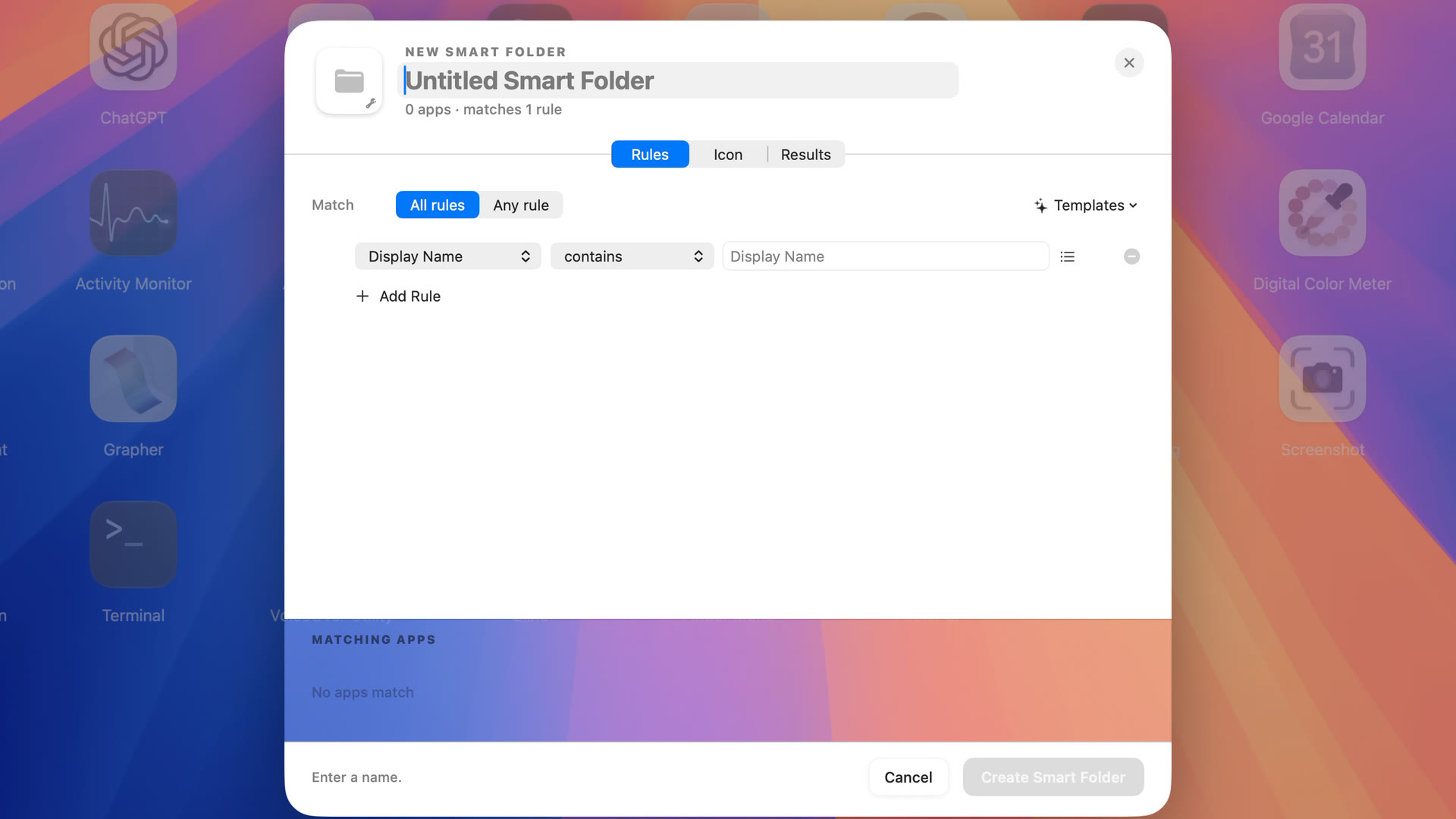
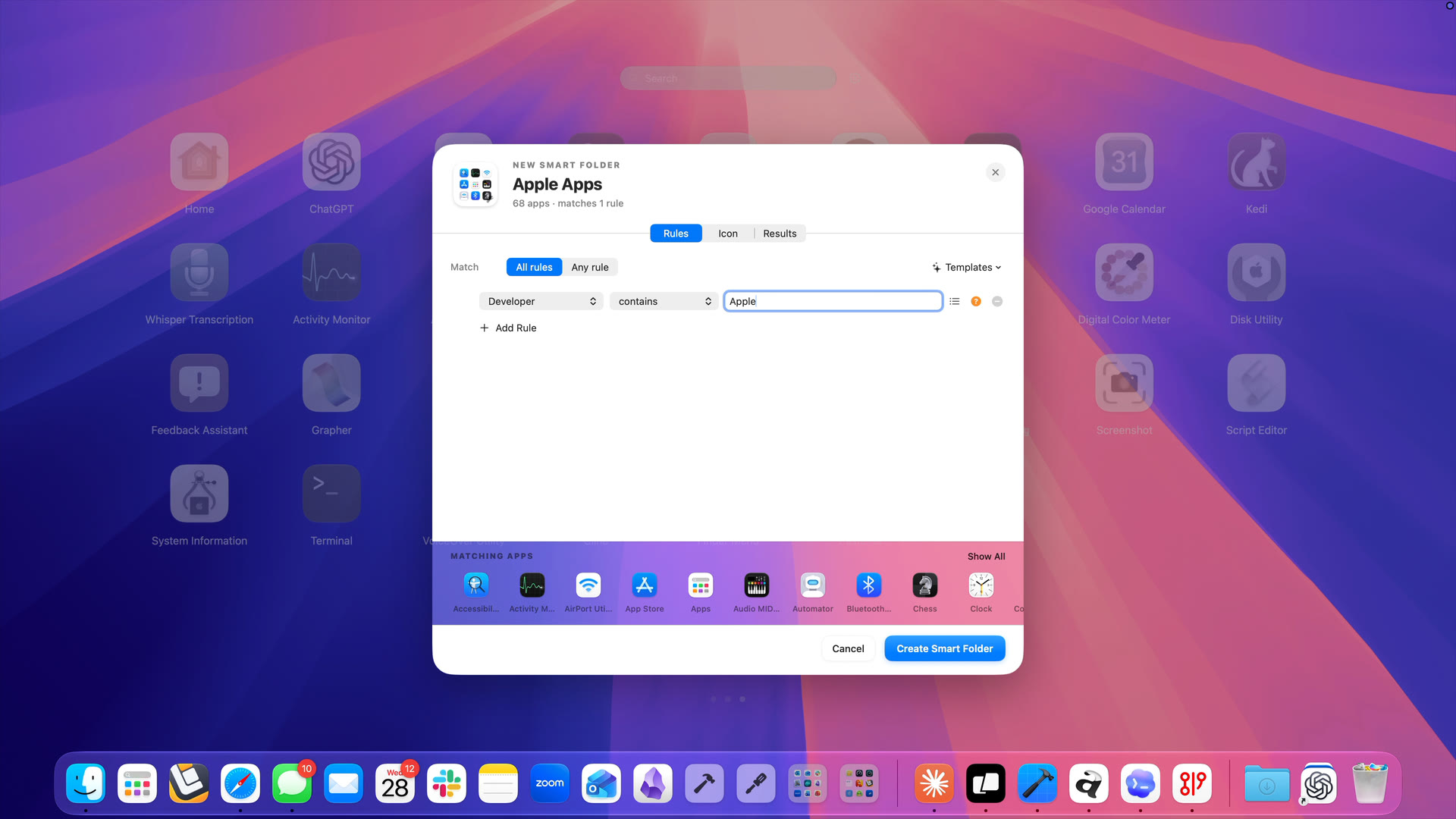
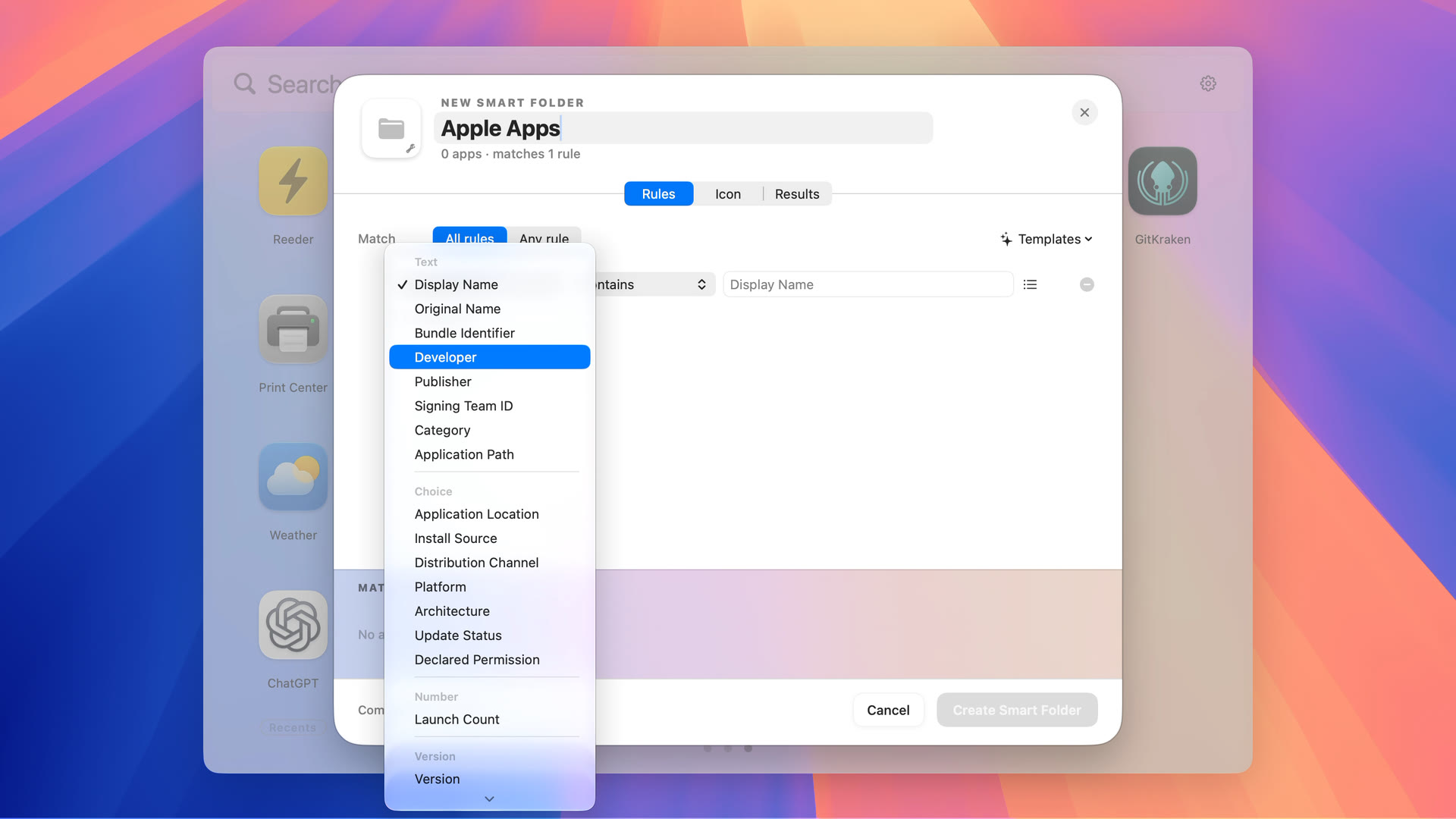
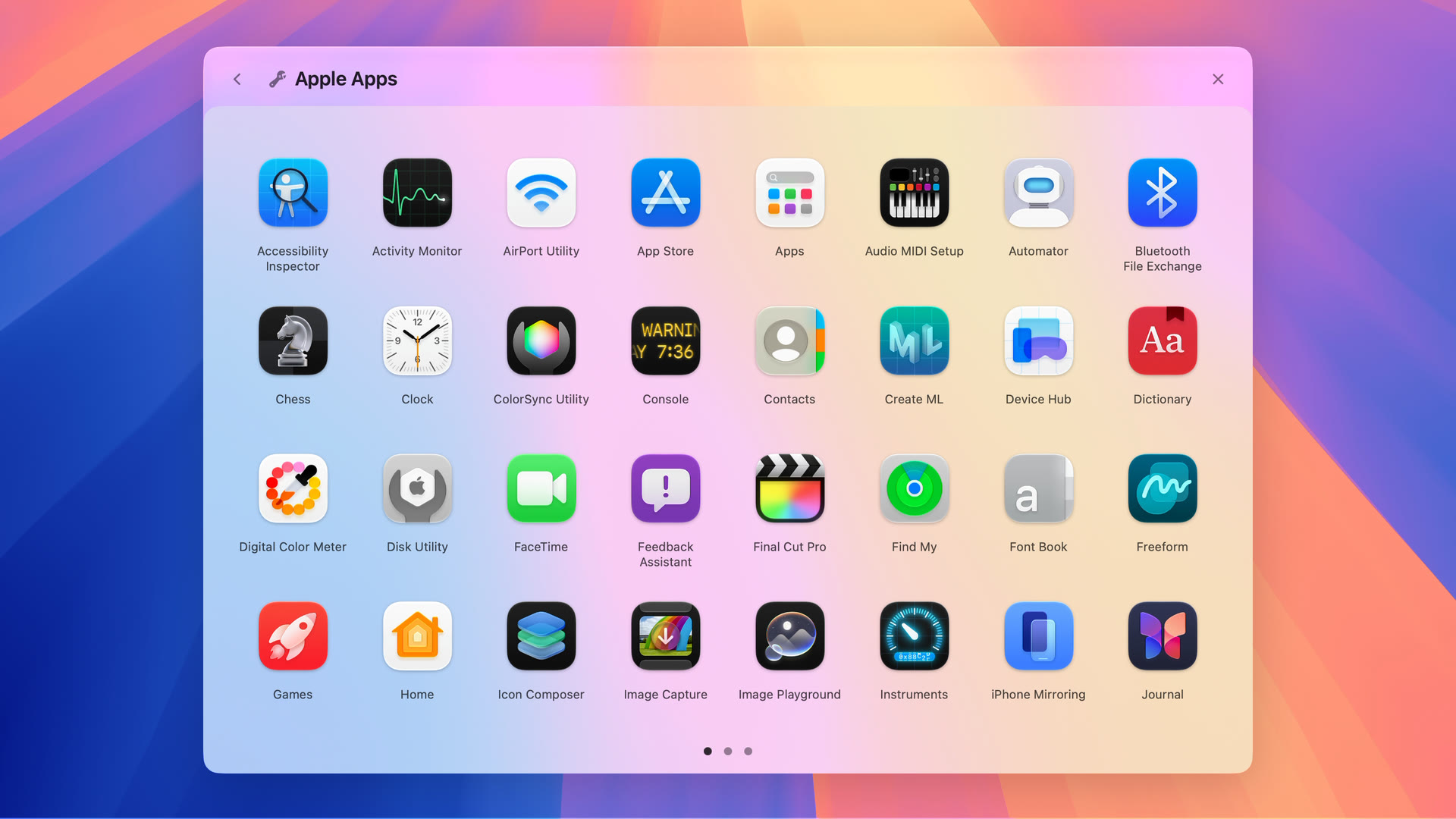
LaunchingPad’s New Smart Folder editor with Rules, Icon and Results tabs, an All rules or Any rule switch and a Display Name rule. The Smart Folder editor in Full Screen with the rule Developer contains Apple, matching 68 apps that preview along the bottom. The rule field menu in the Smart Folder editor, listing Display Name, Developer, Category, Install Source, Architecture, Update Status, Launch Count and more. A Smart Folder named Apple Apps with the rule Developer contains Apple and a live preview of matching apps such as Activity Monitor and App Store. The finished Apple Apps Smart Folder open in Window mode, filled with Apple apps from Accessibility Inspector to Journal.
Command-N opens the rule editorFull Screen
New in 3.2

One app, many places.

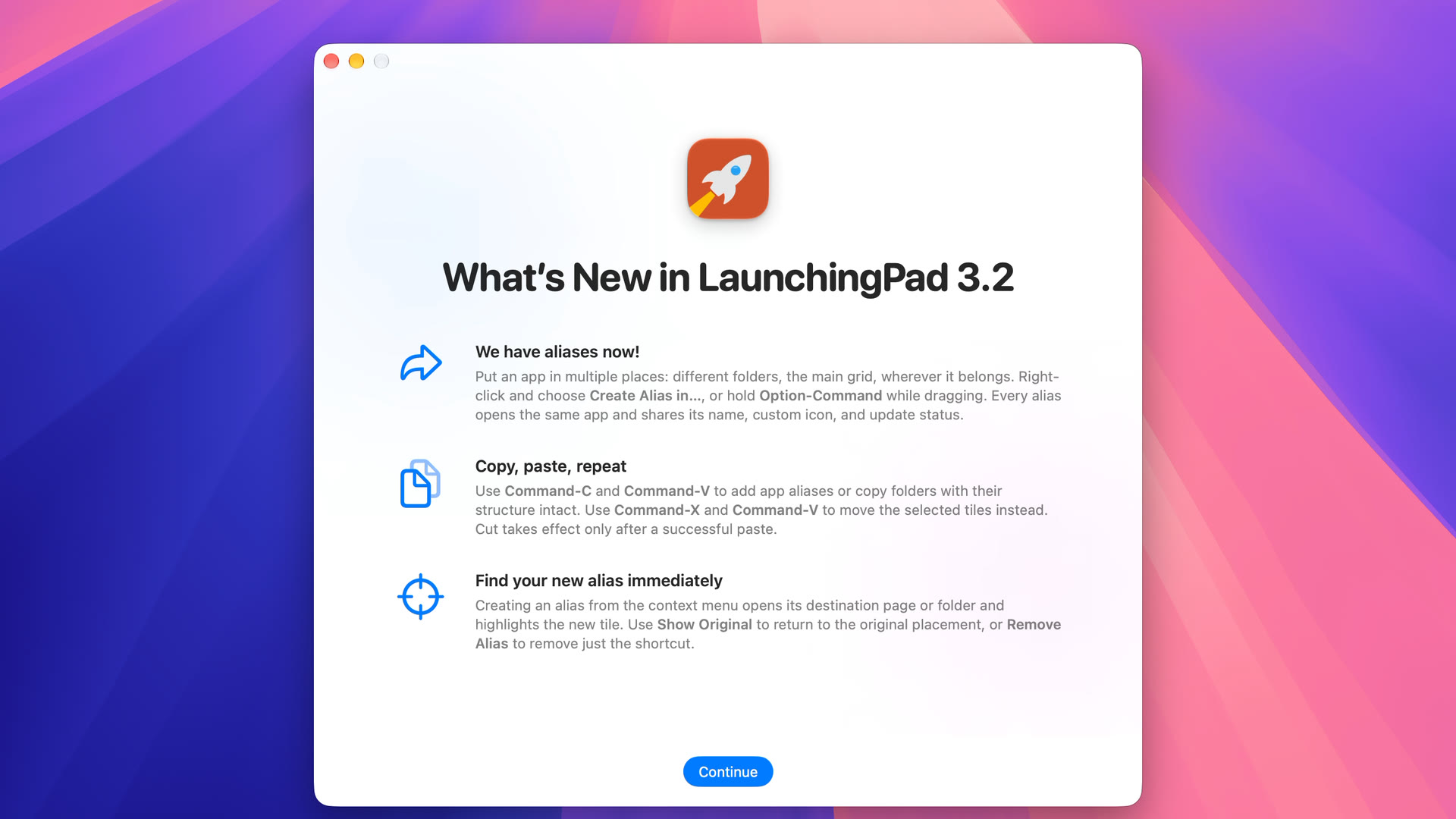
Aliases let an app live in more than one folder or page without duplicating anything. Every alias opens the same app and shares its name, custom icon, and update badge. Read the aliases guide →

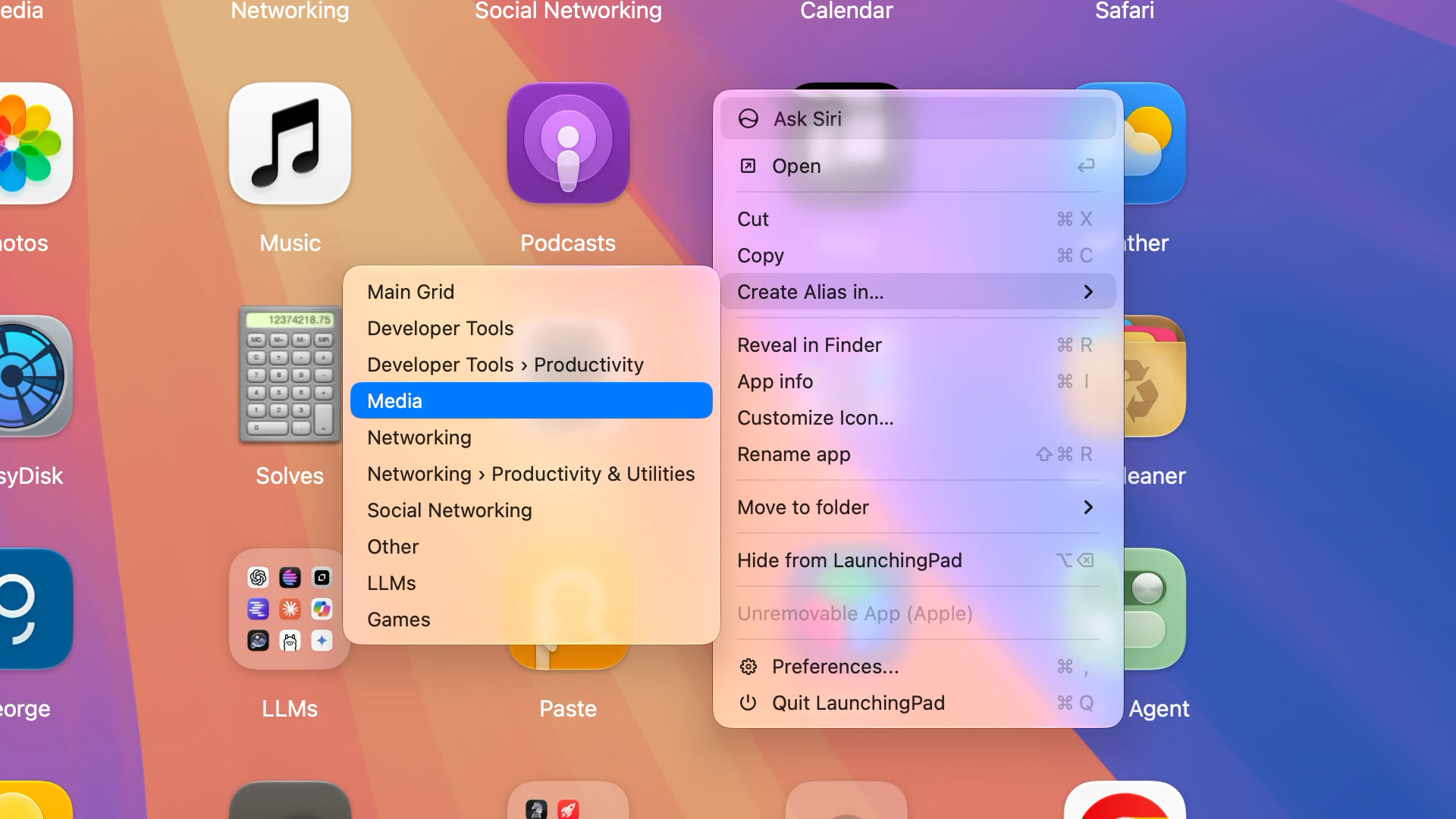
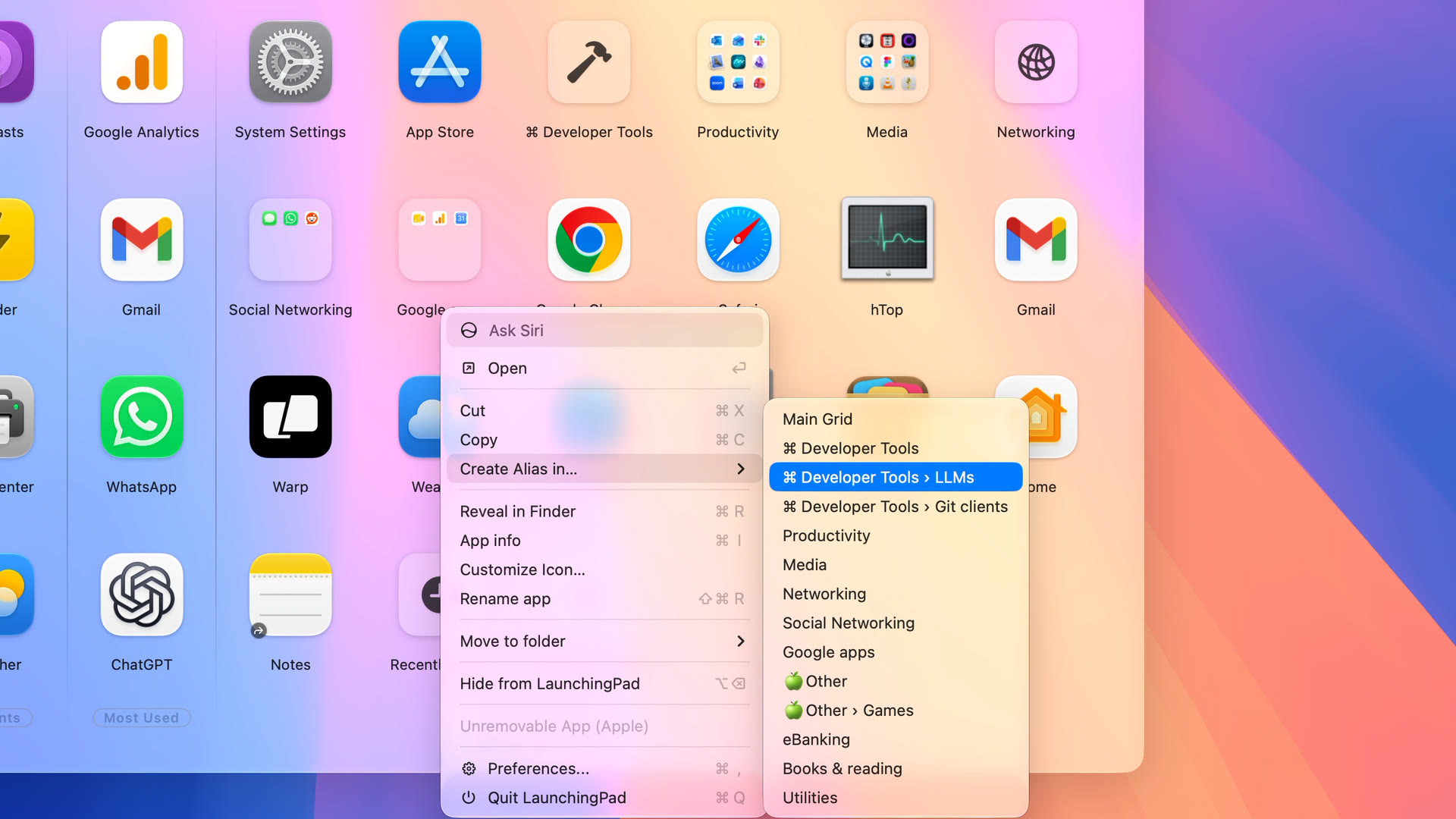
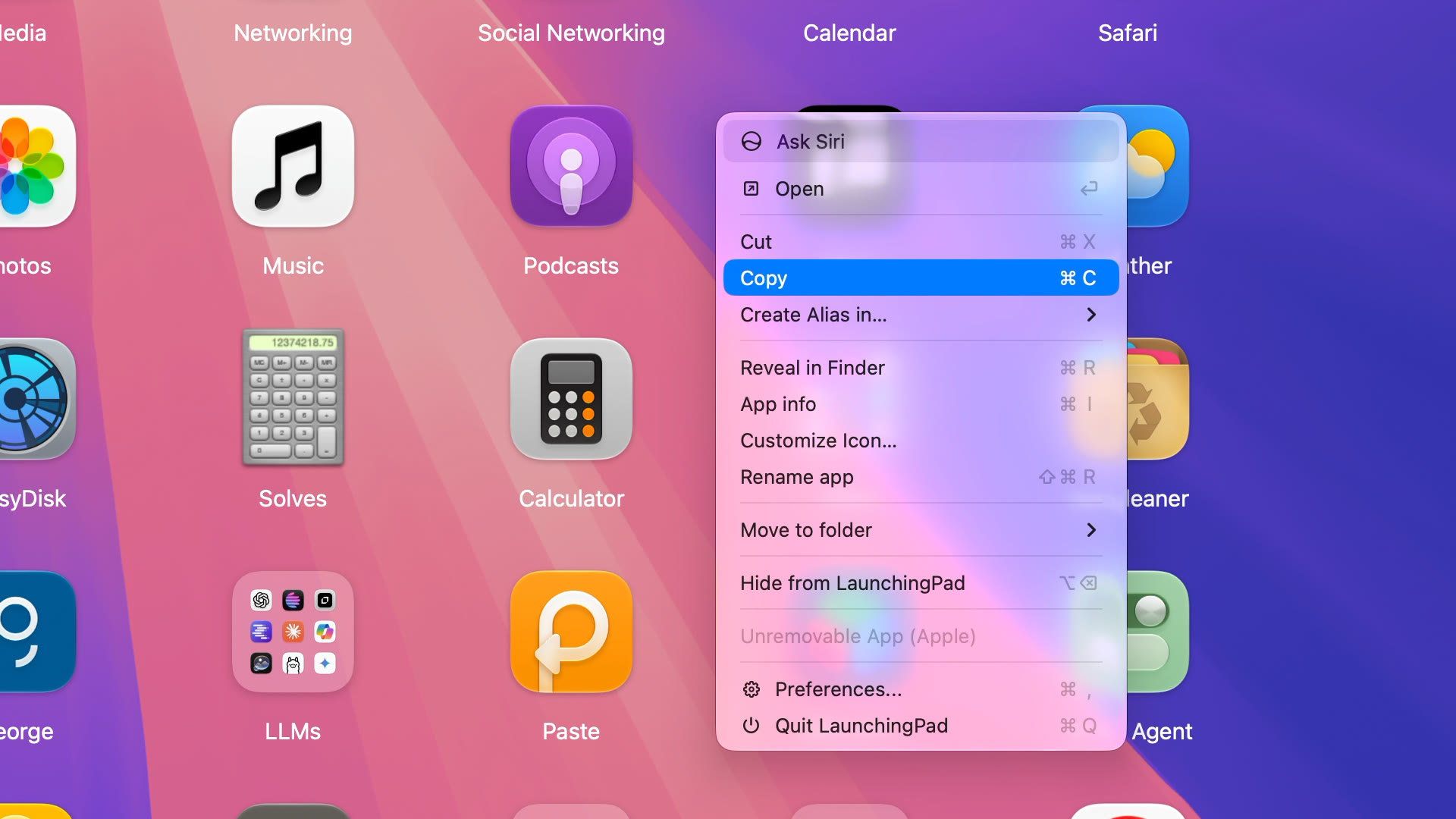
  • CreateRight-click and choose Create Alias in…, hold Option-Command while dragging, or copy and paste a tile.
  • Copy & pasteCommand-C, Command-X, and Command-V work on tiles, whole folders, and multi-selections.
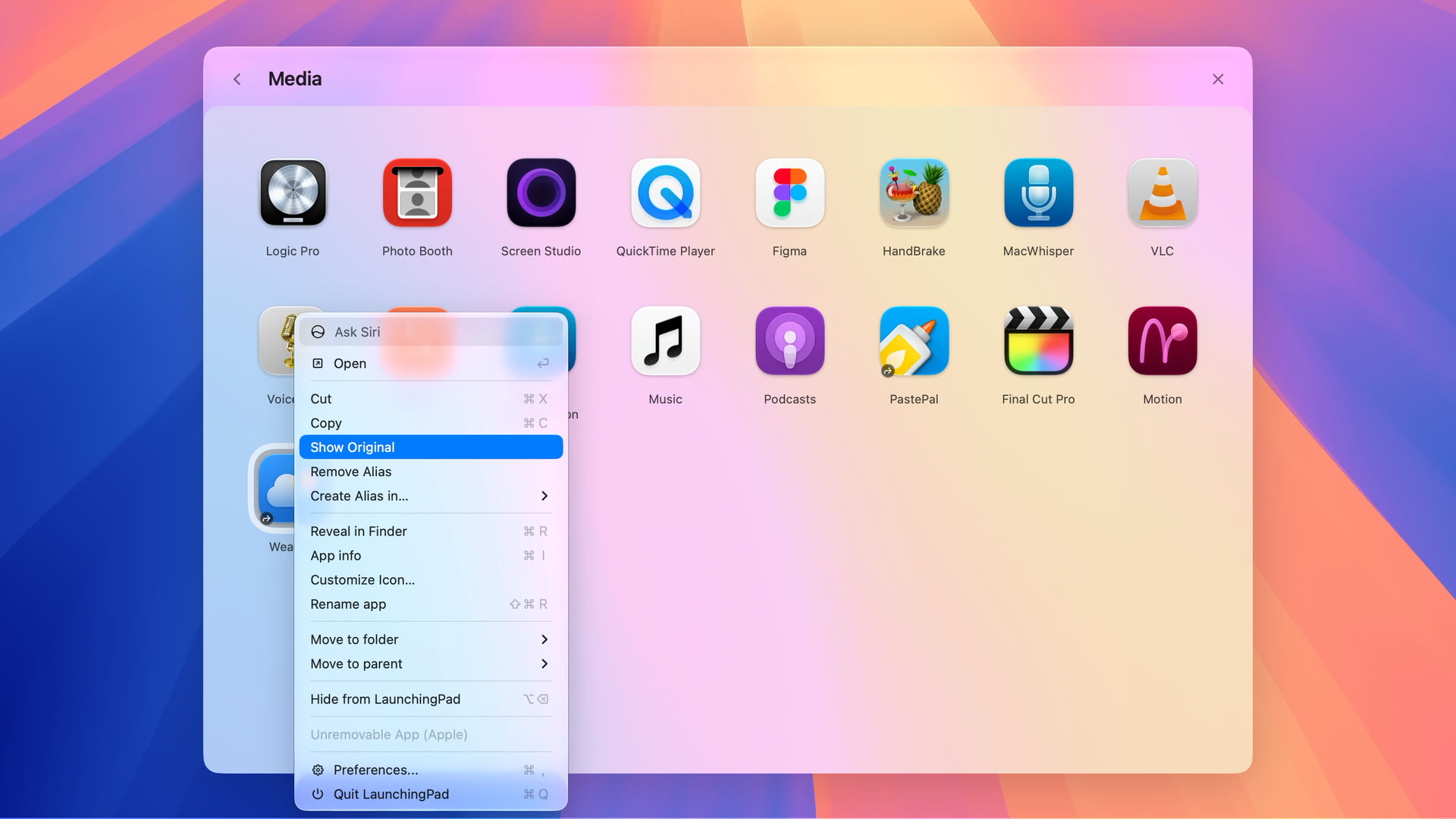
  • TidyShow Original jumps to the source tile; Remove Alias deletes just that placement.
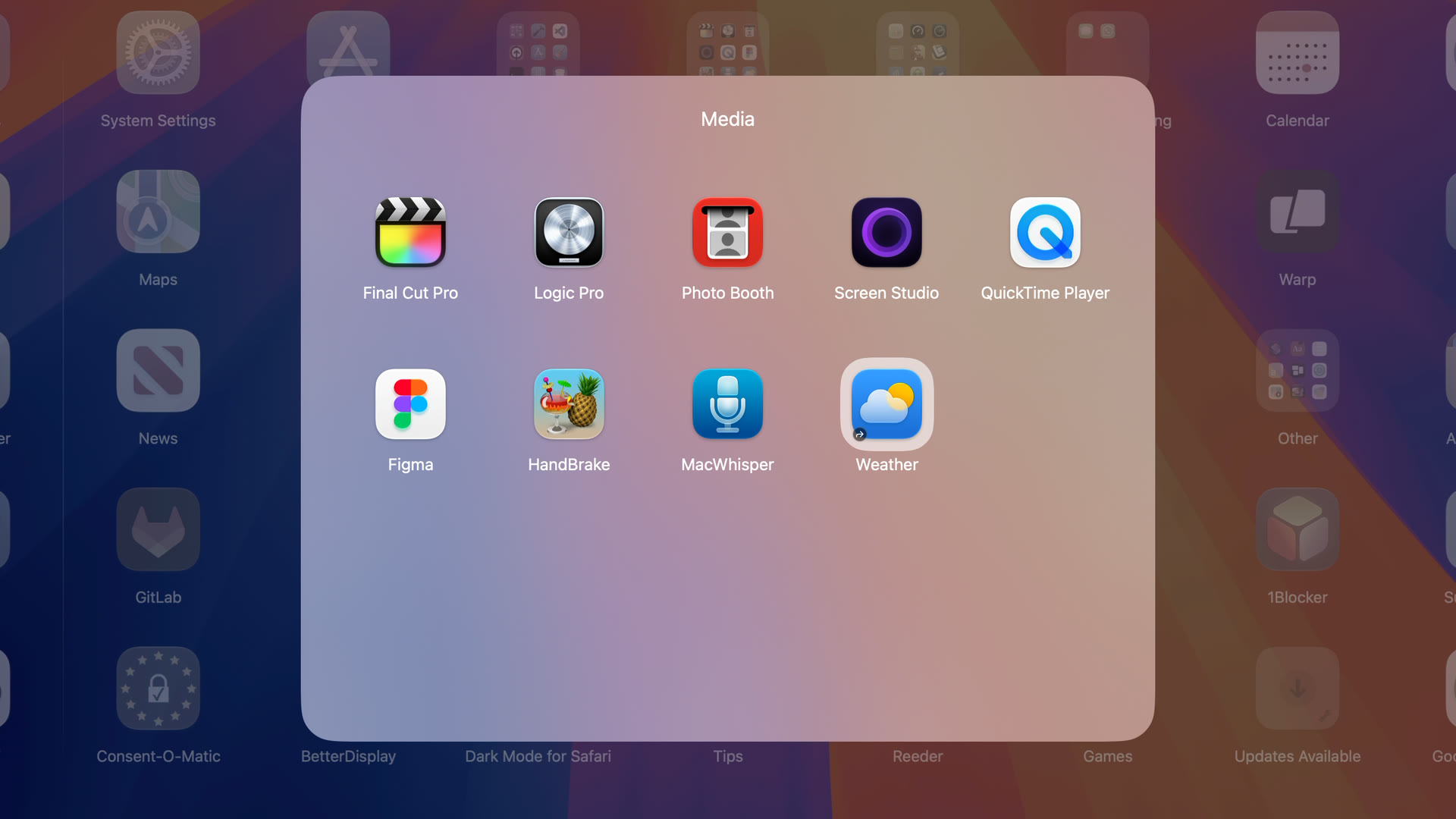
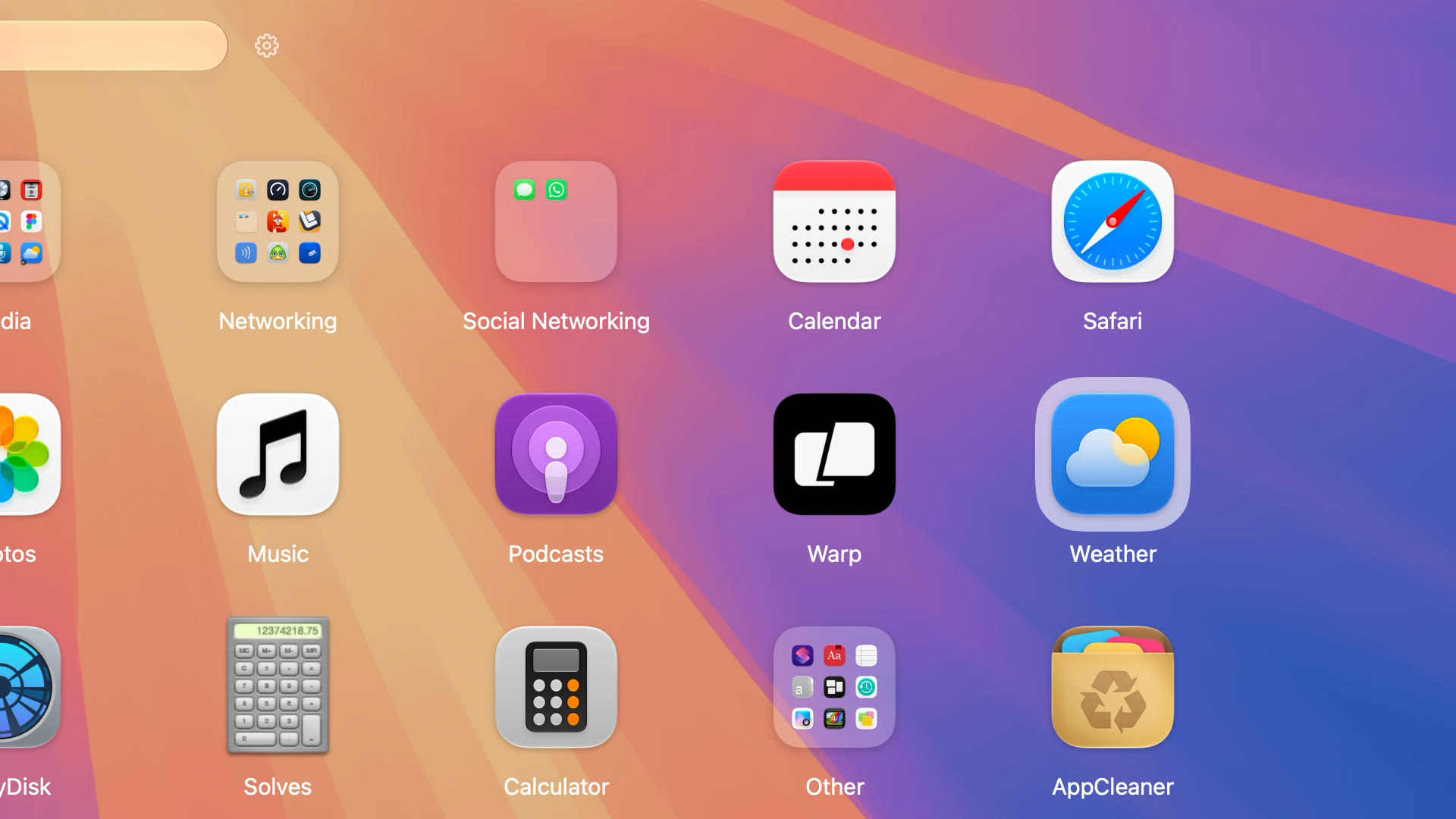
LaunchingPad’s context menu for Weather with the Create Alias in… submenu listing destination folders, Media highlighted. The Media folder in Full Screen with a Weather alias added beside Final Cut Pro, Logic Pro and Figma. LaunchingPad’s main grid after Show Original, with the original Weather tile selected. The Create Alias in… submenu in Window mode listing folders such as Developer Tools › LLMs and Other › Games. Context menu on the Weather alias inside the Media folder in Window mode, offering Show Original and Remove Alias.
Create Alias in… any folderFull Screen

Move many apps at once.

Reorganizing a launcher one icon at a time gets old fast. LaunchingPad supports marquee selection, selection context menus, multi-drag from the main grid, and multi-drag from open folders, so cleanup days do not turn into repetitive pointer work.

  • MarqueeDrag across the launcher surface to select a range of apps quickly.
  • ContextRight-click a selection to group apps, move them to a folder, reveal them in Finder, or hide them.
  • Multi-dragMove a selected group across pages, into folders, or out of folders in one action.
Group actionsSelections support the same useful actions you expect from individual apps: reveal, hide, group, move, and launch-related workflows.
Page-aware dragHold near an edge or use keyboard page shortcuts during a drag to move selected apps across pages.
Visual feedbackDragged groups use compact pile previews, count badges, insertion gaps, and animated settle states so the destination is clear.
From foldersStart a multi-drag inside an open folder and continue into the parent layout.
New

Folders in your Dock.

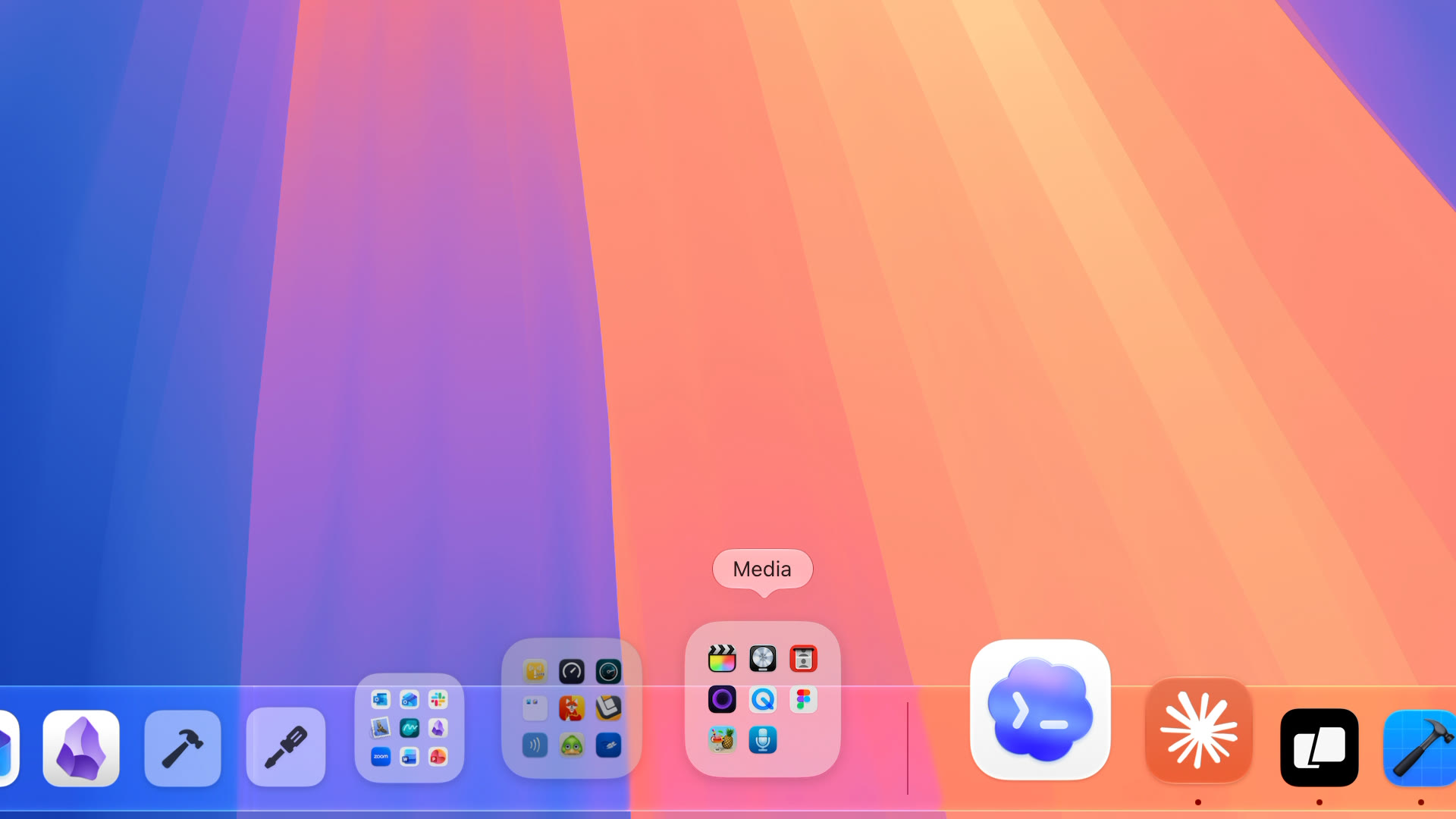
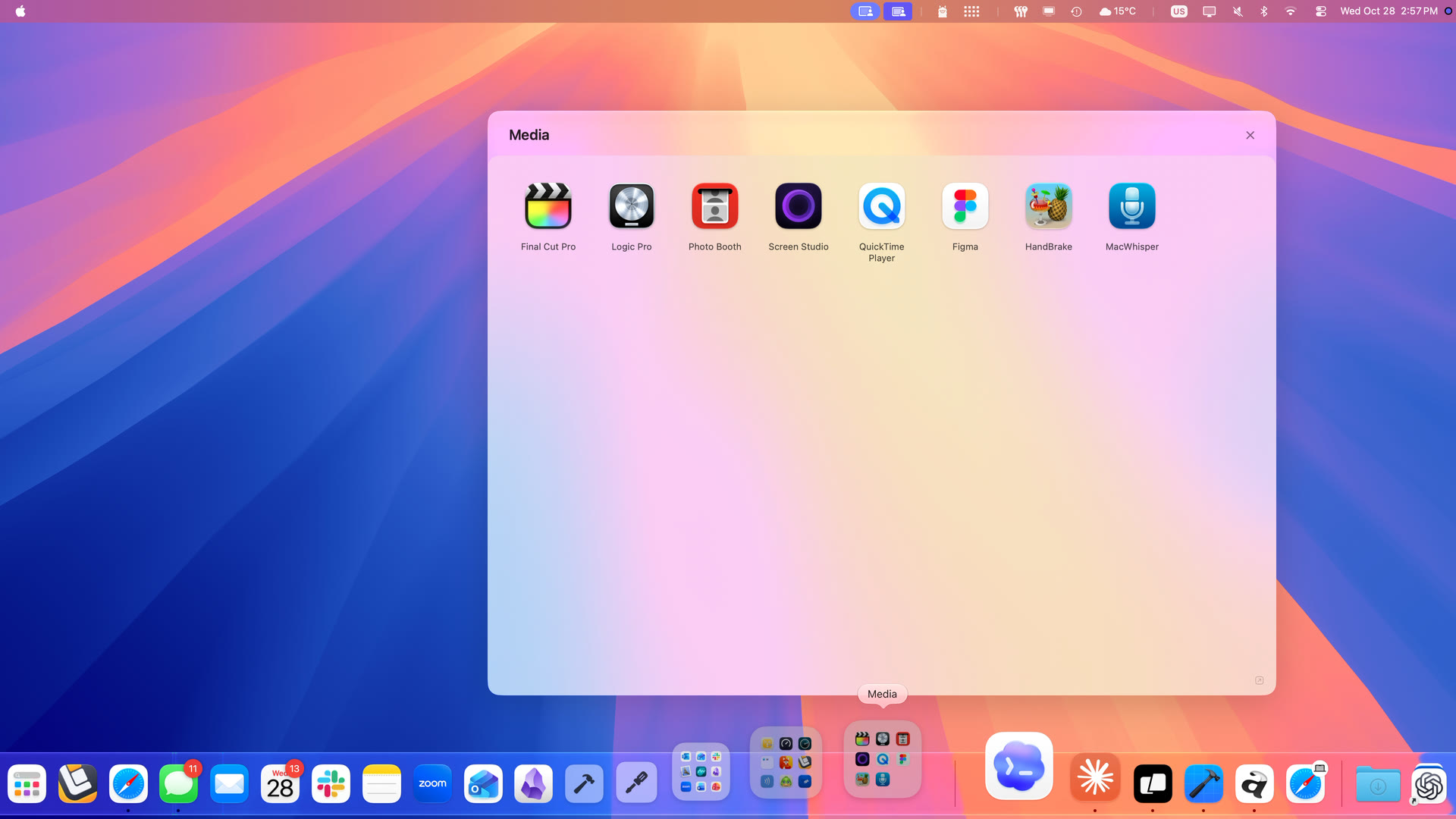
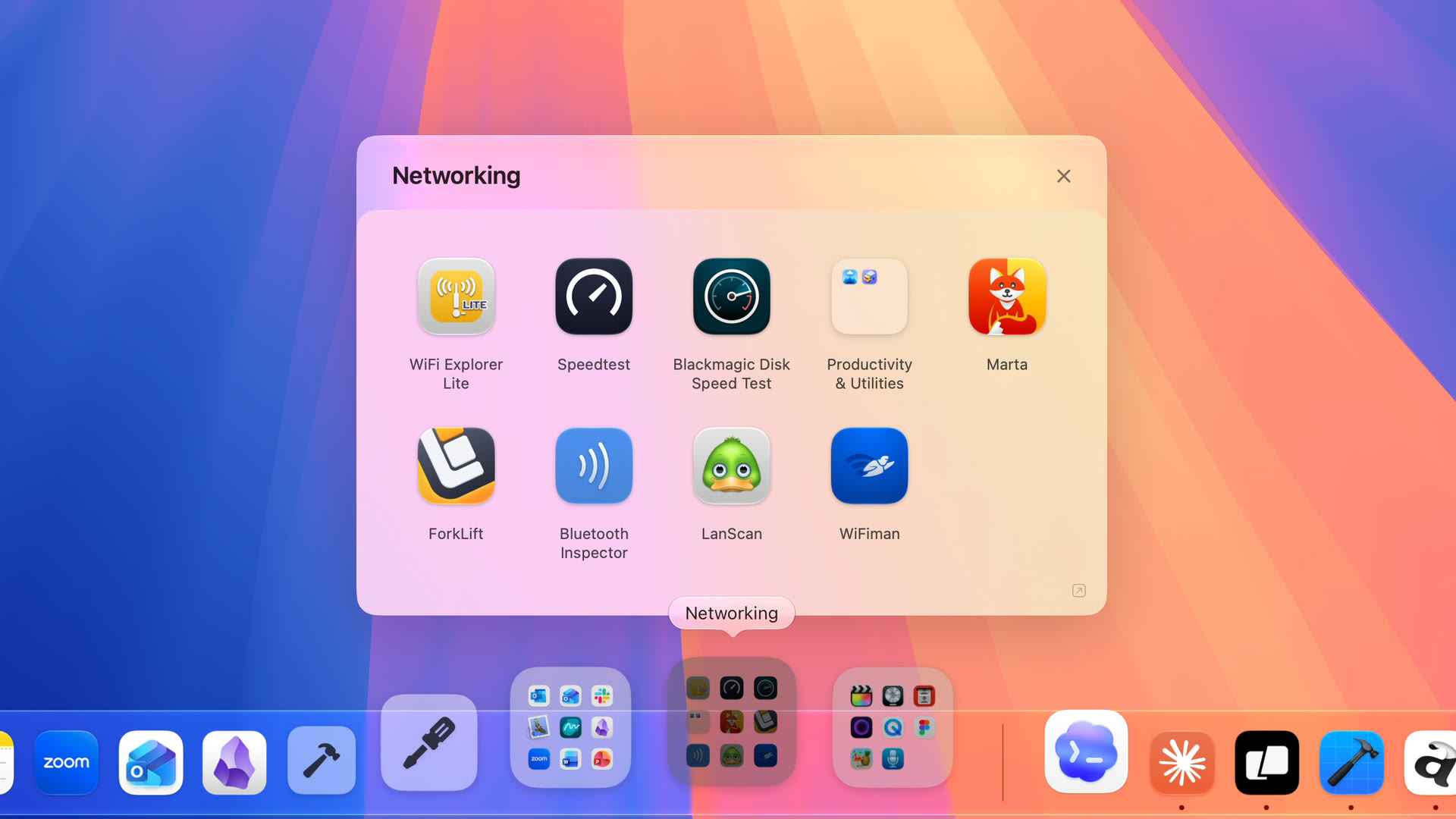
Drag any LaunchingPad folder into the Dock, or choose Add to Dock. Its tile mirrors the folder’s apps, and a click opens it as a popup you can resize, browse, and launch from — right above the Dock.

  • Live tilesDock tiles show the folder’s apps and switch artwork with light and dark mode.
  • PopupsEach popup keeps its own size and arrangement, opens subfolders in place, and folds back into its tile.
  • SwitchClick another Dock folder and one popup closes as the next one opens.
  • Drag outDrag apps or folders from a popup — or from the launcher — straight into the Dock.
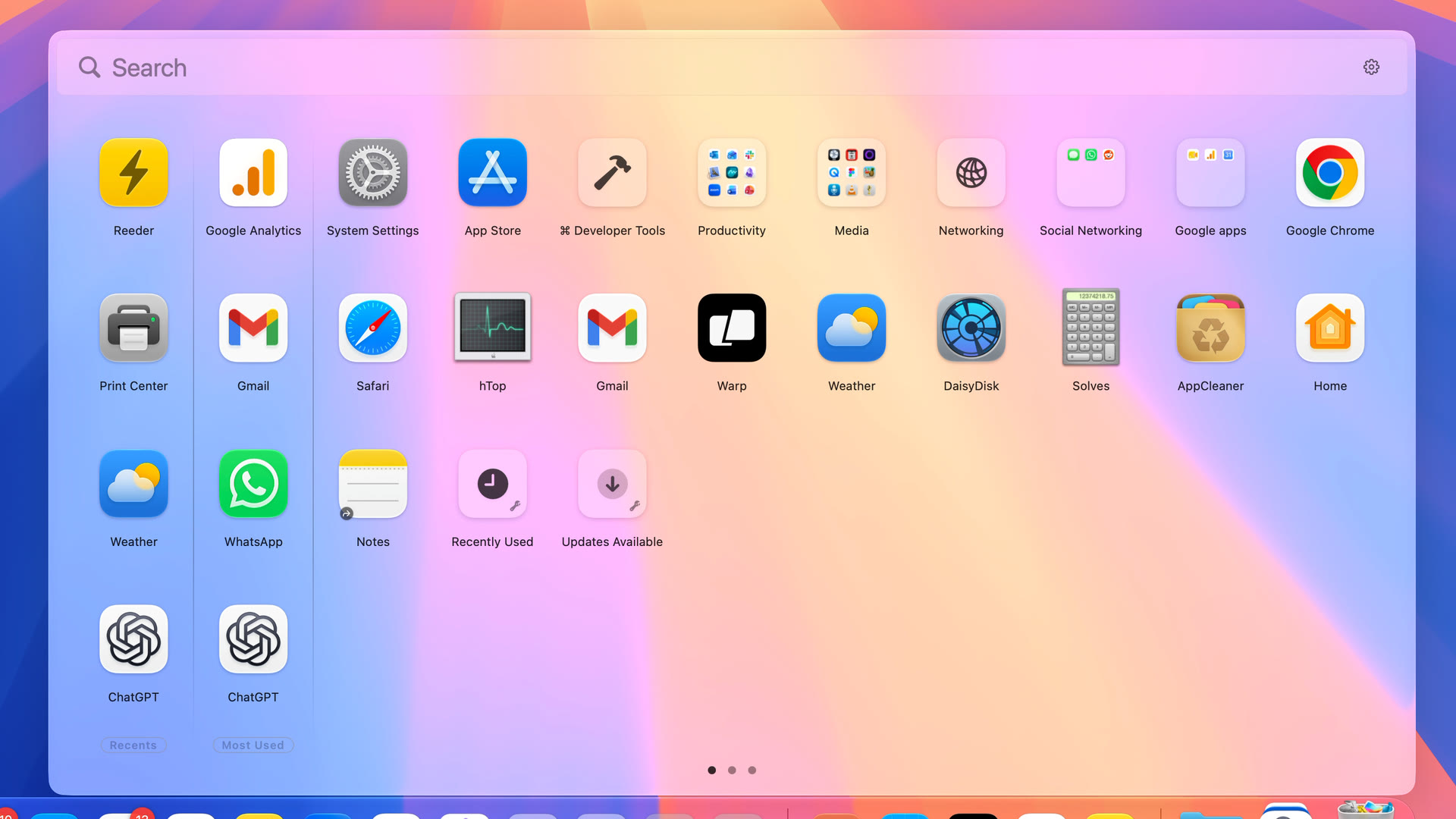
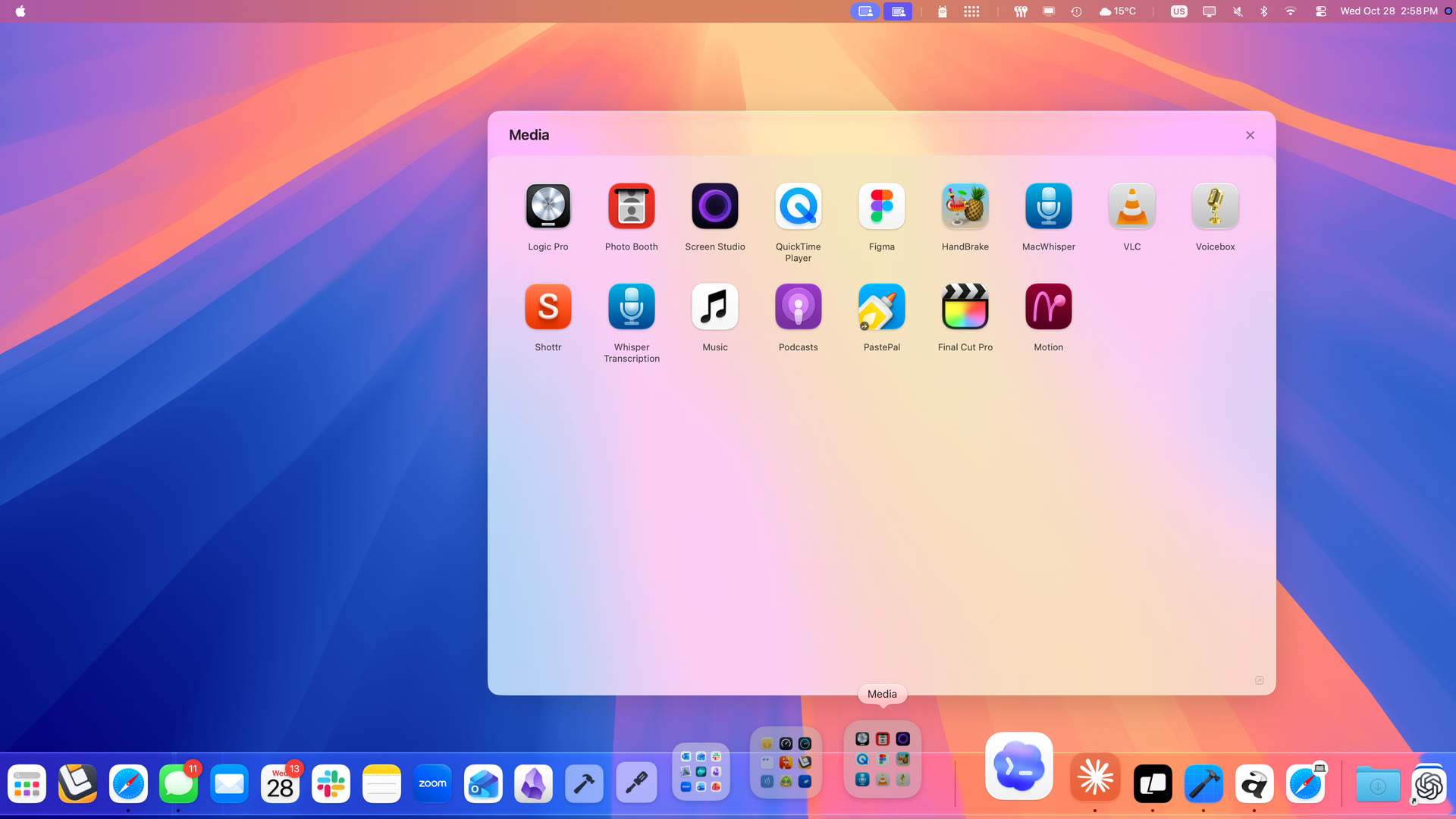
The Media folder pinned in the macOS Dock as a tile that mirrors the folder’s app icons. The Media Dock folder popup open above the Dock, showing Final Cut Pro, Logic Pro, Photo Booth, Screen Studio, QuickTime Player and more. The Networking Dock folder popup above its tile, with WiFi Explorer Lite, Speedtest, ForkLift, LanScan and a Productivity & Utilities subfolder. A Media Dock folder popup with two rows of media apps, including Logic Pro, Screen Studio, Figma and VLC, open above its Dock tile.
A folder pinned in the DockFull Screen

Make it fit.

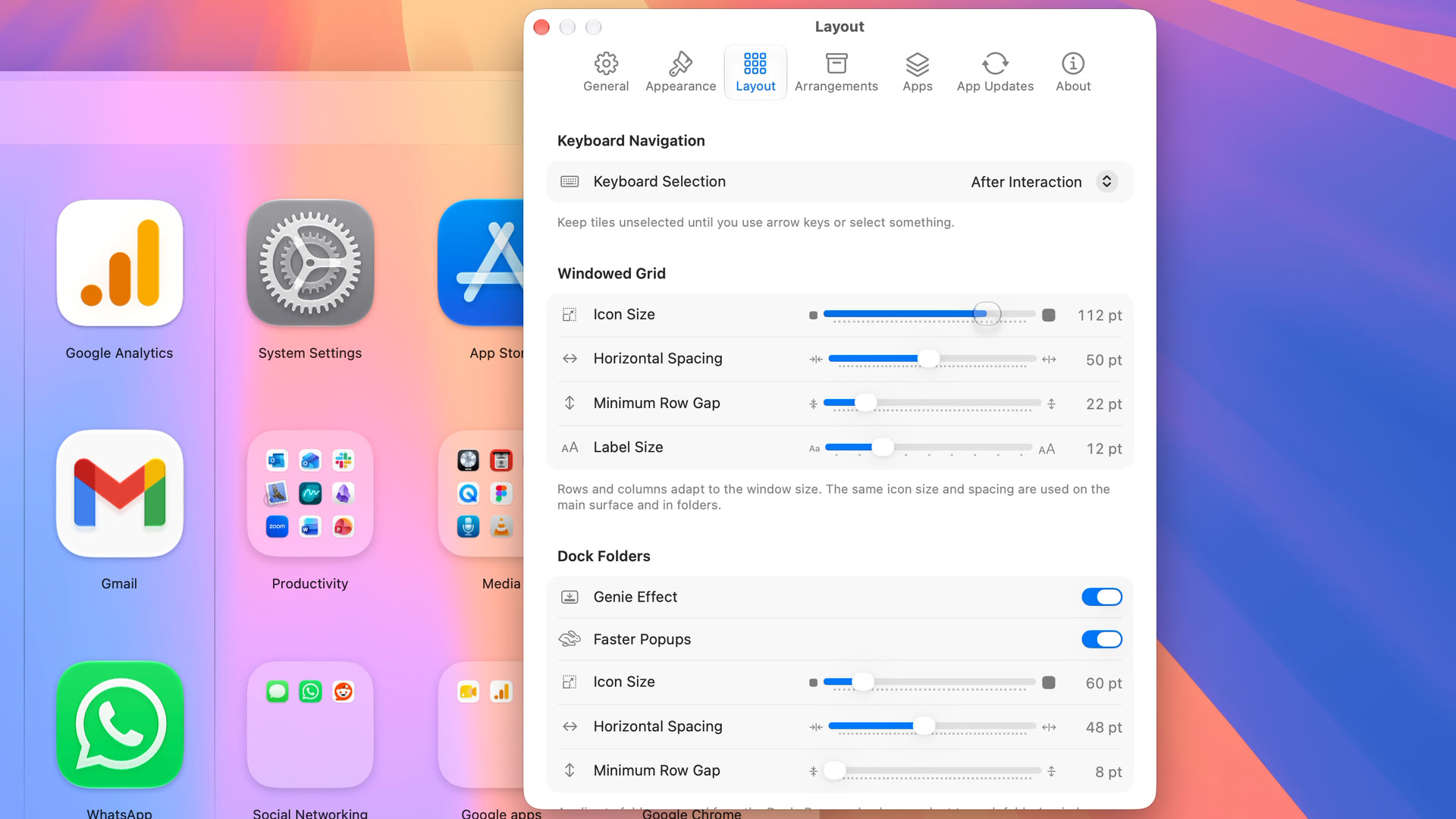
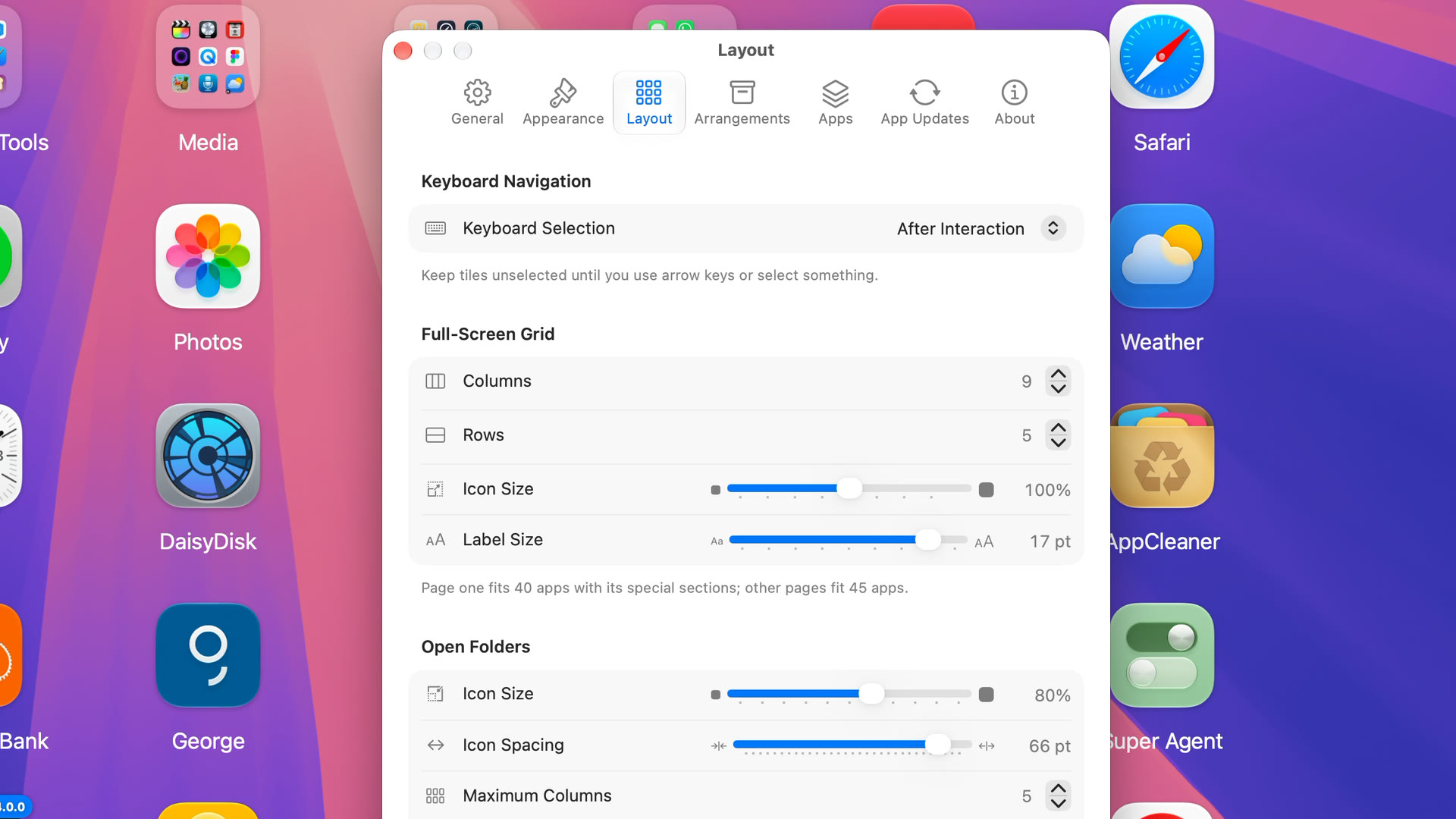
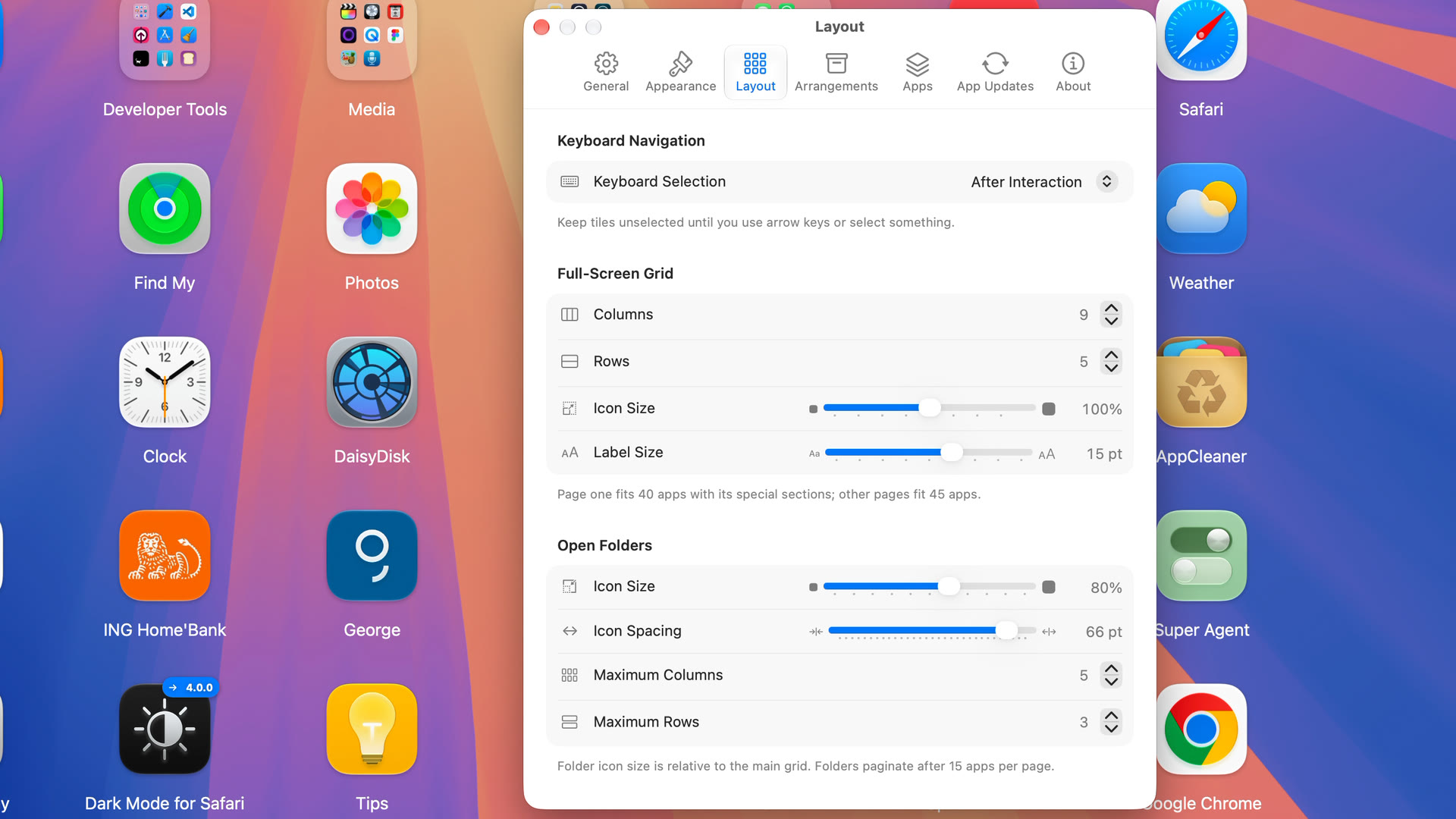
A good Launchpad replacement should match your screen, not force one fixed grid. LaunchingPad lets you tune app density, icon scale, folder sizing, wallpaper style, and blur so the launcher feels comfortable on small MacBook screens and large desktop displays. In Window mode, just resize the window and the grid reflows.

  • GridChoose 4 to 10 columns and 3 to 9 rows in Full Screen, or let the window size decide.
  • WallpaperMirror the current desktop wallpaper behind your icons, crisp or blurred.
  • ImagesUse a custom background image when you want the launcher to feel separate from the desktop.
  • FoldersTune open-folder icon size, spacing, maximum columns, and maximum rows.
  • LayoutsSave named arrangements and restore a known-good app layout later.
LaunchingPad’s Layout settings with Full-Screen Grid columns, rows, icon size and label size, plus Open Folders sizing controls. The Full Screen grid after the change: seven columns, four rows and larger icons. The LaunchingPad window resized wider, with the grid reflowed to eleven columns. A narrower LaunchingPad window with the grid reflowed to seven columns. Layout settings for Window mode: icon size, horizontal spacing, minimum row gap and label size, plus Dock Folders options such as Genie Effect.
Grid settings in Settings → LayoutFull Screen
Personalize

Make every icon yours.

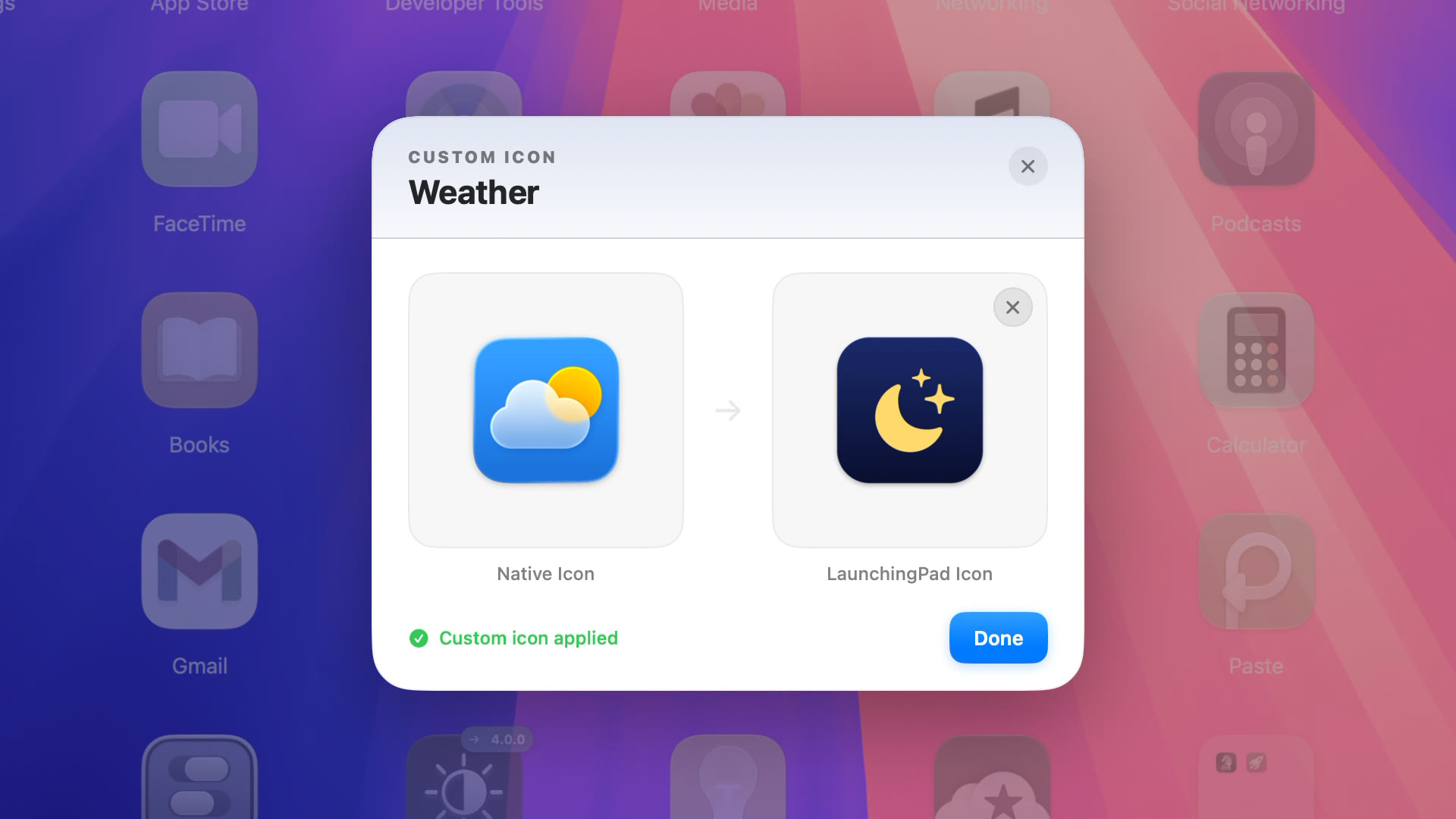
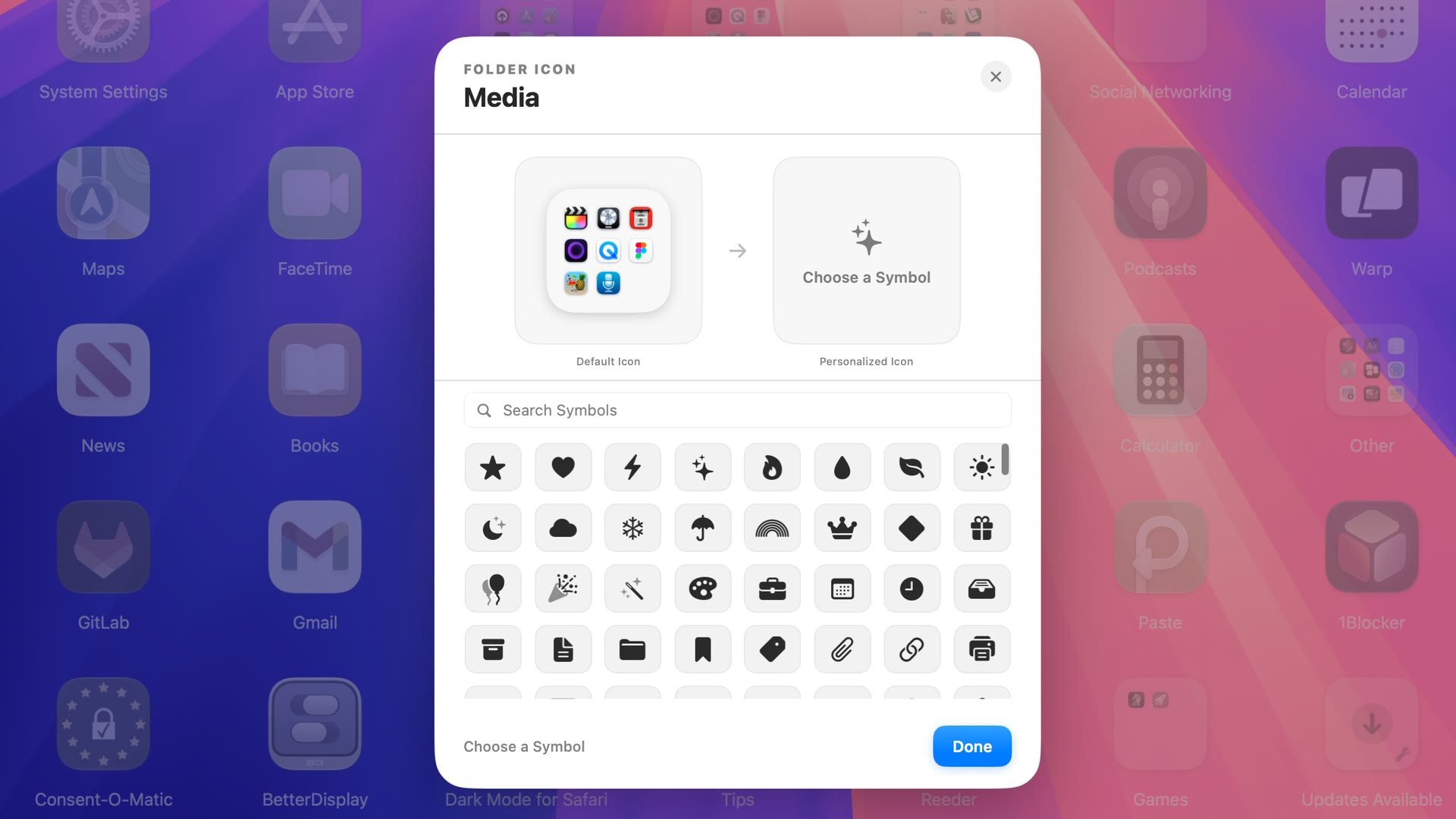
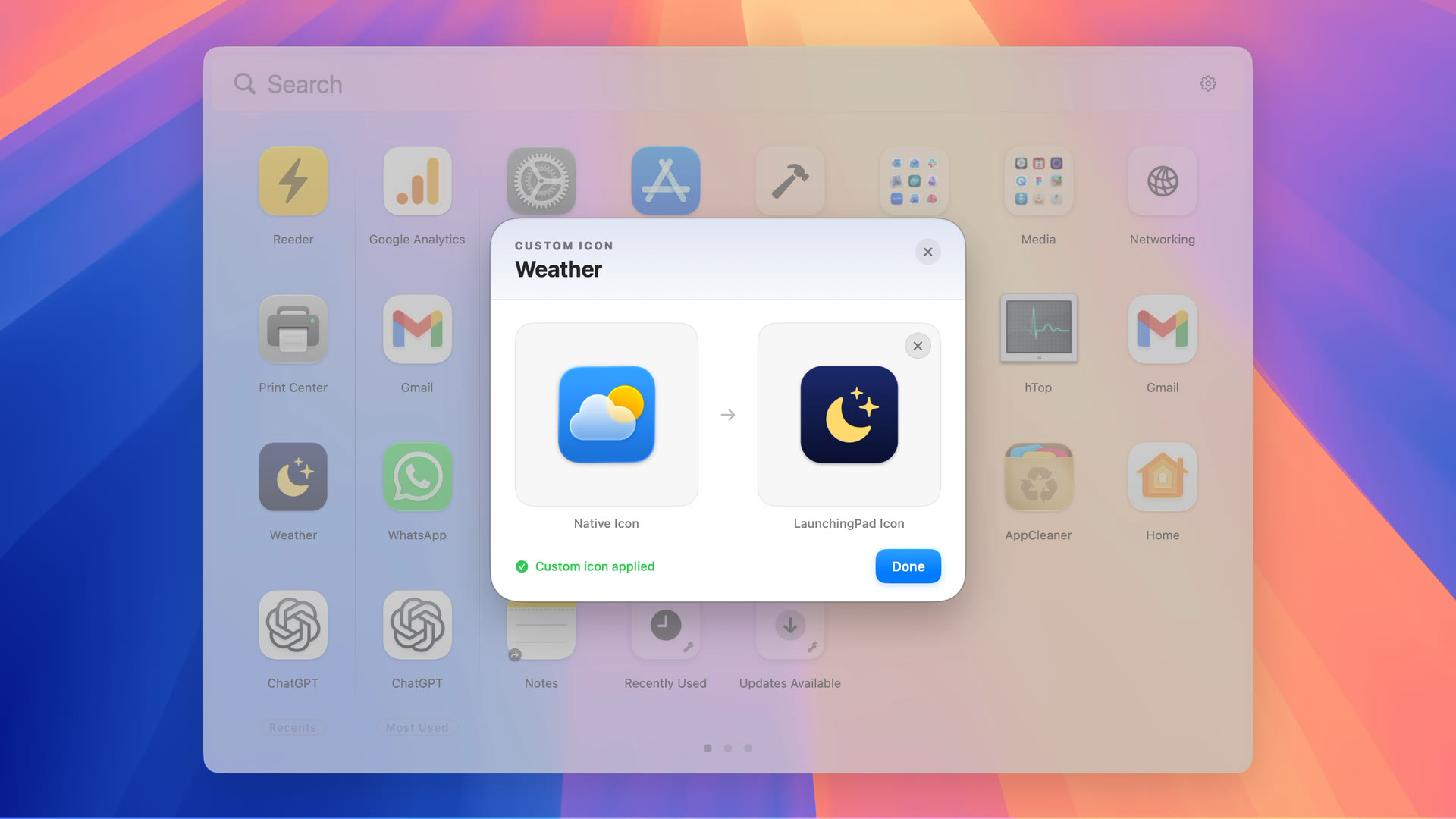
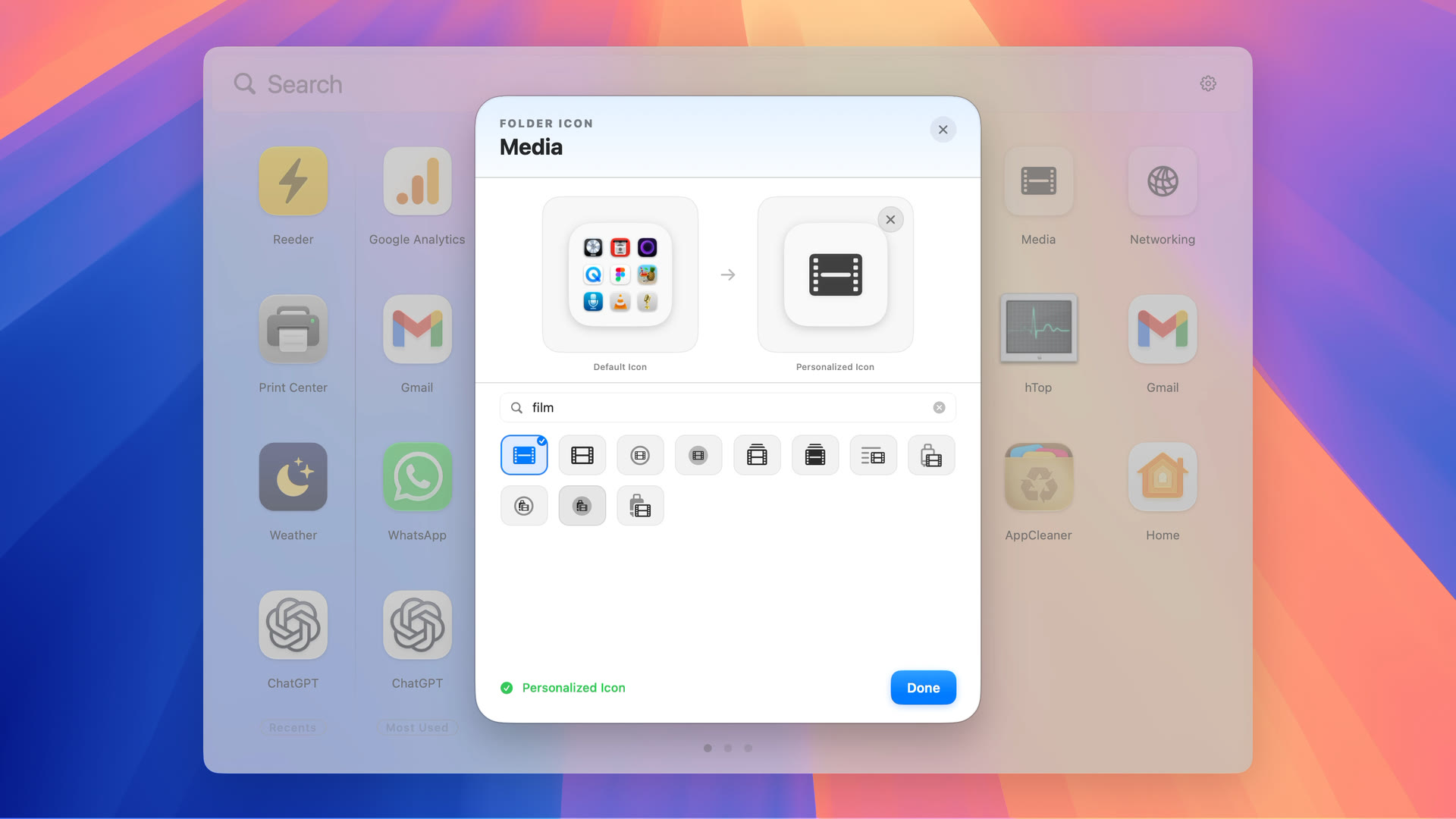
Give any app a custom icon by pasting or dropping an .icns file, and give folders and Smart Folders an SF Symbol from a searchable picker. Your original icons are kept, so you can switch back any time.

  • App iconsUse a custom icon inside LaunchingPad only, or apply it in Finder and the rest of macOS too.
  • Folder symbolsSearch thousands of SF Symbols by name and pick one for any folder.
  • NamesRename apps in the launcher, and hold Option to peek at the original names and icons.
The Custom Icon sheet for Weather showing the native icon beside a pasted LaunchingPad icon, with “Custom icon applied”. The Folder Icon sheet for Media with a searchable grid of SF Symbols. The Full Screen grid with a custom moon icon on Weather and a film symbol on the Media folder. The Custom Icon sheet for Weather in Window mode, replacing the native icon with a pasted moon icon. The Folder Icon sheet in Window mode with “film” typed into the symbol search and a film symbol chosen for Media.
Paste a custom app iconFull Screen
New in 4.5

Pick LaunchingPad’s own icon.

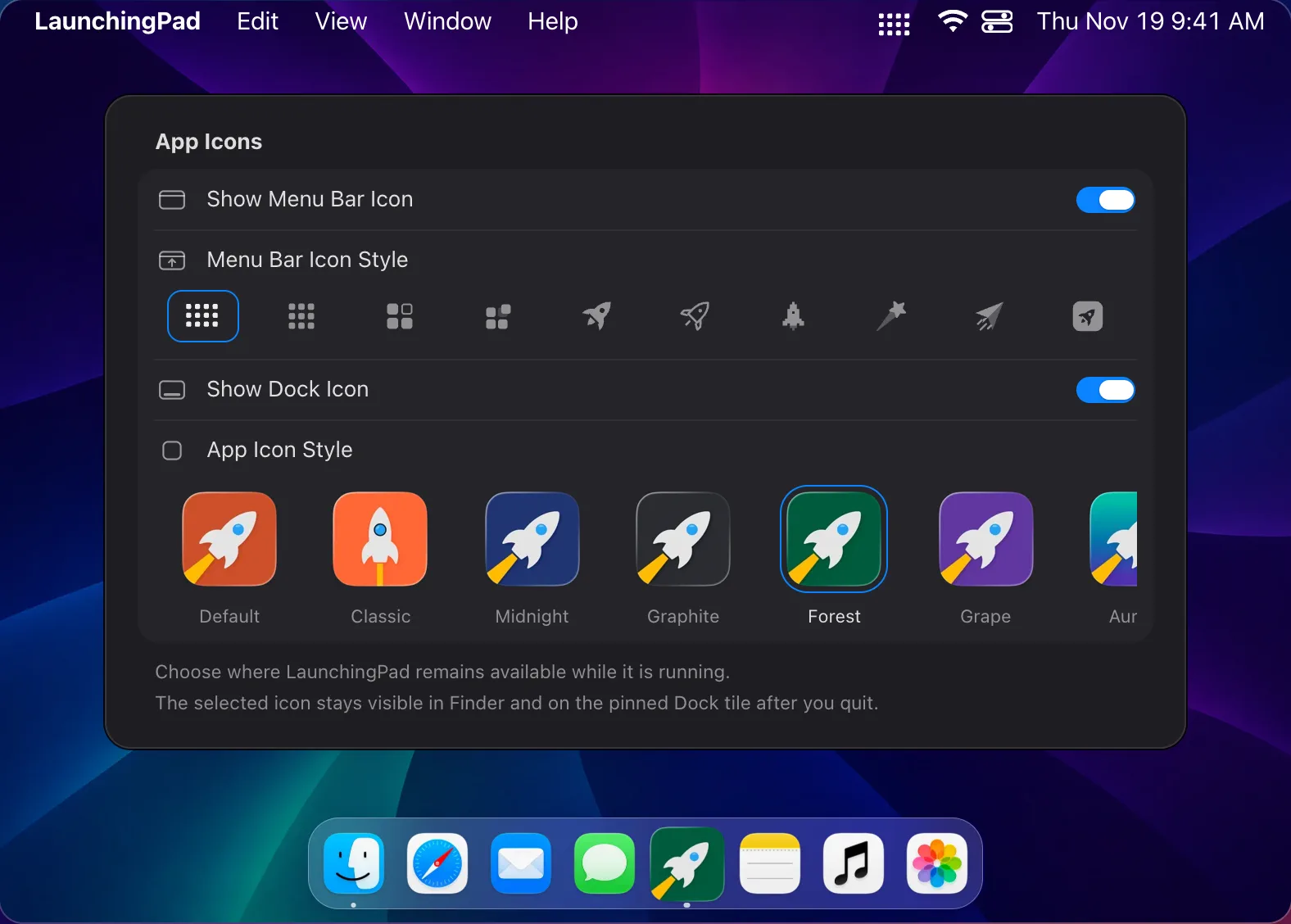
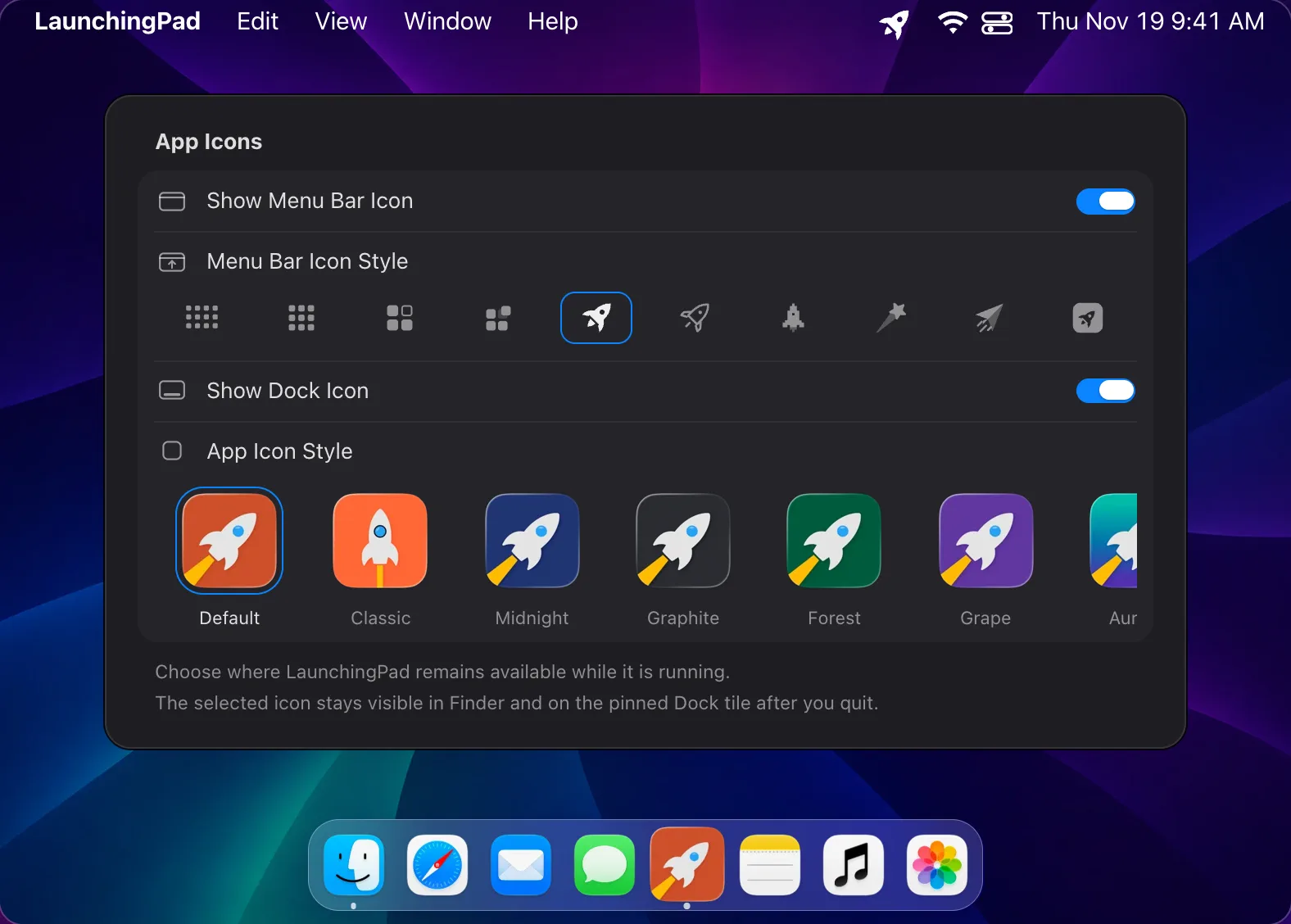
LaunchingPad’s icon comes in seventeen styles. Open Settings → Appearance, find App Icon Style under App Icons, and click one. The Dock icon changes right away, with nothing to save. See every style →

  • StylesThe rocket on new colors, a rust rocket on cream, a pixel-art rocket, a comet, a paper plane, line drawings on blueprint blue, and four grids of tiles.
  • EverywhereYour pick becomes the app’s icon in Finder too, and a pinned Dock tile keeps it after you quit.
  • At homeEach style is drawn the way macOS draws app icons, with the same corner shape, margin, and shadow.
  • DefaultChoose Default to bring the original back in the Dock, in Finder, and on the pinned tile.
Pick a style and the Dock’s icon follows
New in 3.0

Open with a flourish.

Choose how the launcher appears in Settings → Appearance → Opening Animation. Every animation works in Full Screen and Window mode, and Reduce Motion switches to a brief fade.

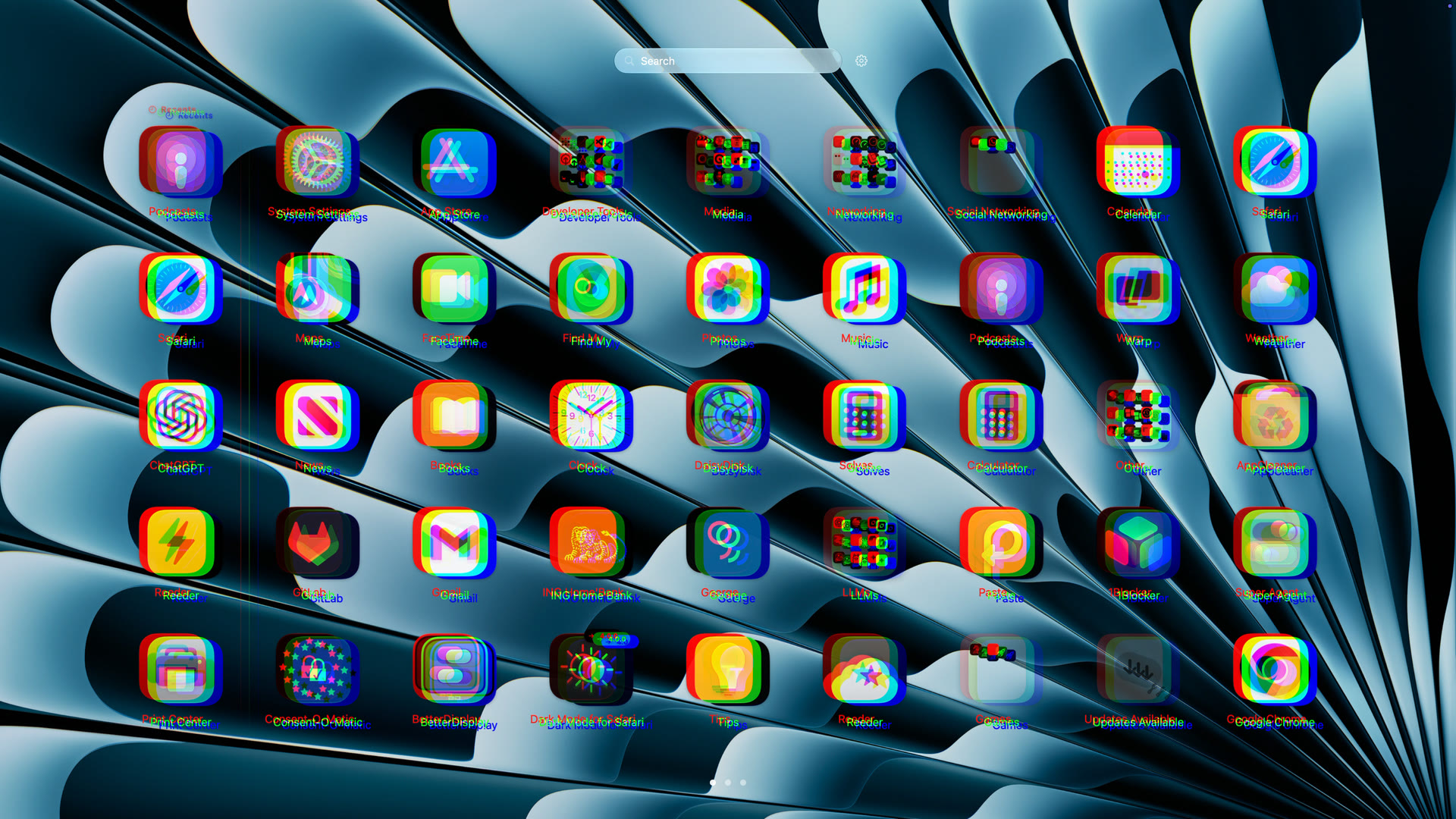
  • Eight stylesShockwave, Twirl, Bloom, Prism, Warp, Materialize, Shutter, and Fade.
  • DefaultShockwave sends an expanding pulse that briefly bends the icons as it passes.
The Shockwave opening animation in Full Screen, an expanding pulse bending the app icons. The Twirl opening animation in Window mode, app icons turning as they settle into the grid. The Prism opening animation in Full Screen, app icons split into red, green and blue fringes. The Materialize opening animation in Full Screen, app icons forming out of scattered pixels. The Bloom opening animation in Window mode, the launcher window growing open over the wallpaper. Opening Animation set to Shockwave in LaunchingPad’s Appearance settings, with its description.
Shockwave bends icons as it passesFull Screen

Inspect apps before you act.

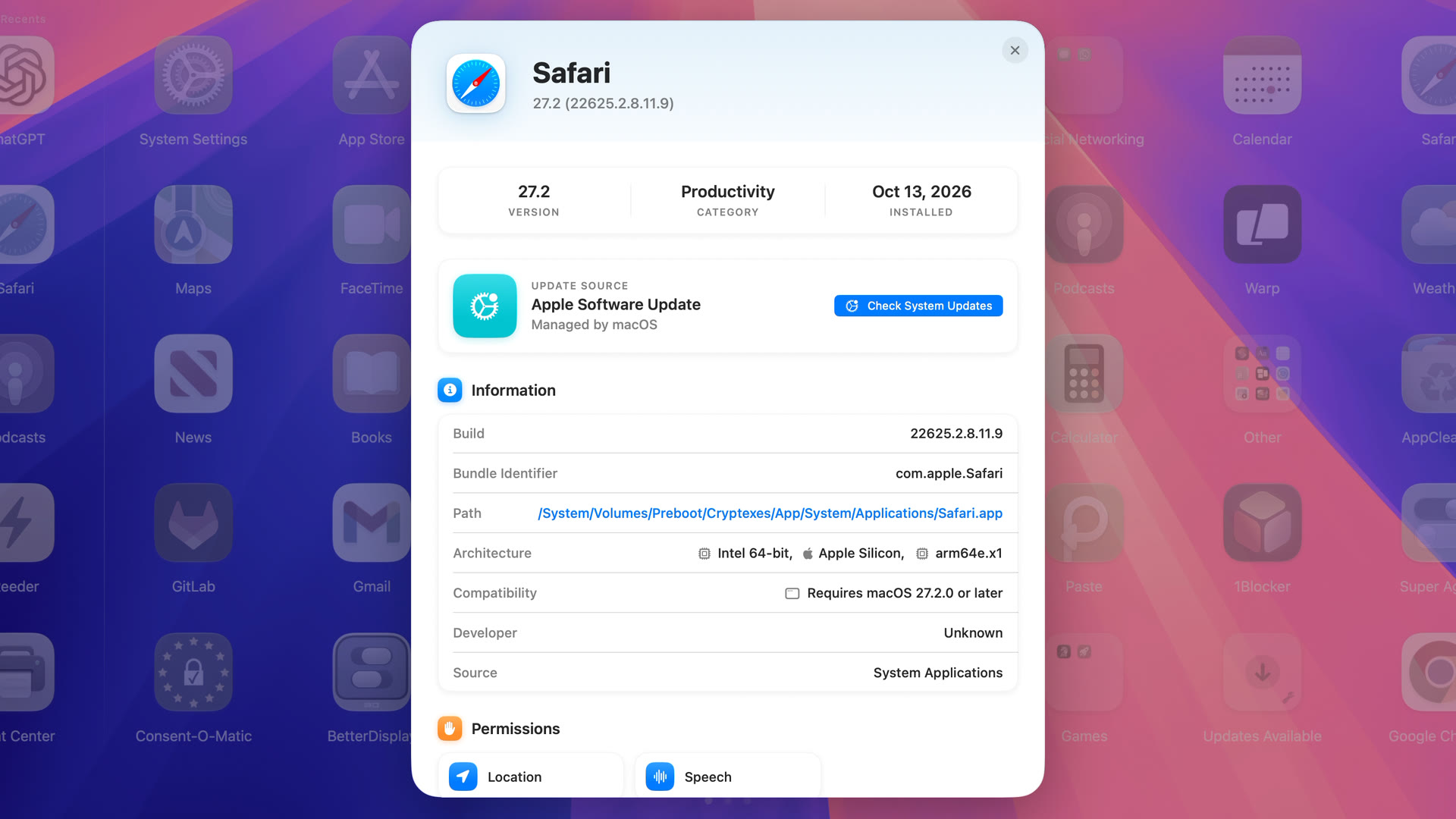
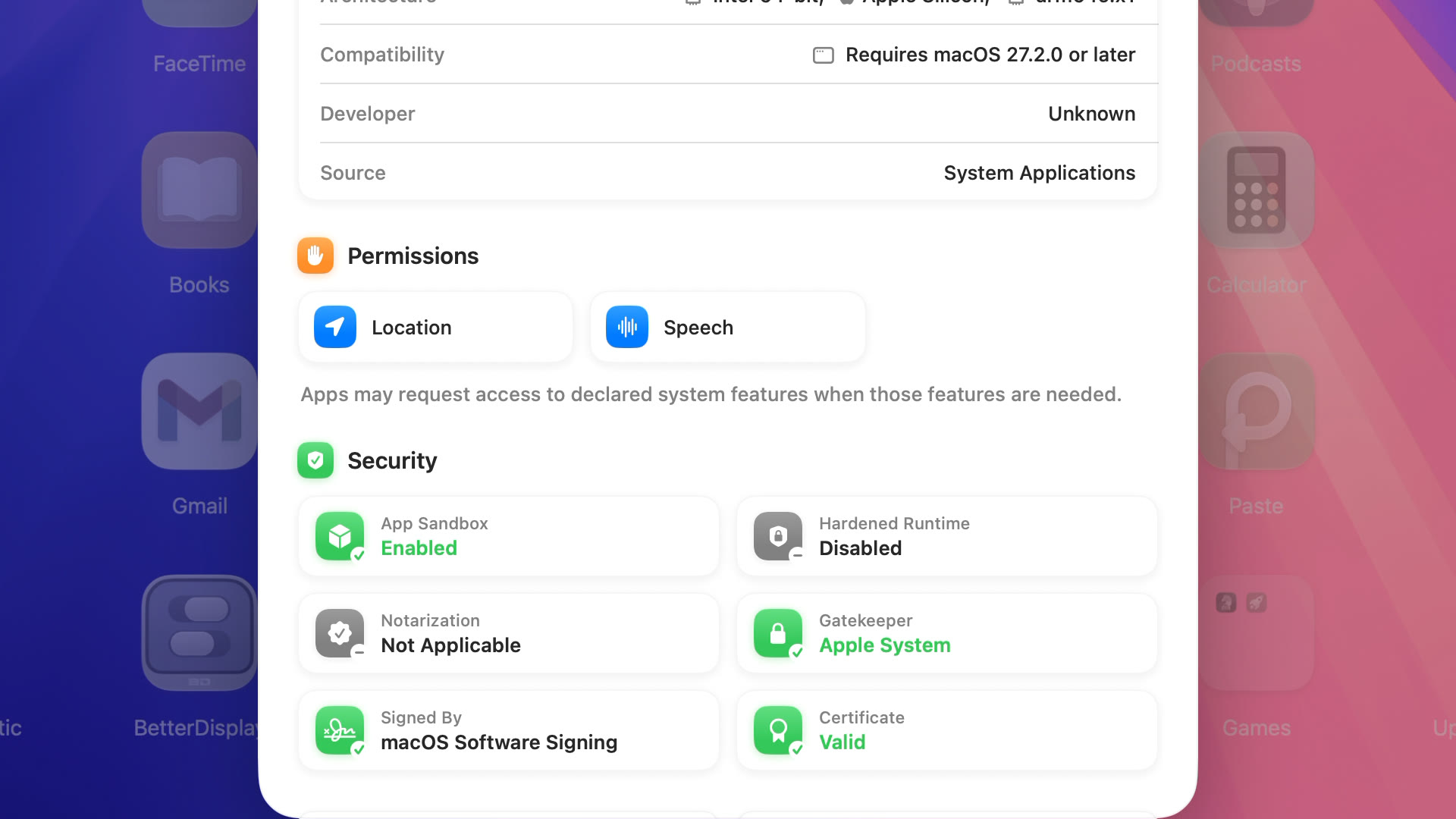
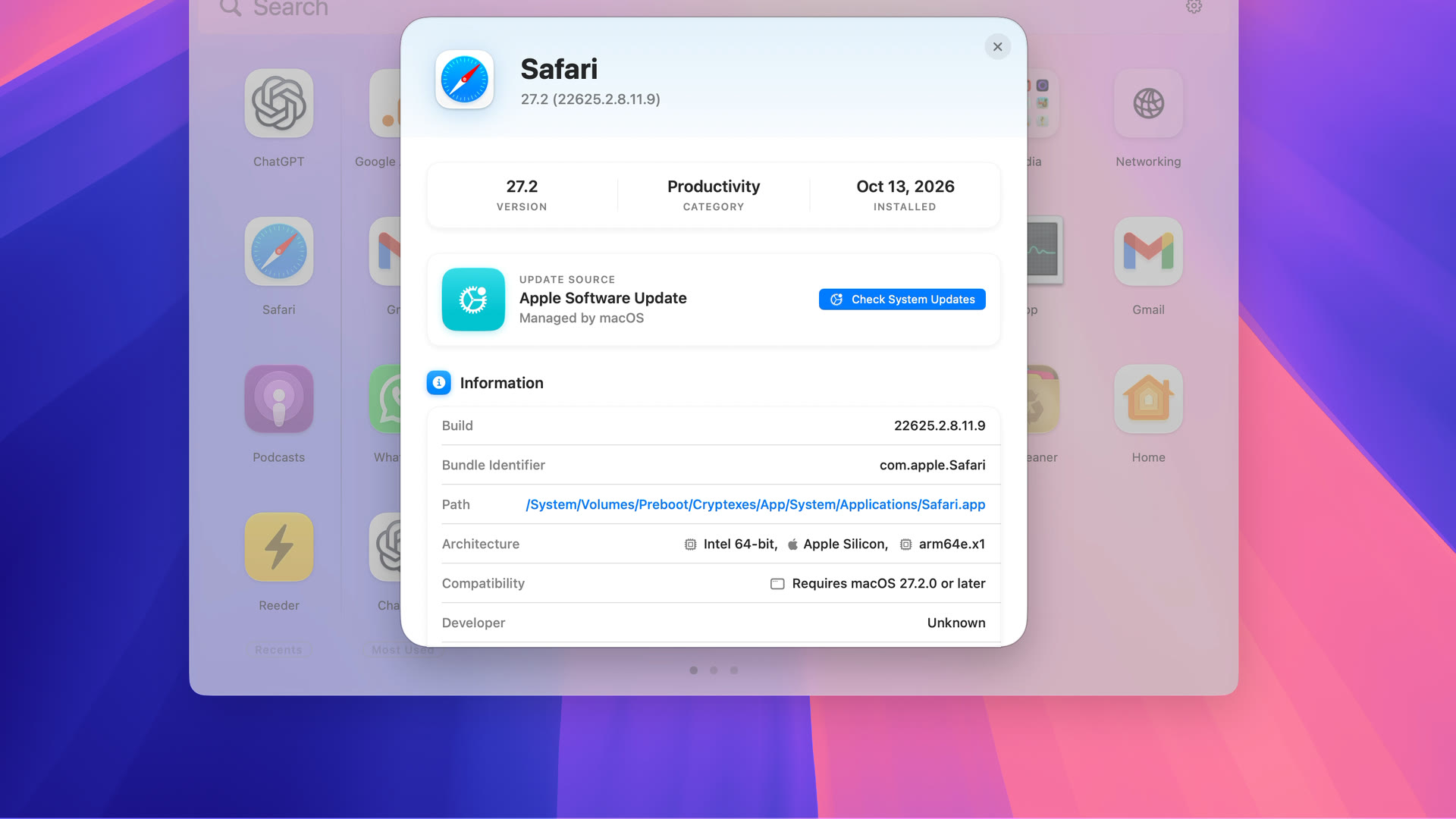
LaunchingPad includes an App Info panel for understanding what an app is, where it came from, and what it declares. This turns the launcher into a practical app management surface, not just a way to open icons. What App Info shows →

  • IdentityView version, build, bundle identifier, install path, architecture, compatibility, developer, category, and source.
  • PrivacySee declared permissions such as camera, microphone, location, photos, contacts, calendar, Bluetooth, automation, documents, and local network.
  • UpdatesUpdate badges for Mac App Store, Homebrew, and self-updating apps, with an update action right in the launcher.
  • Good for cleanupBefore removing an app, you can inspect its bundle, source, and privacy declarations from the same launcher surface.
  • Good for trustSecurity and signing information make it easier to spot unsigned, blocked, or unusual apps.
  • Good for troubleshootingPath, architecture, version, build, and compatibility details are visible without digging through Finder or Info.plist files.
  • SecurityCheck sandboxing, hardened runtime, notarization, Gatekeeper status, signer, and certificate validity.
  • Copy & pasteCommand-C then Command-V drops an alias into any folder; Command-X moves the tile instead.
  • PresenceShow a menu bar icon, a Dock icon, both, or neither, and set the label size separately for Full Screen and Window.
LaunchingPad’s App Info panel for Safari showing version 27.2, category Productivity, the Apple Software Update source, build, bundle identifier, path and architecture. Safari’s App Info with declared Location and Speech permissions and security checks: App Sandbox enabled, Gatekeeper Apple System and a valid certificate. The App Info panel for Safari open over LaunchingPad’s window. Context menu on Weather with Copy (Command-C) highlighted, above Create Alias in…, App info and Customize Icon…. LaunchingPad’s Layout settings with the Full-Screen Grid label size slider at 17 pt beside the app grid.
The App Info panelFull Screen
Stay current

See what needs an update.

LaunchingPad checks the apps on your Mac for newer versions and marks each one that has an update, so you can see at a glance what is out of date. The Updates Available Smart Folder gathers them in one place. More about update checks →

  • BadgesTiles show the new version for Mac App Store, Homebrew Cask, and self-updating apps.
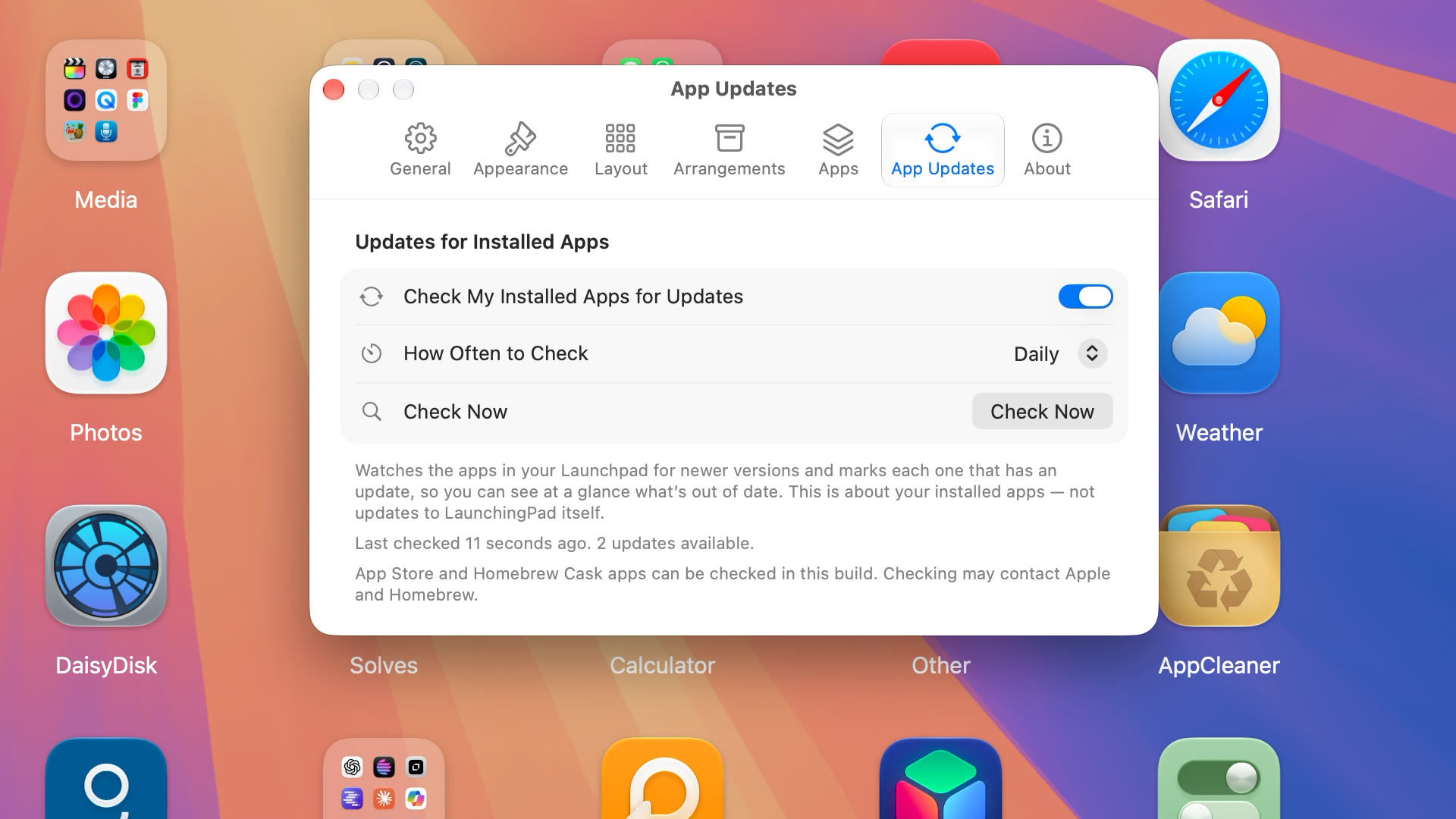
  • ScheduleCheck every 6 hours, daily, every 3 days, or weekly — or press Check Now in Settings → App Updates.
  • Search foldersSettings → Apps lists the folders LaunchingPad scans, the scan depth, and the apps you have hidden.
  • LaunchingPadBuilt-in updates keep LaunchingPad itself current, and a What’s New window shows the highlights once after each update.
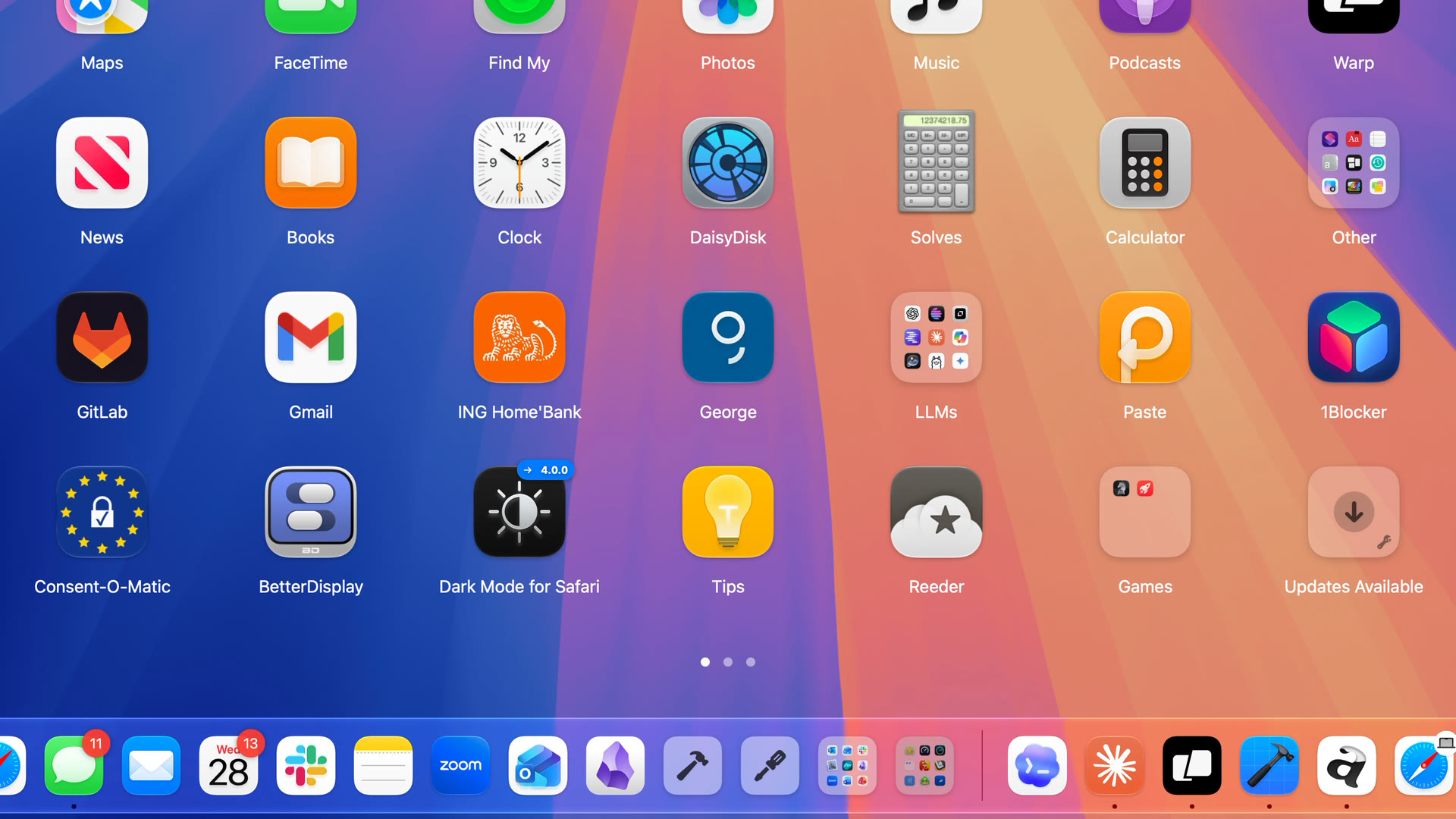
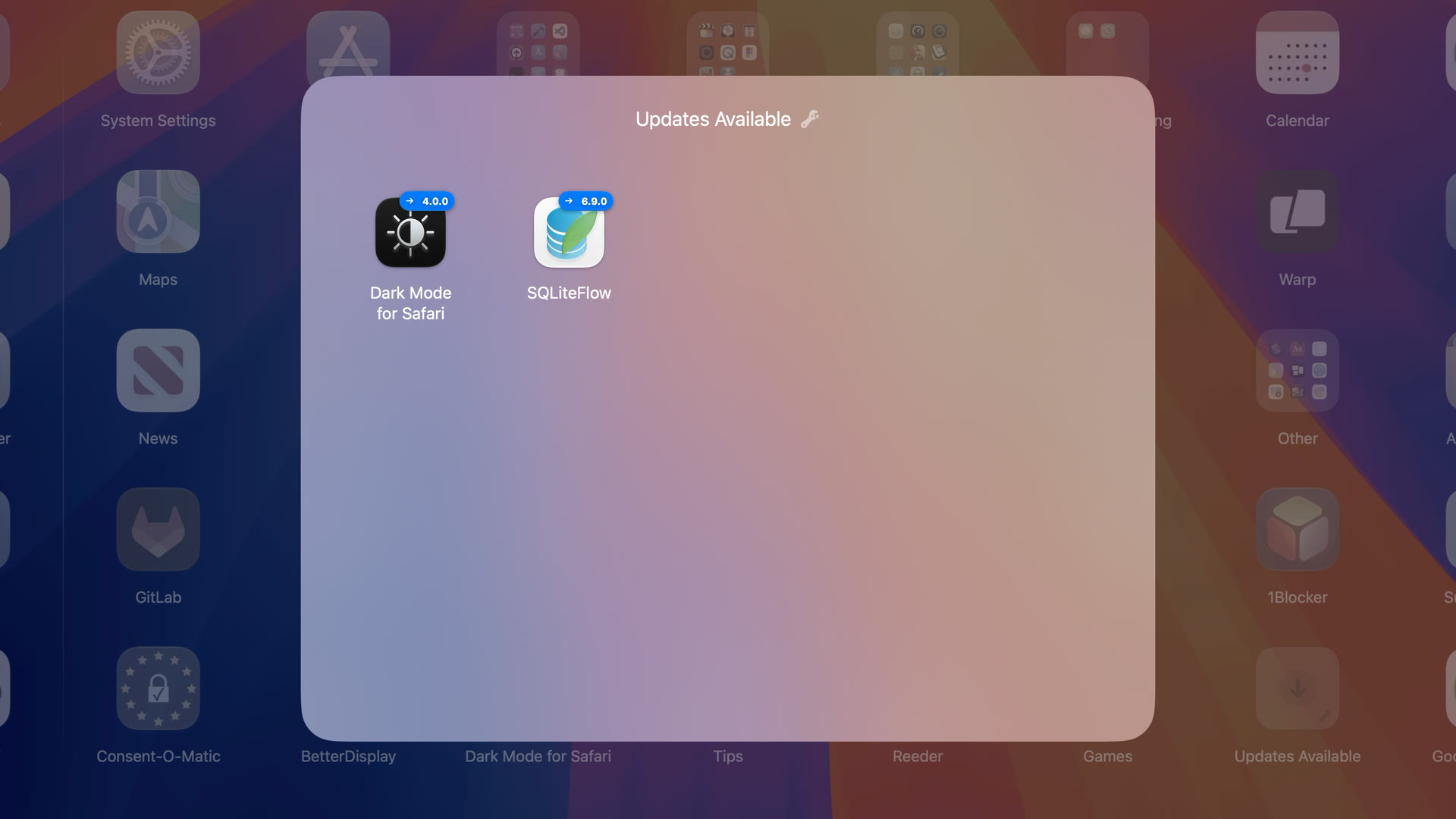
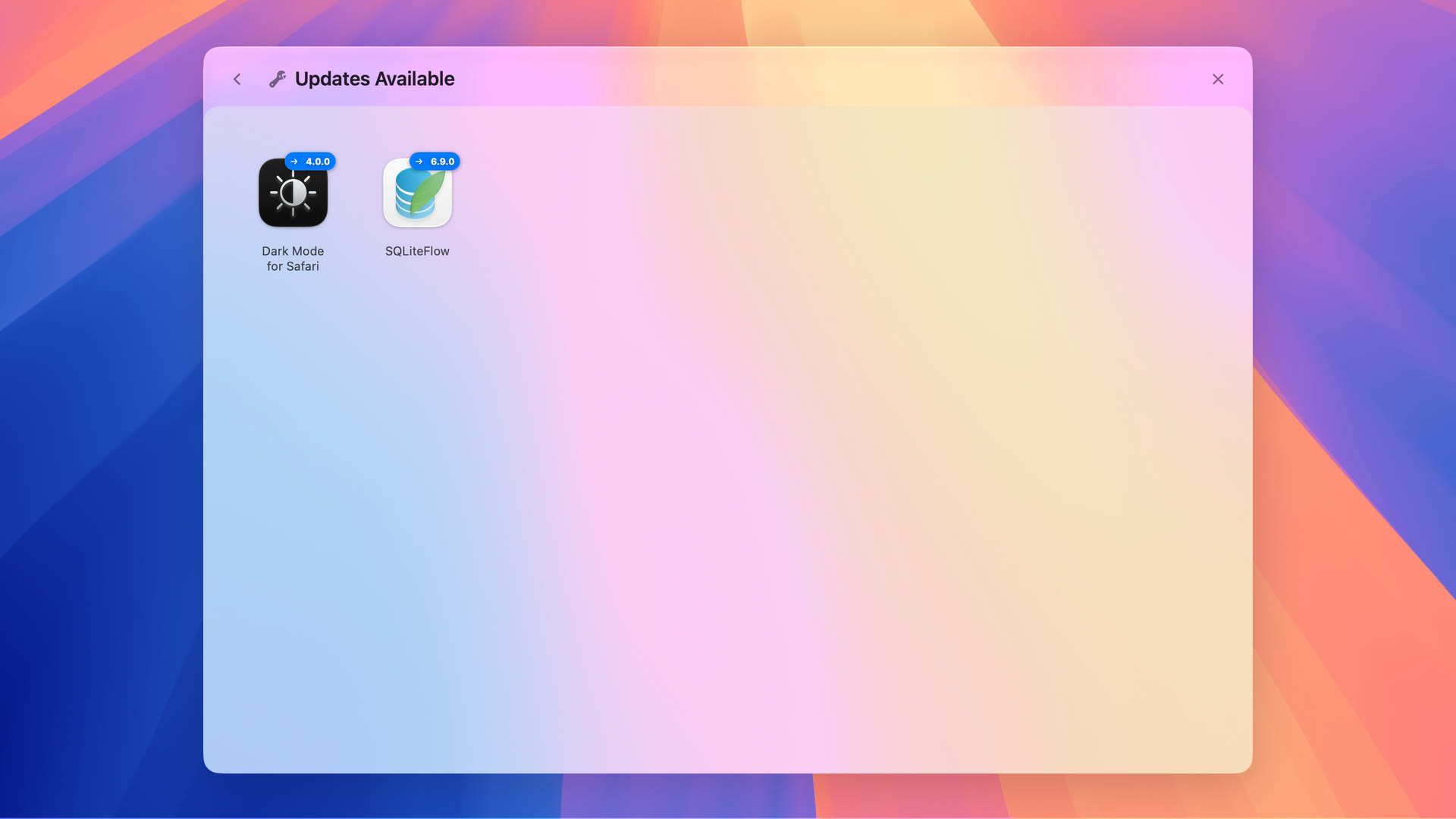
App tiles in LaunchingPad’s grid, with Dark Mode for Safari carrying a 4.0.0 update badge. The Updates Available Smart Folder in Full Screen, holding Dark Mode for Safari and SQLiteFlow with version badges. App Updates settings with Check My Installed Apps for Updates on, How Often to Check set to Daily and a Check Now button. The Updates Available Smart Folder open in LaunchingPad’s window with two apps awaiting updates. The What’s New in LaunchingPad 3.2 window highlighting aliases and copy and paste, with a Continue button.
Badges show the new versionFull Screen

Remove apps deliberately.

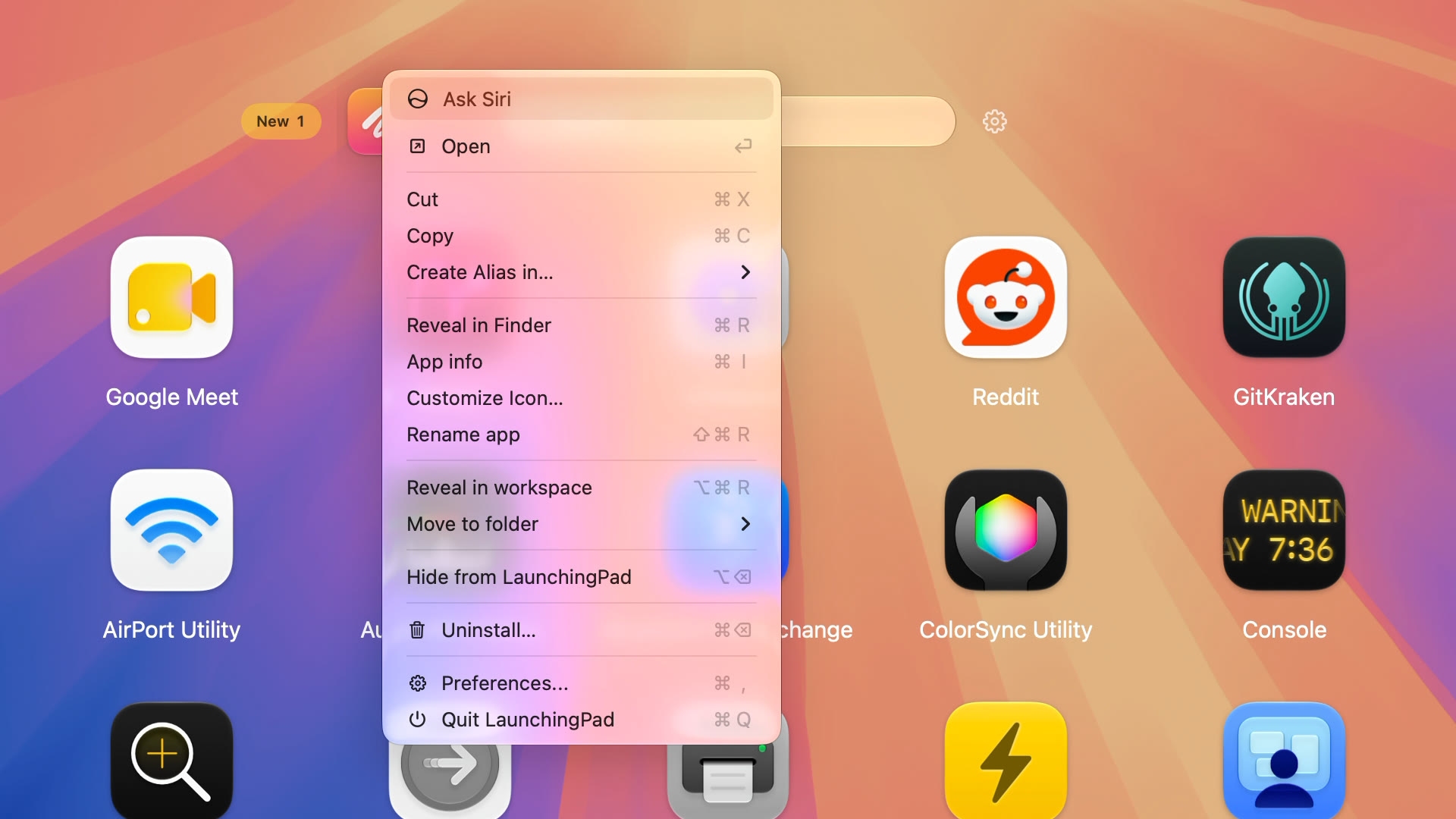
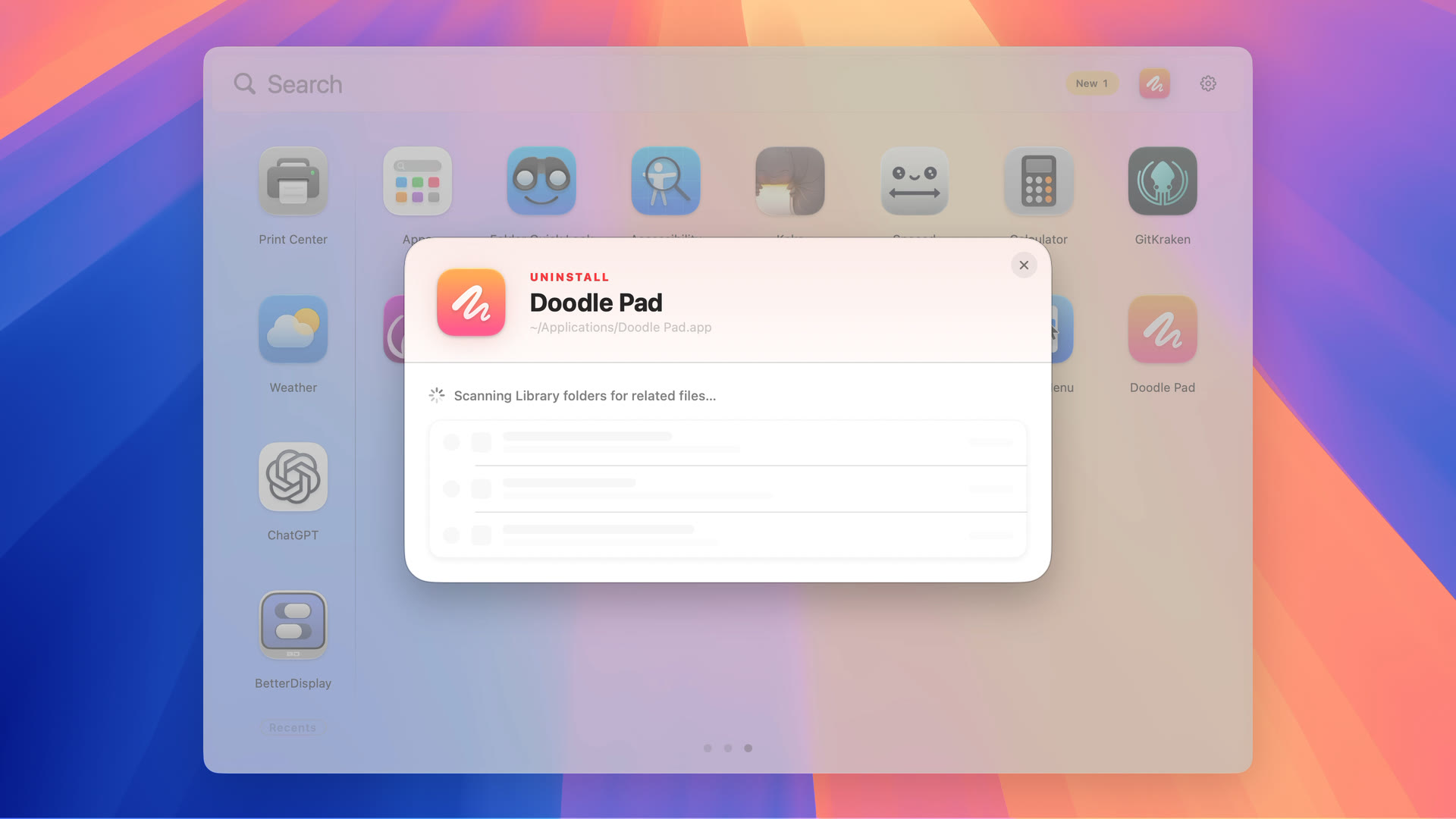
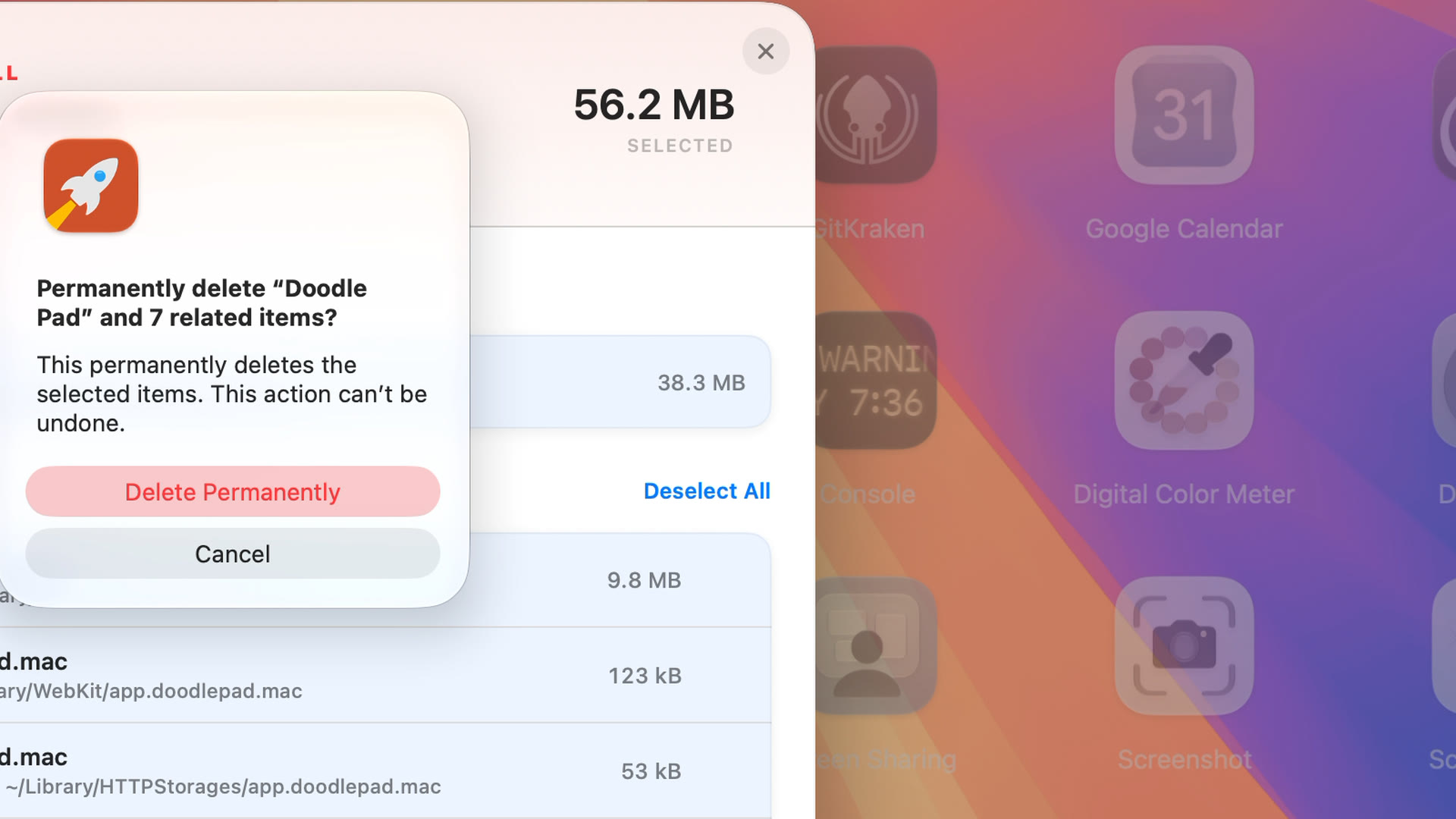
Deleting a Mac app often leaves preferences, caches, helpers, and support folders behind. LaunchingPad can scan for related files, show you what it found, and ask for confirmation before removing anything, so app cleanup stays transparent. How uninstalling works →

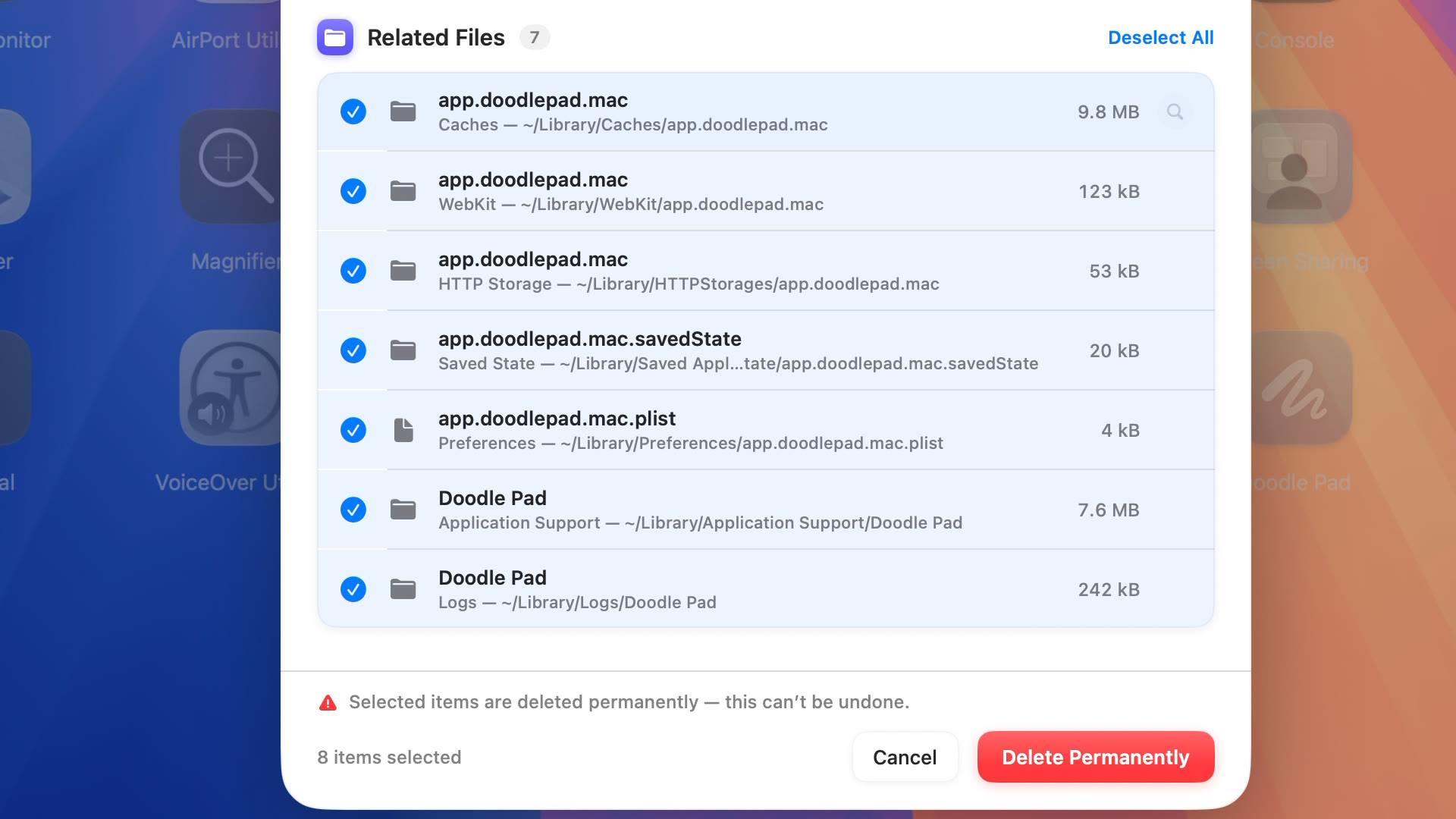
  • ReviewSee the app bundle and matching Library files before starting removal.
  • SizesCleanup review calculates file and folder sizes so you know what each removal is worth.
  • App StoreMac App Store apps and wrapped iOS apps on Mac use the appropriate removal path when available.
  • ChooseSelect what should be deleted and keep anything you do not want touched.
  • ProtectSystem apps stay off-limits, and protected items use the safest available path.
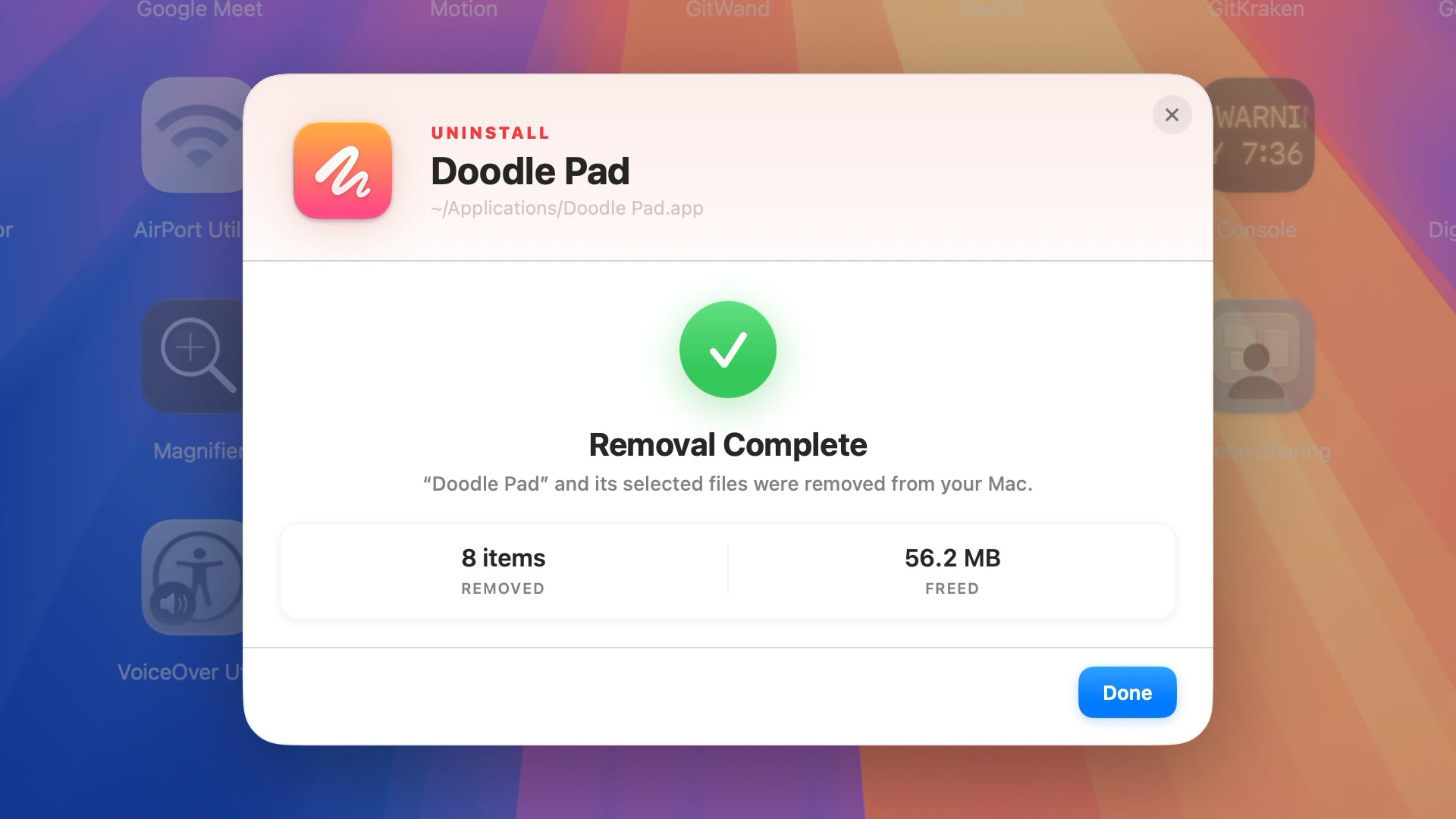
LaunchingPad’s context menu for Doodle Pad with Reveal in Finder, Move to folder, Hide from LaunchingPad and Uninstall… items. LaunchingPad’s Uninstall sheet for Doodle Pad in Window mode, scanning Library folders for related files. Related Files in LaunchingPad’s cleanup review: Doodle Pad’s caches, WebKit data, HTTP storage, saved state, preferences, application support and logs, each with its size. A confirmation asking to permanently delete Doodle Pad and 7 related items, over the cleanup review showing 56.2 MB selected. LaunchingPad’s Removal Complete sheet for Doodle Pad: 8 items removed and 56.2 MB freed.
Start from Uninstall… in the menuFull Screen

Save, import, and restore layouts.

LaunchingPad keeps its own layout data, which makes it safer to experiment. You can save a known-good app arrangement, restore it later, import an existing macOS Launchpad layout when available, and reset to an alphabetical layout when you want a clean start.

  • ArrangementsSave named layouts with pages, folders, custom ordering, app names, and hidden apps.
  • ImportRead the legacy Launchpad database read-only, convert pages and folders, and skip unresolved apps.
Independent storeLaunchingPad stores layout data in its own JSON files and leaves Apple's Launchpad database untouched.
Hidden appsApps hidden from the launcher can be reviewed and restored later from Settings.
Missing appsRestored arrangements skip apps that are no longer installed and place newly installed apps at the end.
BackupsBefore import or restore, LaunchingPad backs up the current layout so changes are recoverable.

Your app library stays current.

A launcher is only useful if it reflects what is actually installed. LaunchingPad scans the common macOS application locations, watches for changes, and handles modern app locations such as system Cryptex apps, bundled helper apps, and wrapped iOS apps on Apple silicon Macs.

  • RootsScans Applications, System Applications, user Applications, and modern system app locations.
  • BundlesFinds helper apps inside app packages, such as tools stored in Contents/Applications.
  • Your foldersAdd or remove search folders in Settings → Apps and choose how many levels of subfolders to scan.
Live watchingInstalls, removals, and renames are reconciled without discarding your folders and custom order.
Icon refreshApp icons are cached for speed and refreshed after installs settle.
Safe launch pathLaunching still goes through macOS, so Screen Time and system restrictions remain in control.
ReceiptsRecognizes Mac App Store apps and wrapped iOS apps on Mac for better metadata and cleanup behavior.

Localized for more Mac users.

LaunchingPad is internationalized across the app, so settings, onboarding, dialogs, cleanup review, app info, and launcher controls can follow the user's language. It uses the first supported macOS language by default, with a manual language picker when you want to override the system.

  • LanguagesEnglish, Spanish, French, German, Italian, Portuguese, Romanian, Japanese, Simplified Chinese, and Hindi are included.
  • SystemSystem Default follows the first supported language in macOS preferences and falls back to English.
EnglishDefault fallback
SpanishEspañol
FrenchFrançais
GermanDeutsch
ItalianItaliano
PortuguesePortuguês
RomanianRomână
Japanese日本語
Chinese简体中文
Hindiहिन्दी
ManualChoose a specific app language in Settings when the launcher should differ from macOS.

Keyboard first, mouse friendly.

LaunchingPad exposes apps and folders to VoiceOver, activates selection as keyboard navigation begins, and respects macOS Reduce Motion and Reduce Transparency. It works with pointer gestures, but it does not require them.

  • ↩Launch
  • escClose
  • ←→↑↓Move
  • ⇥Next
  • ⌘FSearch
  • ⌘ZUndo
  • ⌘1…9Jump to a page
  • ⌥clickKeep open
  • ⌘NNew Smart Folder
  • ⌘CXVCopy, cut, paste tiles
  • ⌥⌘dragMake an alias
  • ⌘,Settings

Put your apps back where you expect them.

LaunchingPad is free, native, and built for macOS 26 Tahoe and later.

Download for macOS