
Think about an app like Notes. It belongs in your Work folder. It also belongs in Creative, right next to Figma and Final Cut Pro. And some days you just want it on the main grid, where you can grab it without thinking. Until now, you had to pick one spot and live with it.
LaunchingPad 3.2 fixes that with aliases. Put an app wherever it makes sense, as many times as you like.
So what's an alias?
An alias is simply another tile for an app you already have. It opens the same app and shares its name, custom icon, and update status. The only difference is where it lives.
You can spot one by the small arrow in the lower-left corner of its icon. It's a quiet mark, so your layout stays clean.
Three ways to make one
Use whichever feels natural. They all get you to the same place.
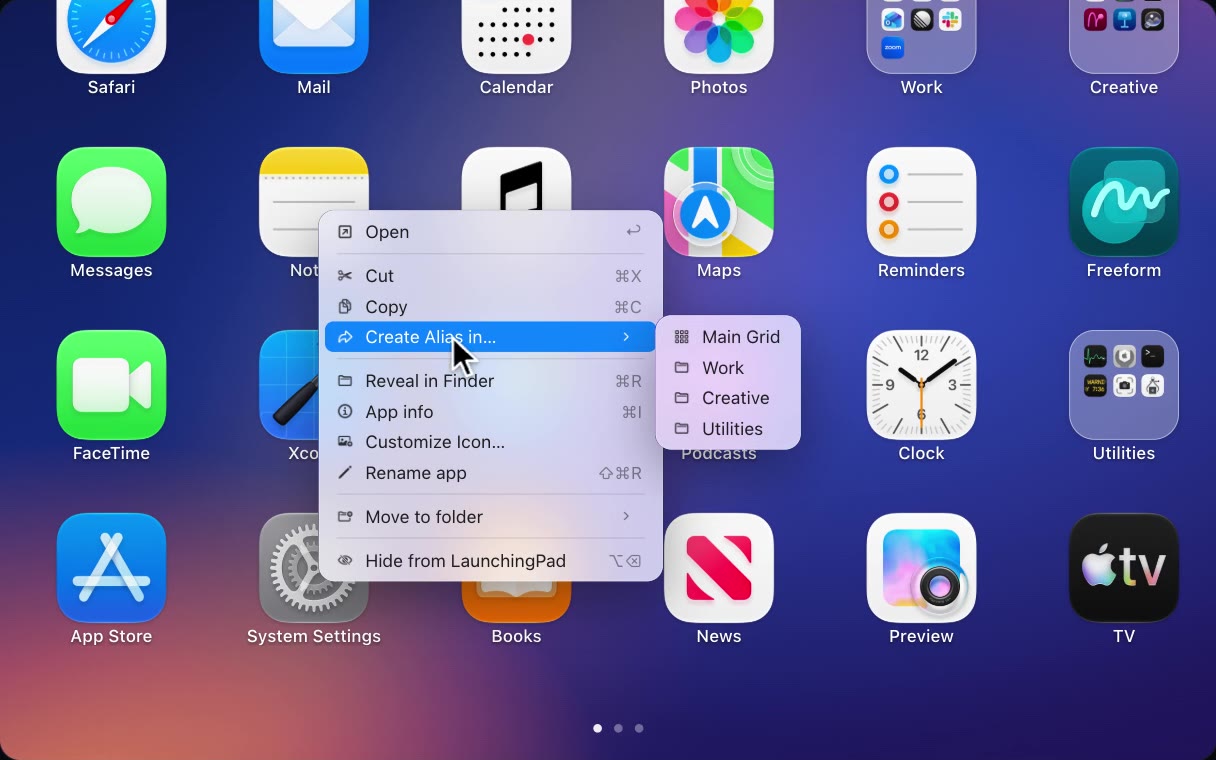
- Right-click and pick a place. Choose Create Alias in…, then the main grid or a folder. LaunchingPad takes you straight there and gives the new tile a quick pulse, so you never have to go looking for it.
- Hold Option-Command and drag. Drop the app wherever you want it. The original stays exactly where it was.
- Copy and paste. Select an app, press ⌘C, go where you want it, and press ⌘V. This works for whole folders too, with everything inside them intact.
Change it once, see it everywhere
Every alias points back to the same app, so there's nothing to keep in sync by hand. Rename the app and every placement picks up the new name. Give it a custom icon and they all wear it. When an update is available, the badge appears on each placement, so you'll notice it wherever you happen to look.
Rearranging is safe too. Move the original somewhere else and its aliases stay right where you put them.
Easy to tidy up
Right-click an alias and you'll find two new options:
- Show Original jumps to the app's original tile and highlights it.
- Remove Alias removes just that shortcut. The app and its other placements stay as they are.
Selecting an alias and pressing Delete, or clicking its ✕ in edit mode, does the same thing as Remove Alias.
One thing worth knowing: hiding or uninstalling acts on the app itself, so it applies to every placement in your current layout. That's usually what you want anyway.
Aliases are part of LaunchingPad 3.2, available now through the app's built-in updates. New to LaunchingPad? Download it here and let your apps be in two places at once.