LaunchingPad

The app manager and launcher
you always wanted

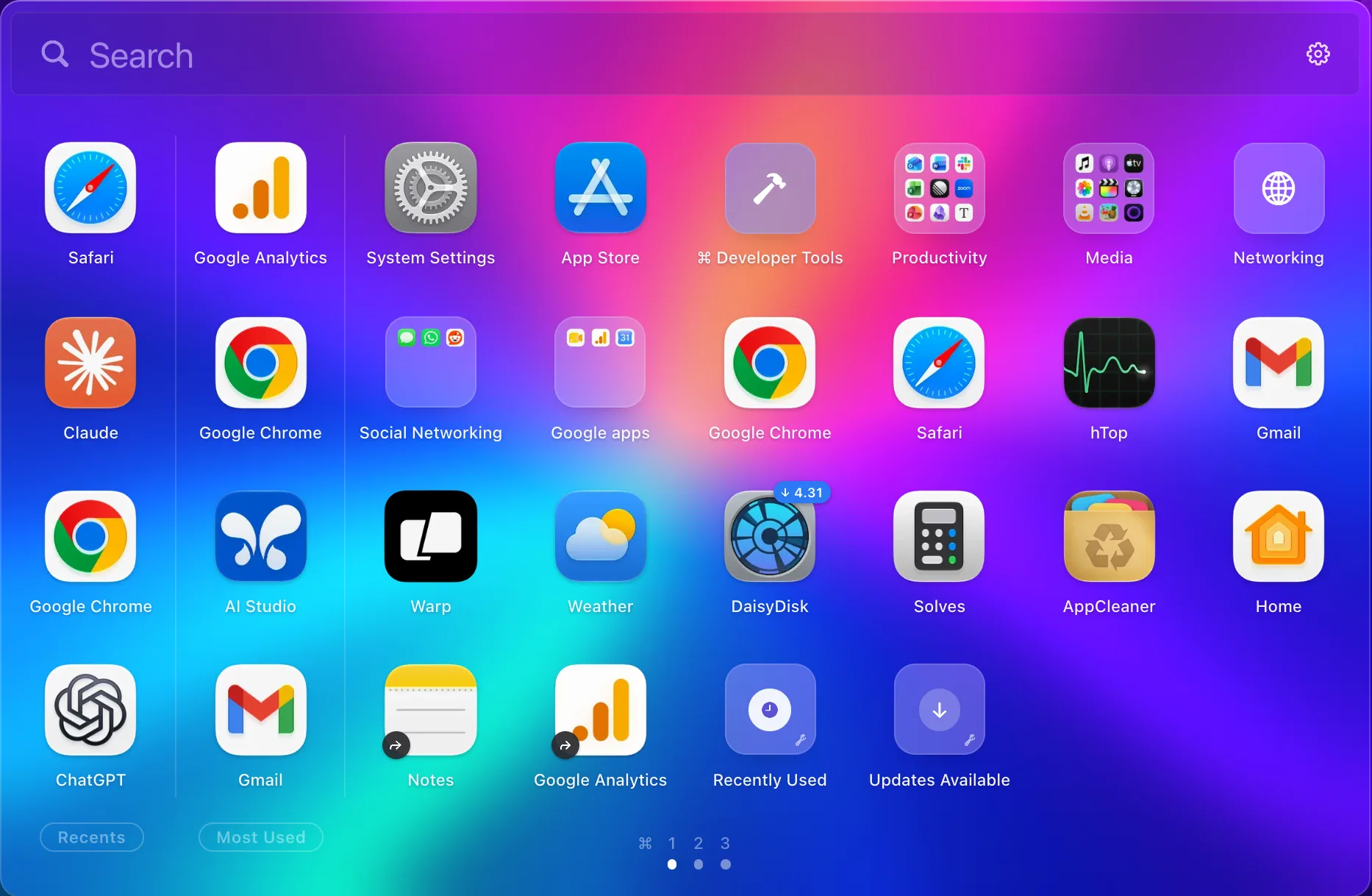
Type to flyStart typing the moment it opens. Fuzzy matches names, folders and what’s inside them.
RecentsThe apps you just opened, wherever you opened them.
Most UsedYour most-launched apps, kept current without pinning anything.
AliasesOne app in as many places as you like, always in sync.
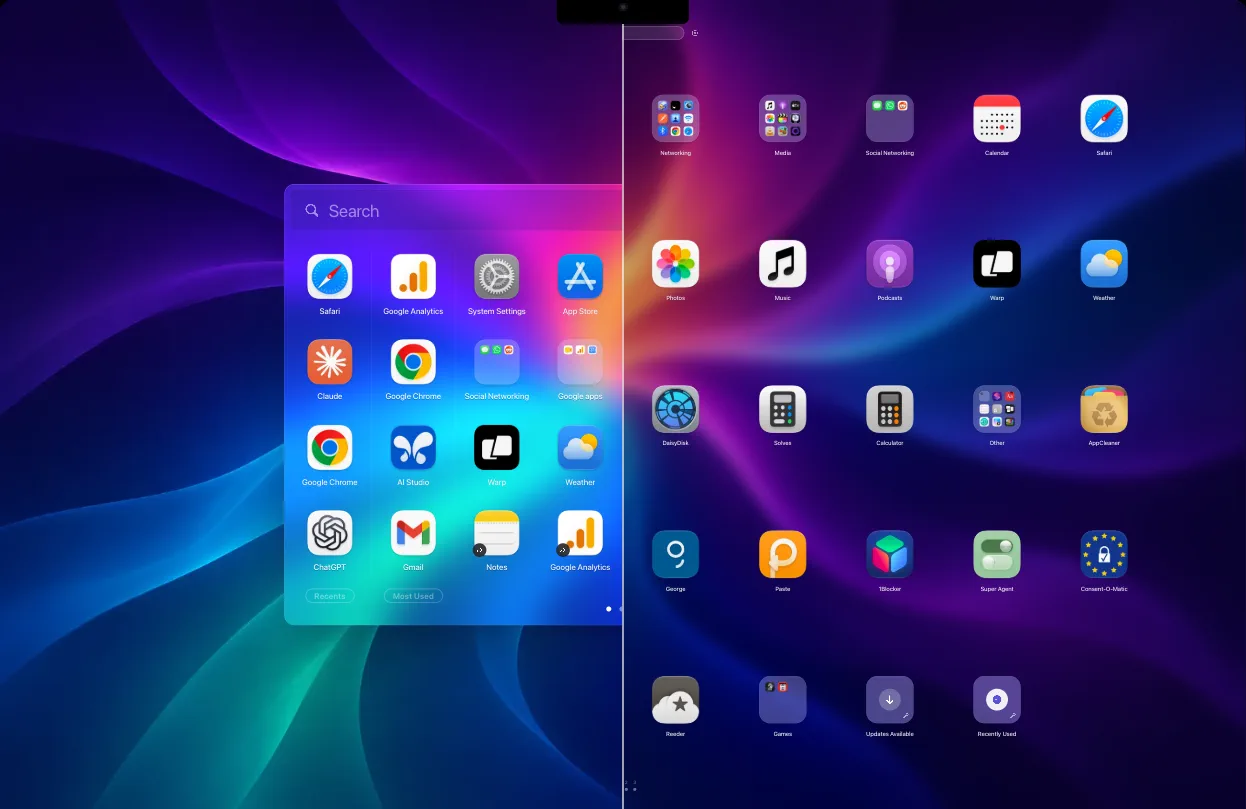
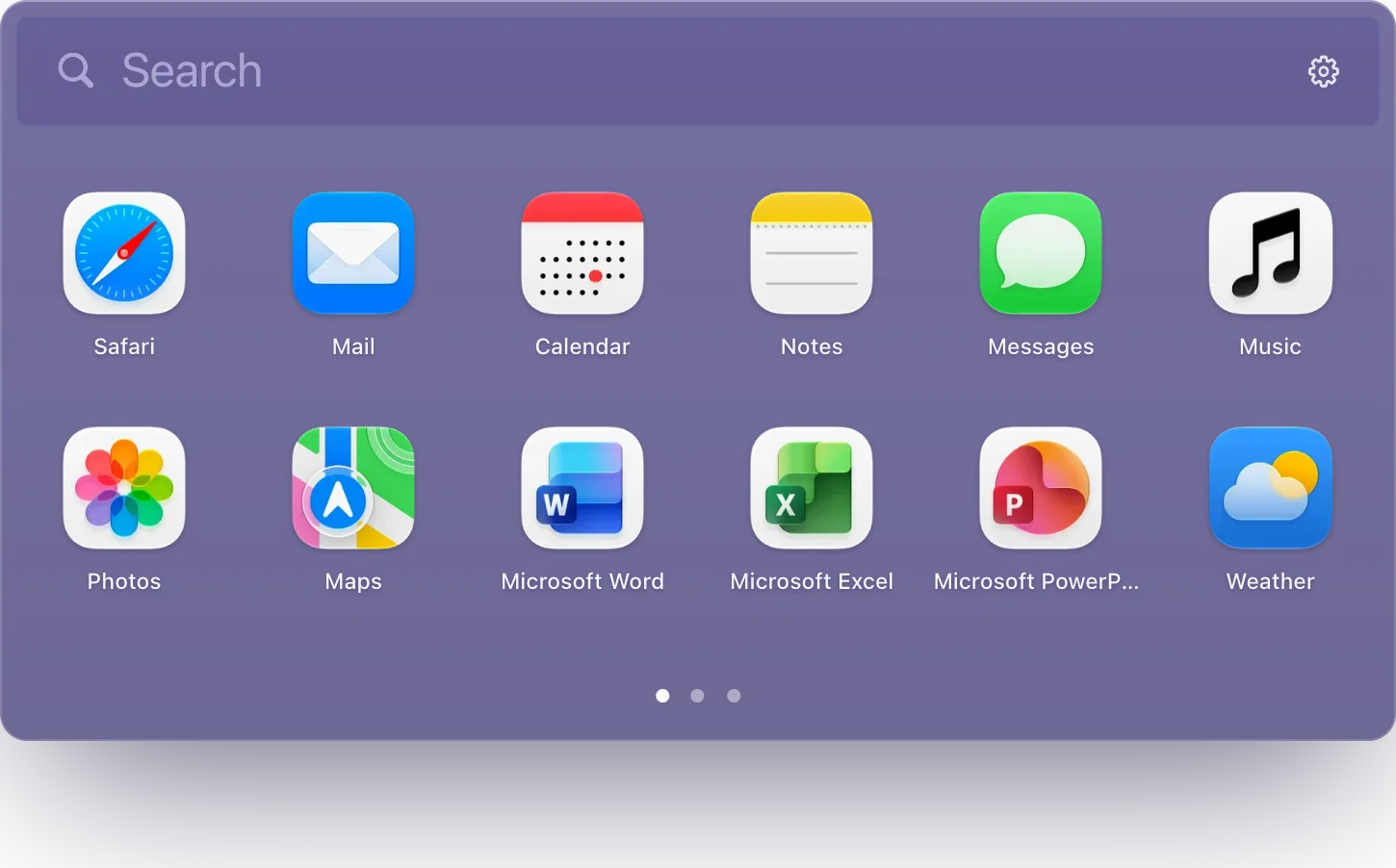
Full screen or a windowThe classic grid over your wallpaper, or this floating, resizable window.
Folders in foldersDrag one app onto another. Drop folders onto folders, as deep as you like.
Update badgesMac App Store, Homebrew and self-updating apps show the new version.
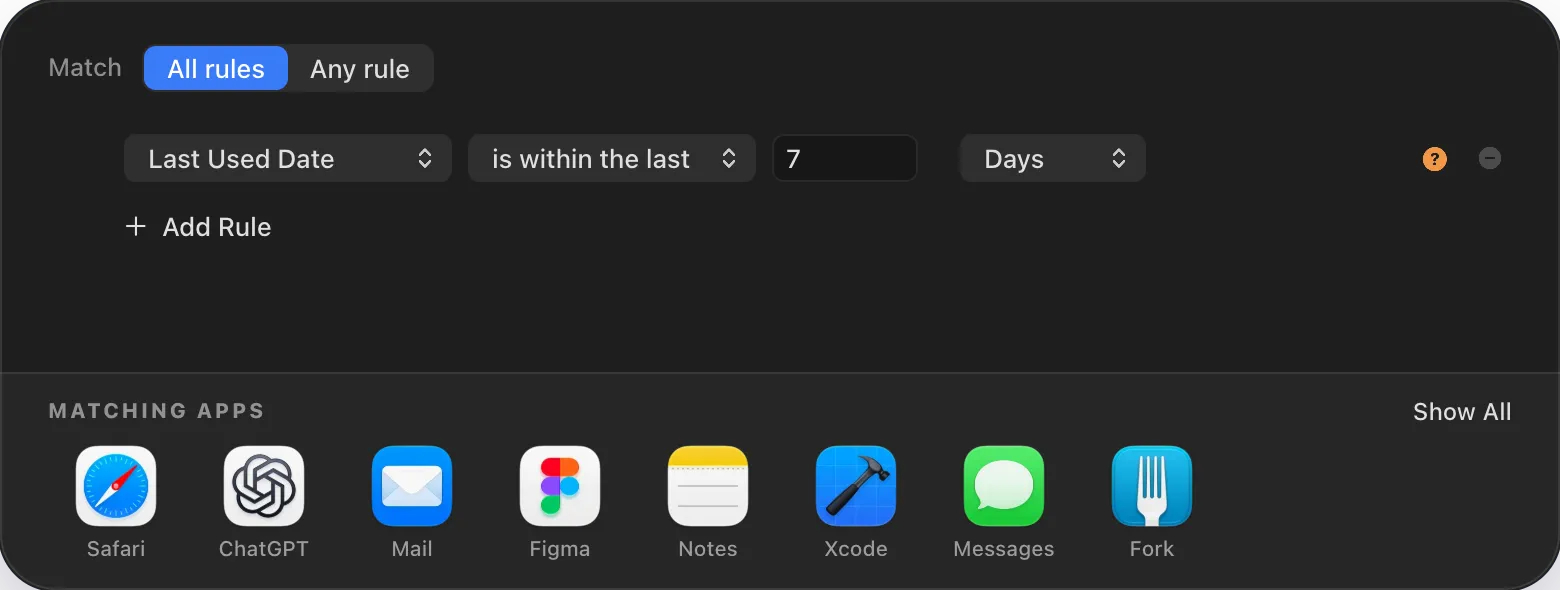
Smart FoldersDescribe what belongs. The folder fills itself.
⌘1 – ⌘9Hold ⌘ and every page shows its number.
Download for macOSFree Version 4.0 (36)

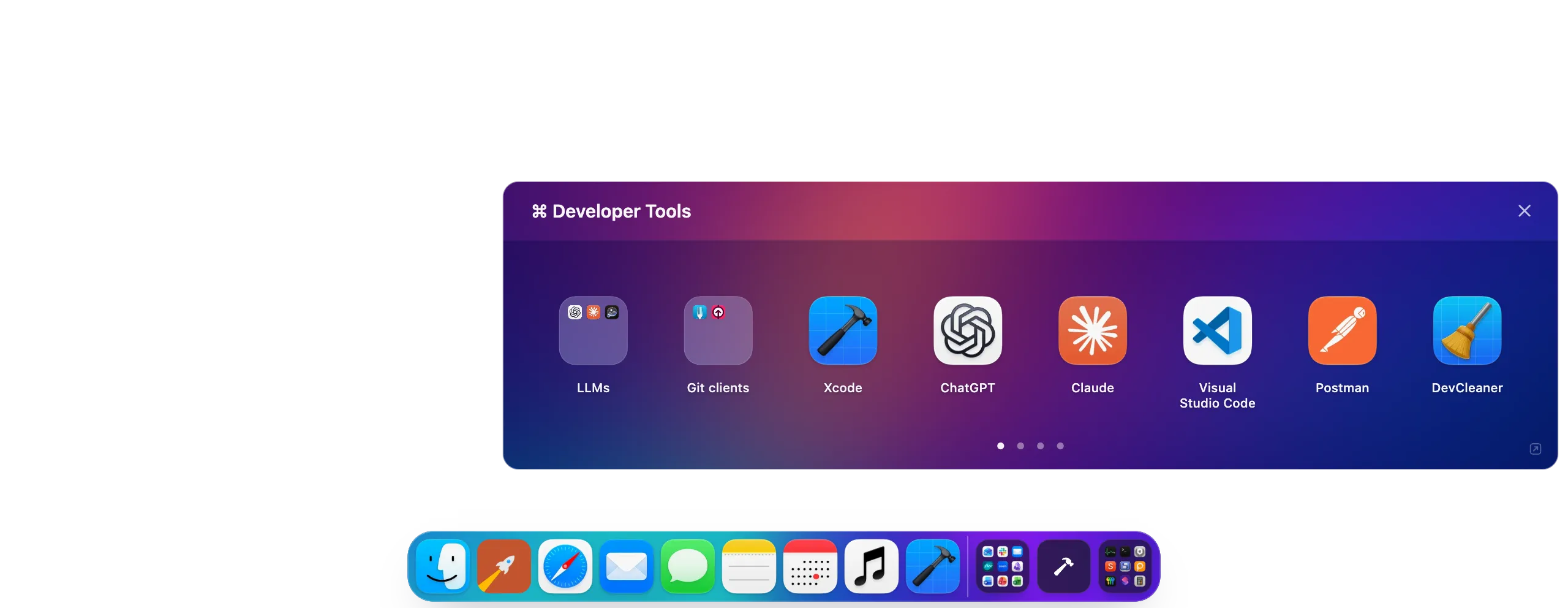
Your folders, right in the Dock. Drag one down and it stays, a click away.

A full-screen app grid, or a floating window. Each keeps its own grid size.

WindowFull Screen
Launch

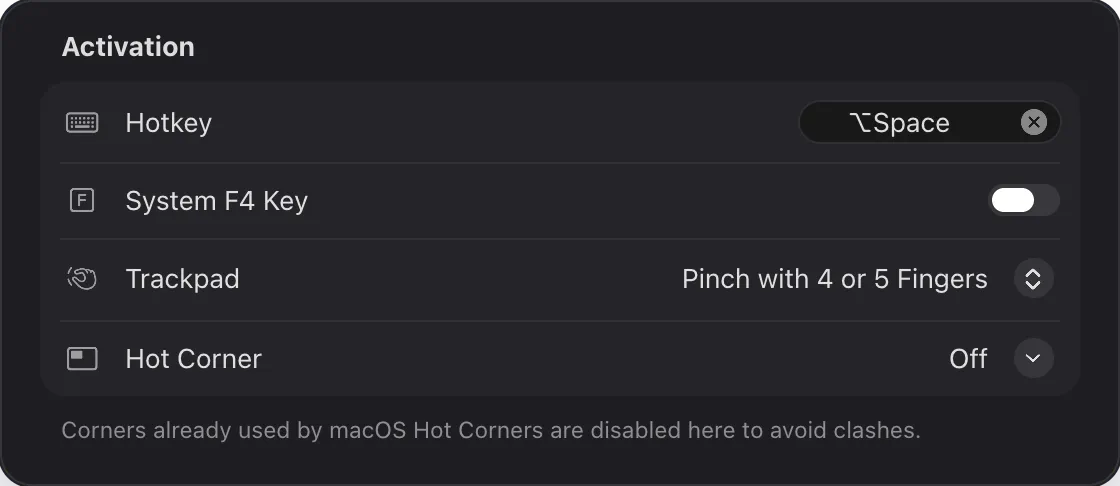
One gesture, your whole library. Right on the screen you’re using.
Menu bar & Dock

Always within reach. In the menu bar, the Dock, both or neither.

  • Menu bar
  • Dock
  • Hidden
Animations

Make an entrance. Eight opening animations, full screen or windowed.

  • Fade
  • Bloom
  • Twirl
  • Shockwave
  • Prism
  • Warp
  • Materialize
  • Shutter
Multi-select

Drag. Stack. Done. Draw a box around a few apps, or ⌘-click them, and drag them all into a folder at once.

Undo

Change your mind. ⌘Z takes back any move, folder, rename or alias, up to fifty steps. ⇧⌘Z puts it back again.
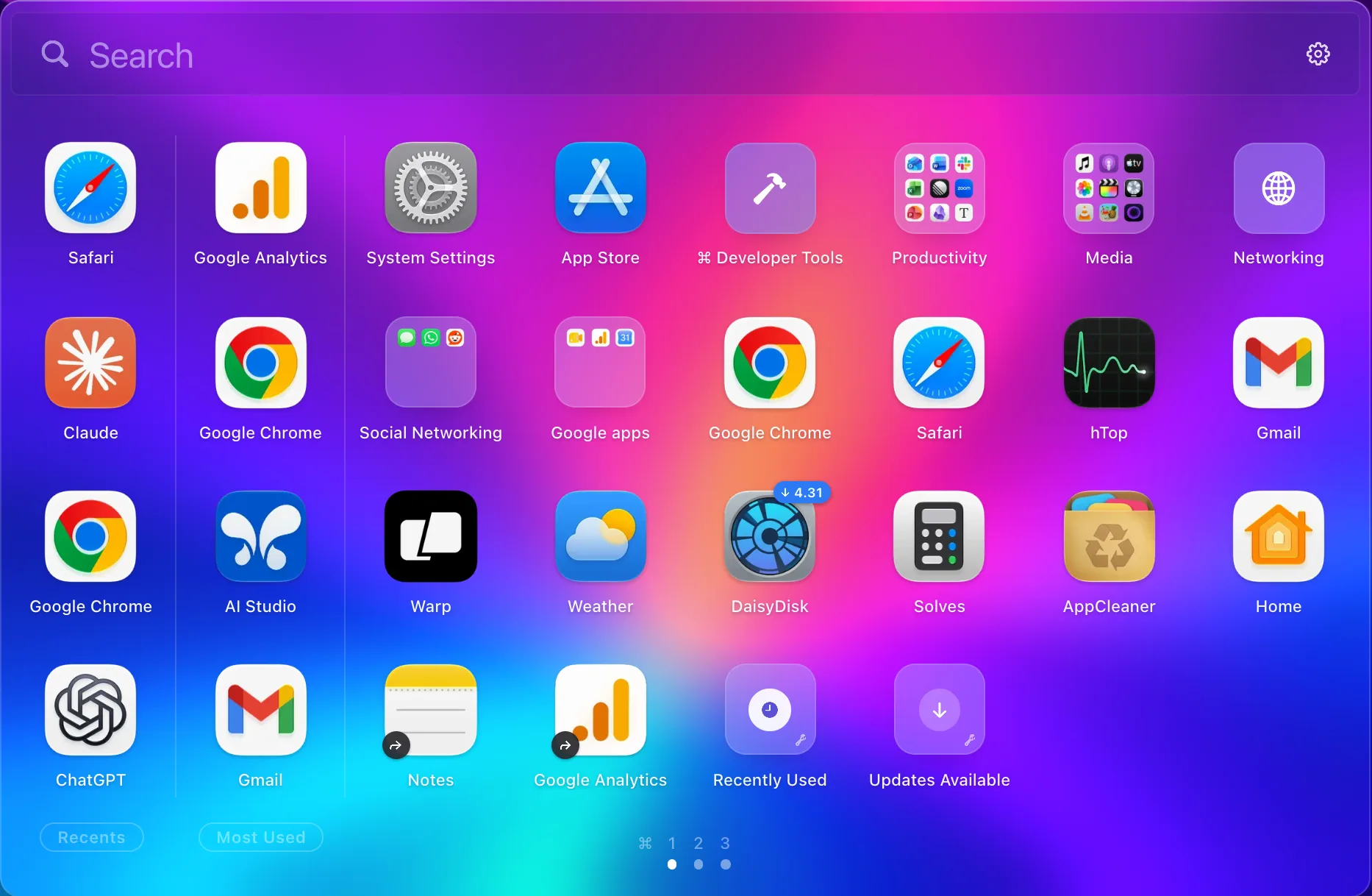
Folders in folders. Drop a folder onto another to nest it, as deep as you like.

Aliases

One app, many places. An alias puts an app in another folder or page too, and the original stays where it is.

Smart Folders

Folders that fill themselves. Describe what belongs — a developer, a category, where an app came from — and the folder keeps itself current.
Find

Find apps by where they are, or by typing. Pages you arrange, with Recents and Most Used pinned beside them. Fuzzy search for the times you’d rather type — “dsk” is enough for Disk Map. Return launches the first result.

Manage

The grid is also where you take care of your apps. Uninstall an app together with its leftover preferences, caches and support files — after you’ve seen every one. See which apps have updates waiting. Inspect an app’s version, signature, architecture and permissions.

Make it yours

Your layout, to the pixel. A grid anywhere from a roomy 4 × 3 to a dense 10 × 9, or a window that reflows as you resize it. Custom icons for any app, a symbol for any folder. Saved arrangements to jump between, and your old Launchpad layout imported in one step.

Keyboard

You never need the mouse. Arrows and Tab move through your apps, ⌘1–9 jumps to a page, ⌘G makes a folder and ⌘N a Smart Folder. ⌘Z and ⇧⌘Z undo every layout change.
Languages

Speaks your language. Every menu, setting and sheet in eight languages. It follows your Mac, or you pick one in Settings.

  • English
  • Deutsch
  • Español
  • Français
  • Italiano
  • 日本語
  • Română
  • 简体中文
Questions
Did Apple remove Launchpad?
In macOS 26 Tahoe it became an Apps view inside Spotlight — no pages, no folders of your own. LaunchingPad brings the grid back.
Is it free?
Yes. No account, no in-app purchase, and updates are free and built in.
Which Macs?
macOS 26 Tahoe or later, including macOS 27. Universal: Apple silicon and Intel.
Can I bring back my old Launchpad layout?
If the old Launchpad database is still on your Mac, yes. LaunchingPad imports its pages and folders without changing it, and backs up its own layout first.
How do I open it?
With a keyboard shortcut, the F4 key, a trackpad pinch or a hot corner, set up in Settings, or from the menu bar or the Dock. It opens on the screen you’re using.
How is it different from Spotlight, Raycast or Alfred?
They’re built around typing an app’s name. LaunchingPad is built around a grid you arrange, with fuzzy search for when you’d rather type.
Does organizing move my apps on disk?
No. LaunchingPad keeps a layout of its own. Your apps stay where they’re installed, and the Applications folder in Finder doesn’t change.
Does it uninstall apps completely?
Yes. It shows the app and the leftover files it found, such as preferences, caches and support folders, with their sizes, and you choose what goes. Apps that come with macOS are protected.
Which apps does it check for updates?
Mac App Store apps, Homebrew casks and apps that update themselves with Sparkle, every 6 hours, daily, every 3 days or weekly, as you choose.
What does it need access to?
Nothing to get started. Accessibility only for the pinch gesture; Full Disk Access is optional for uninstalling.
Does it collect any data?
Basic usage events, such as the app starting, go to Firebase Analytics. Your layout, folders and settings stay on your Mac, and there’s no account. The privacy policy has the details.
LaunchingPad icon

LaunchingPad 4.0

Free · macOS 26 Tahoe or later · Apple silicon and Intel

Download for Mac