 LaunchingPad
Every demo on this page is live. Scroll to one and it plays.
Scroll through all your apps
Open Settings → Layout and choose Continuous for Scrolling, or right-click an empty spot in the grid and choose it under Grid → Scrolling. Every page then joins one grid that scrolls up and down, with no break where a page used to end. Selecting, dragging, folders and the arrow keys work across all of it.
Full Screen and the window each keep their own choice, as they keep the rest of their grid settings, so you can scroll in one and keep pages in the other.
Scroll the way your Mac does
Flick with two fingers and the grid glides on, slowing down the way a Mac list does, then bounces softly if it reaches either end. A slim scroll bar shows at the side while it moves. The rest of the ways you'd expect work too:
- The mouse wheel scrolls it.
- Page Up and Page Down move it a screen at a time.
- ⌘↑ and ⌘↓, or Home and End, go to the top and the bottom.
- Dragging an app? Hold it at the top or bottom edge and the grid scrolls under it.
Hold ⌘ for a second to see these in the shortcut sheet. It lists the scroll keys only while you're in Continuous.
Recents and folders scroll along
In Continuous, Recents and Most Used become rows above the grid instead of columns beside it. In Settings → Appearance, each one's Position chooses how it behaves: Fixed on Screen keeps it in place while your apps scroll under it, and Scrolls with Apps puts it at the head of the grid, so it scrolls away with the first row.
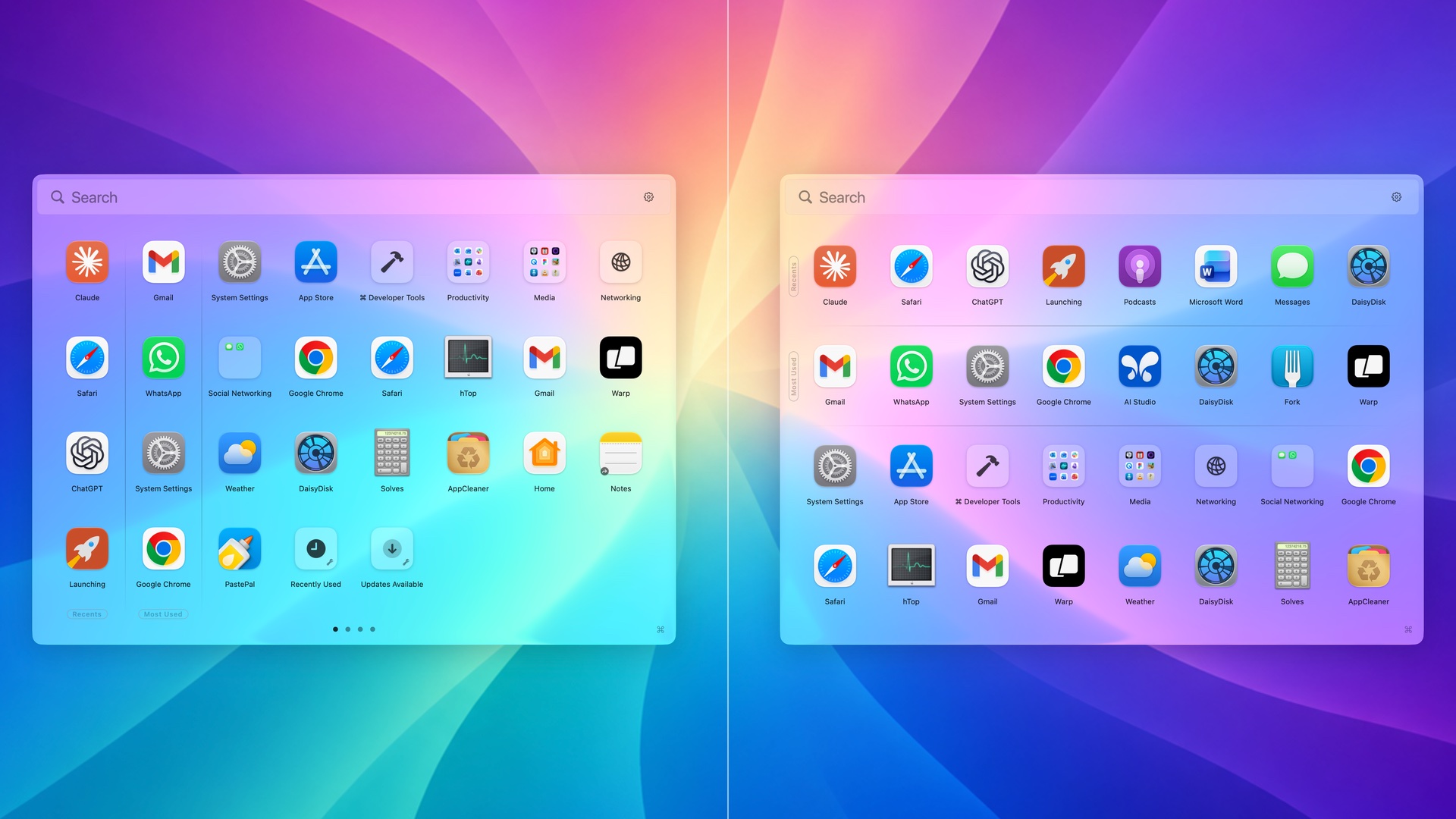
Open a folder and it scrolls up and down too, the same way. And you can switch back to Pages at any time: LaunchingPad keeps your page breaks, so every app goes back to the page it was on. The guide to Pages and Continuous puts the two side by side.
Smoother, with a round of fixes
Page swipes, dragging apps and edit mode are smoother. On a 120 Hz display, swipes and edit-mode drags now keep within each frame, and a dragged app's picture is drawn on its own thread, a frame closer to the pointer. Right-click an empty spot in the grid or in an open folder and you'll also find Enter Edit Mode. This release fixes a number of bugs as well.
What's New shows it
After you update, the What's New window plays the scrolling demo beside the list, and the first time you open the launcher, the line under the grid points you to Settings → Layout. To see What's New again later, choose What's New… from the menu bar icon's menu.
LaunchingPad 4.6 is available from the app's update flow. New to LaunchingPad? Download it here.