 LaunchingPad
Both demos on this page are live. Scroll to them and they take turns.
The same apps, two ways
PagesSwipe left and right
ContinuousScroll up and down
Nothing else about the grid changes. The apps, folders, their order and the grid's size are the same in both, so you can try one and go back without losing anything.
How to switch
- Settings → Layout → Scrolling: choose Pages or Continuous.
- From the grid: right-click an empty spot and choose one under Grid → Scrolling.
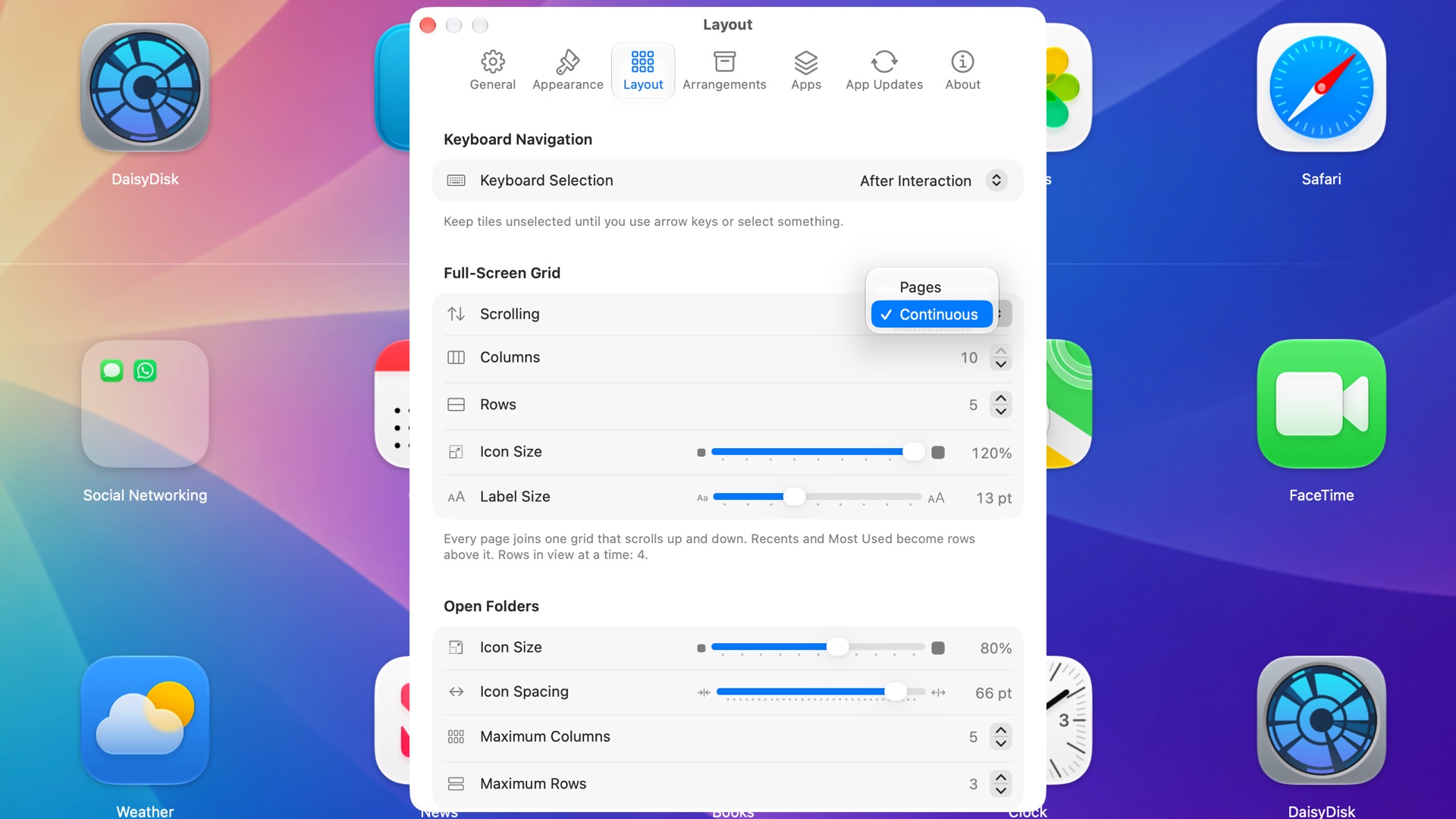
The choice belongs to the display mode you're in. Full Screen and Window each keep their own, along with the rest of their grid settings, so a full-screen grid of pages and a window that scrolls can live side by side. The guide to Full Screen and Window covers the two modes.
Pages
The grid is cut into screens that slide sideways, with page dots under it.
- Move between pages with a two-finger swipe, ⌘← and ⌘→, or ⌘1 to ⌘9 to jump straight to one.
- Move an app to another page by holding it at the left or right edge until the page turns.
- Recents and Most Used are columns beside the grid. Their Position (Settings → Appearance) keeps them on every page, or only on the first.
Pages are good at places. If page one holds what you use every day and page three is where the games live, your hands learn the way there, and a swipe or a ⌘ number gets you to the spot without reading a single name.
Continuous
Every page runs on into one grid that scrolls up and down, with a slim scroll bar at the side while it moves.
- Scroll with two fingers: a flick glides on and bounces softly at either end. The mouse wheel works too.
- Page Up and Page Down move a screen at a time. ⌘↑ and ⌘↓, or Home and End, go to the top and the bottom.
- Move an app anywhere in the grid: hold it at the top or bottom edge and the grid scrolls under it.
- Recents and Most Used become rows above the grid. Fixed on Screen keeps them in place while the apps scroll under them, and Scrolls with Apps lets them scroll away with the first row.
- Open folders scroll up and down as well.
Continuous is good at browsing. With a big library there are no pages to count and no wondering which one an app landed on: it's all one grid, and a flick gets you down it.
Your pages are kept
Switching to Continuous doesn't throw your pages away. LaunchingPad remembers where each one broke, so when you switch back to Pages, the pages break where they did before and your apps are back on them. An app you moved while scrolling lands on the page where you put it.
Which one to pick
- Pick Pages if you arrange apps by place, keep a few pages you know by heart, or like jumping straight to a page with ⌘1 to ⌘9.
- Pick Continuous if your library runs to many pages, you browse more than you aim, or you'd rather use the mouse wheel and Page Up and Page Down.
- Mix them: pages in Full Screen and scrolling in the window, or the other way round.
Not sure? Switch for a day. It takes one click and loses nothing, and search (just start typing) finds any app in either.
Continuous scrolling is new in LaunchingPad 4.6: see What's New in 4.6. New to LaunchingPad? Download it here.