
Your apps do not always live in one place. You might keep some in Applications, install others in your home folder, or organize tools inside subfolders. LaunchingPad 3.1 makes those locations easier to manage while improving how newly installed apps appear.
Choose where LaunchingPad looks
Open Settings → Apps to add or remove Search Folders. You can also set Scan Depth: depth 1 checks the selected folders, and each higher level includes another layer of subfolders. Changes apply automatically, so the launcher follows your chosen locations without an extra rescan step.
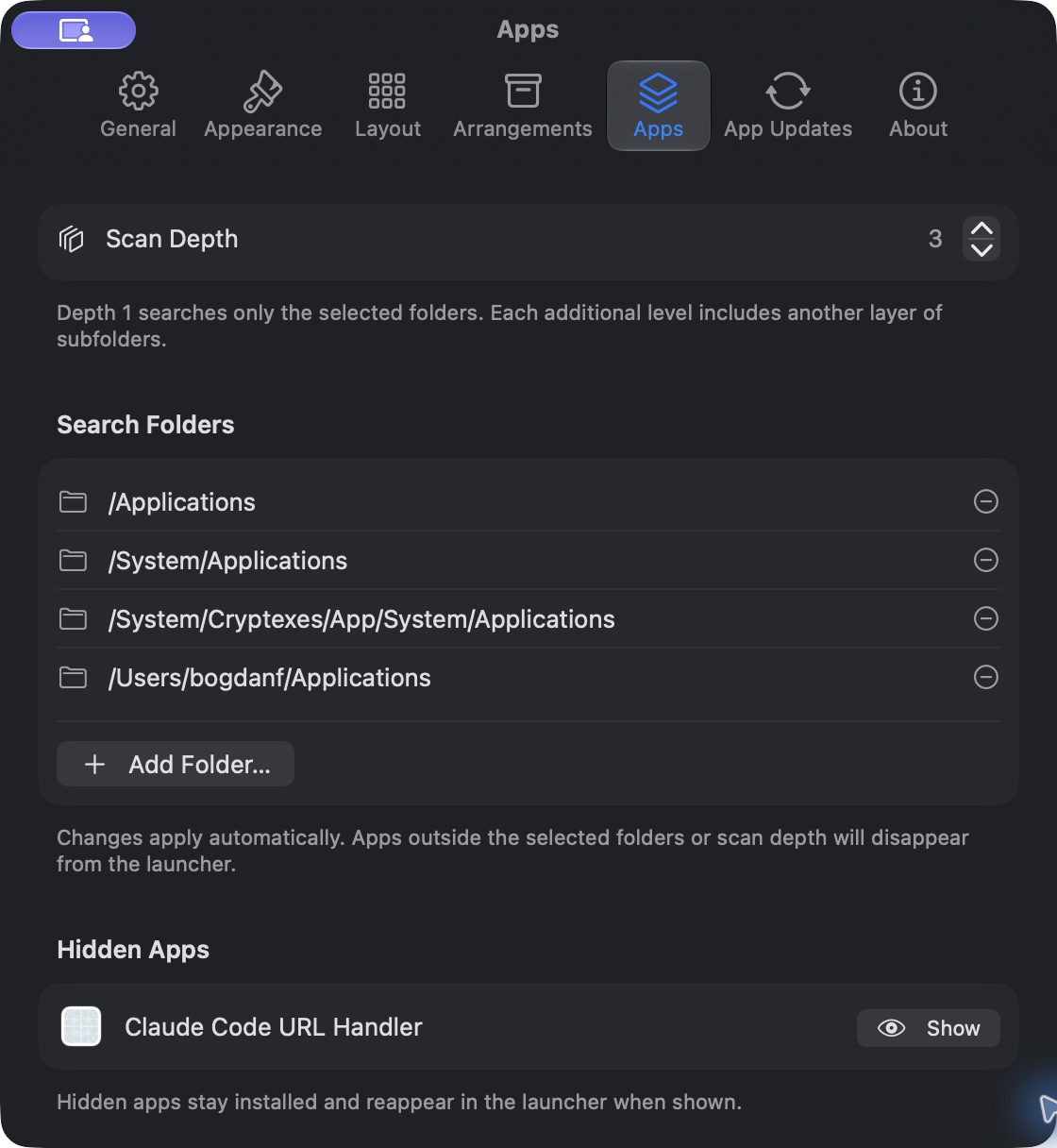
Removing a search folder, or reducing the depth, also removes apps outside the new scope from the launcher. Their installed files are untouched.
More complete app discovery
LaunchingPad now finds apps in nested or linked folders and watches those locations for changes. When an app is still being copied, LaunchingPad checks again as it becomes ready instead of leaving you with a missing or unusable tile. If you keep separate installations that share a bundle identifier, each copy can appear in the library.
Text editing stays where you put it
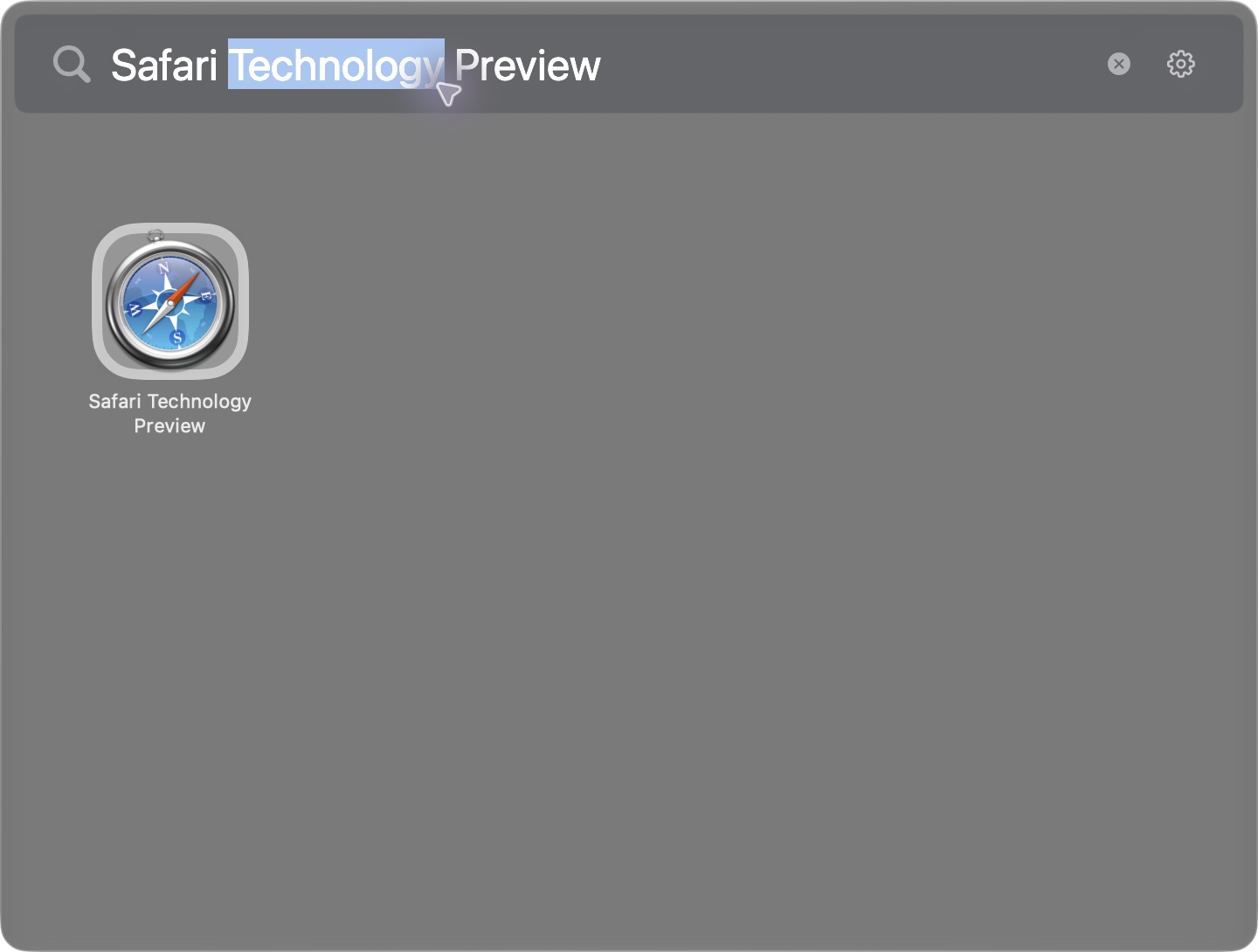
In Window mode, clicking inside Search or a folder name now places the text cursor where you expect. Dragging across text selects it without moving the launcher window or resetting the cursor. You can still drag the surrounding header to move the window.
Recents keeps up with cleanup
After you uninstall an app through LaunchingPad, its shortcut now disappears from Recents and Most Used when cleanup finishes. Those sections reflect the apps still available to launch.
LaunchingPad 3.1 is available from the app's update flow. New to LaunchingPad? Download it here.