
LaunchingPad 3.0 arrived on September 8, 2026 with more ways to make a visual app library feel like yours. The biggest addition is Smart Folders: collections that update themselves as the apps on your Mac change.
Folders that organize themselves
Create a Smart Folder from the File menu or the launcher’s context menu, then choose rules for the apps it should show. You can filter by category, developer, install source, recent use, update availability, and more. Match all rules or any rule, choose a sort order, and preview the results while you build it.
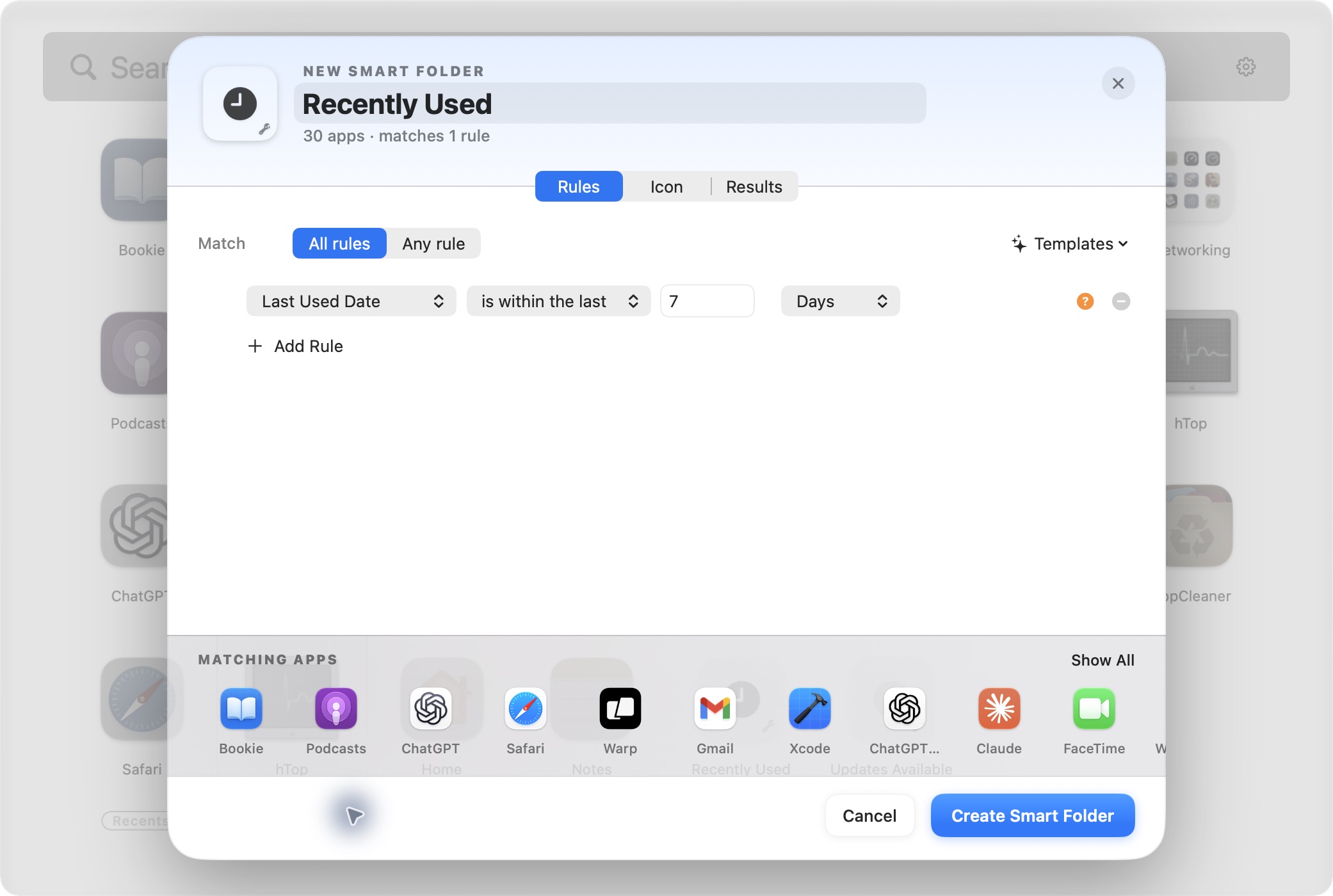
Smart Folders are views of your library. An app can appear in a Smart Folder without leaving its existing folder or changing its position on a page. Templates give you a quick starting point, and you can edit their rules afterward.
Choose how the launcher opens
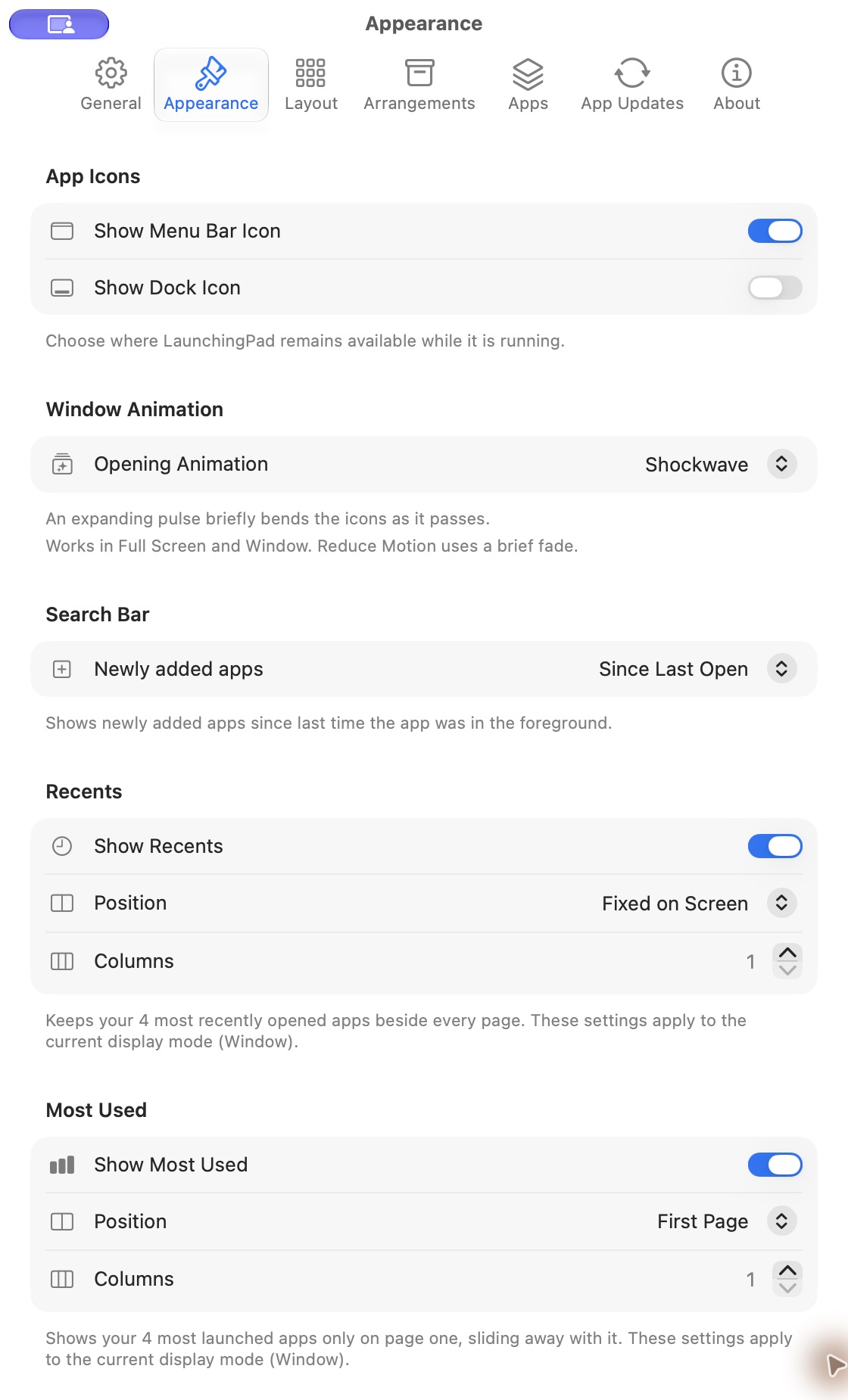
Version 3.0 added eight opening animations for both Full Screen and Window mode: Fade, Bloom, Twirl, Shockwave, Prism, Warp, Materialize, and Shutter. Shockwave is the default. Pick another in Settings → Appearance → Opening Animation whenever you want a different feel.
A layout for each display mode
Switching between Full Screen and Window now saves the arrangement you leave and restores the one you enter. Each mode remembers its app order, folders, and grid settings. Changes in one mode stay there, including page breaks you placed intentionally.
Recents and reopening feel steadier
Apps you bring forward outside LaunchingPad now reach Recents sooner. Updates to that section wait while you drag or swipe, so tiles do not shift under your pointer. When you reopen the launcher, its saved page or folder is prepared before the window appears. Wallpaper and custom backgrounds load more efficiently too.
These 3.0 improvements are included in the current LaunchingPad release. Get LaunchingPad to try them.