 LaunchingPad
Most of the time you don't need your whole app library. You need the handful of apps in your Media folder, or the network tools you dig out when the Wi-Fi acts up. Opening the full launcher just to get to them is one step more than it should be.
LaunchingPad 4.0 adds Dock folders. Drop a folder into the Dock, click its tile, and the folder opens right there, above the Dock.
Put a folder in the Dock
There are two ways to do it, and both work from Full Screen and Window mode.
- Drag it. Pick up any folder in LaunchingPad and drop it into the Dock, between your other apps.
- Or right-click it and choose Add to Dock. The Dock blinks for a moment while it makes room for the new tile.
Add as many folders as you like. Each one gets its own tile.
A tile that shows what's inside
A Dock folder doesn't look like a generic folder icon. Its tile shows the apps inside, just like the folder does in LaunchingPad, and it switches artwork when your Mac goes between light and dark mode. Add an app to the folder or rename it, and the tile follows along.
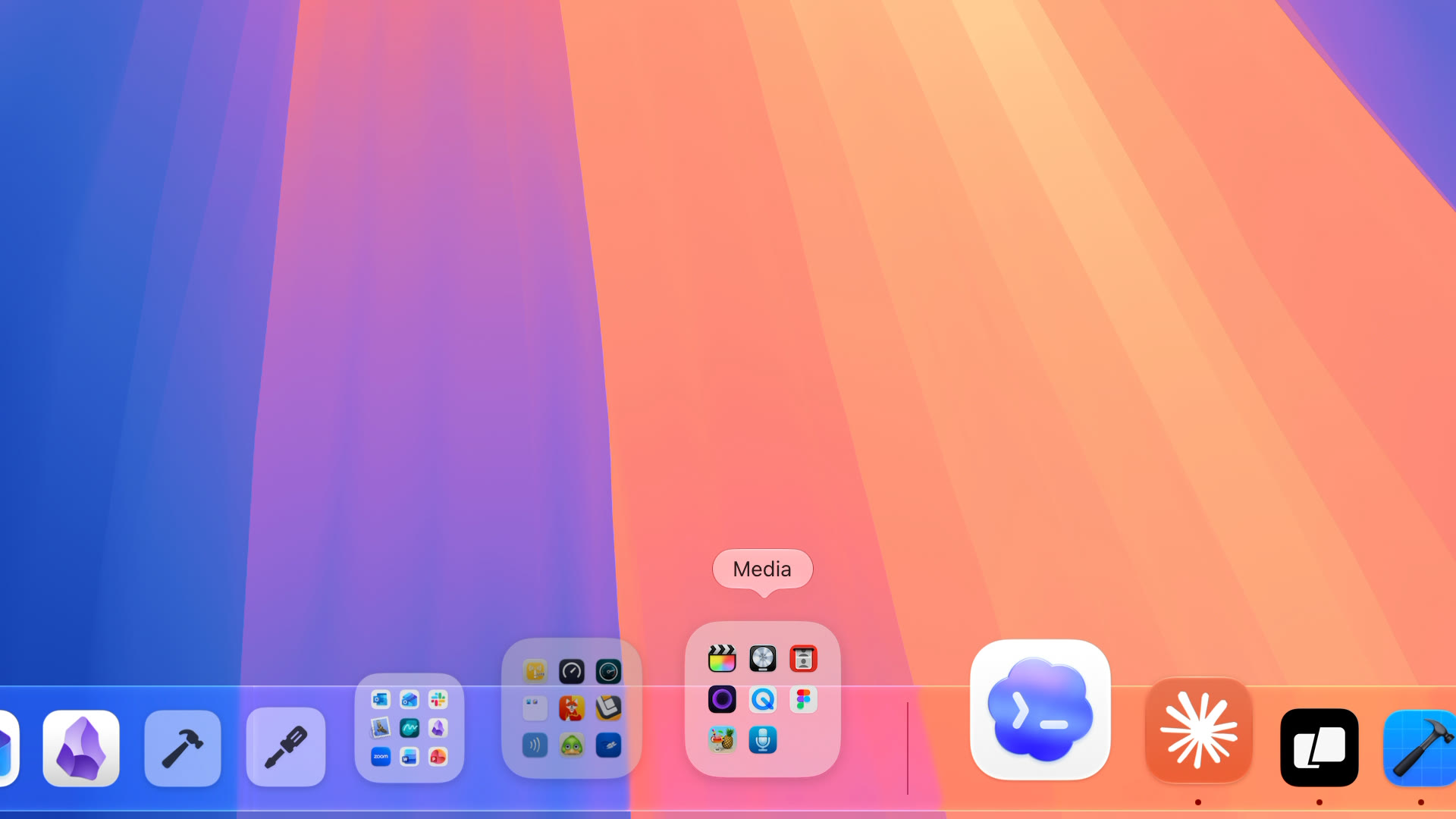
Click to open, right above the Dock
Click the tile and the folder springs out of it with a Genie effect, as a popup sitting right above the Dock. Click an app to launch it. Folders inside open in place, so you can dig into a subfolder without leaving the popup.
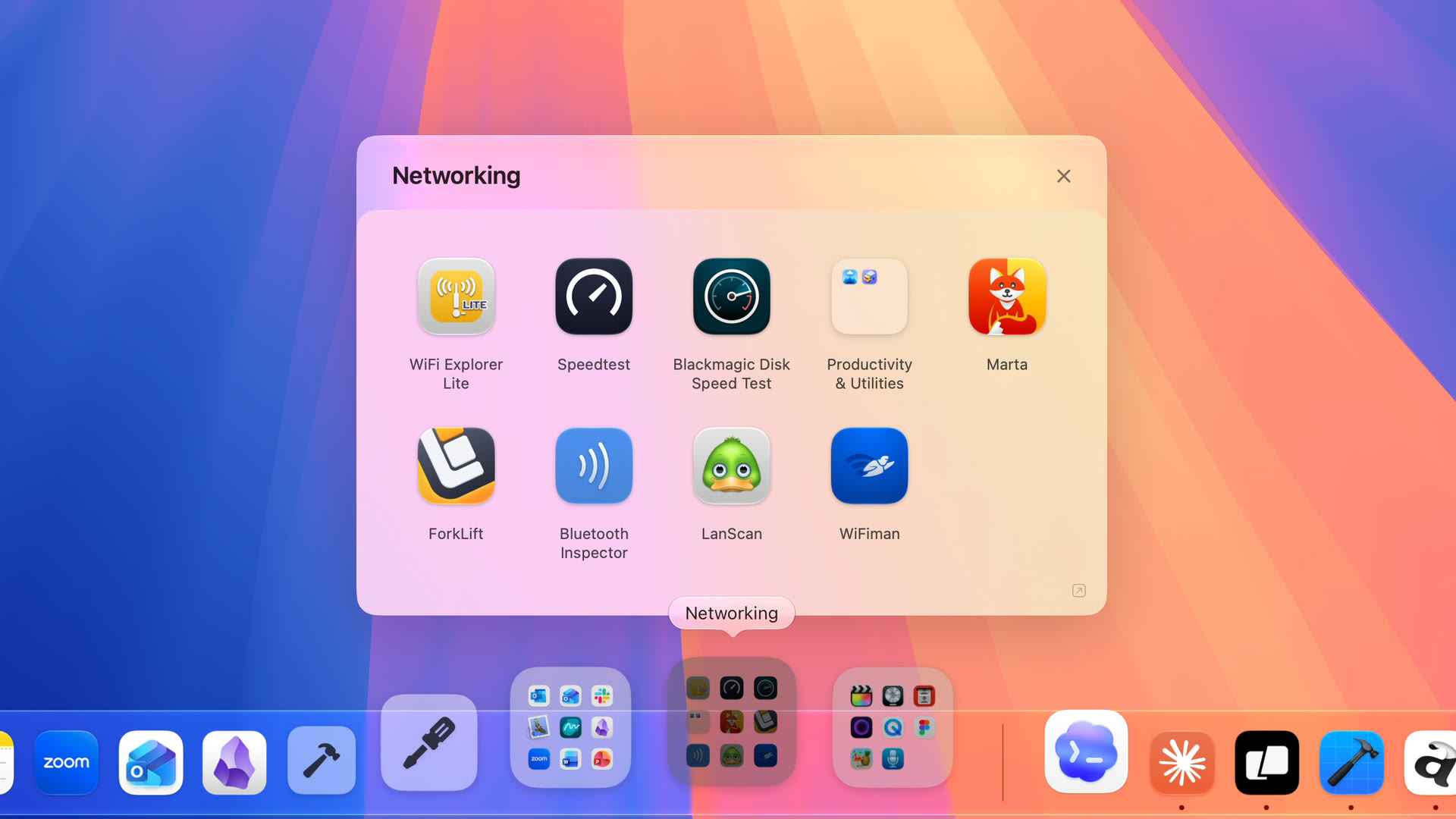
A few more things you'll find:
- Hop between folders. Got more than one Dock folder? Click another tile and the open popup folds away as the next one springs out.
- Close it however you like. Click the tile again, use the close button, or just click anywhere outside the popup.
- Jump to the full launcher. The small arrow in the popup's corner opens the same folder in LaunchingPad.
- No need to start LaunchingPad first. If it isn't running, clicking a Dock folder starts it and opens the folder as soon as it's ready.
Make each popup your own
Drag a popup's edges to resize it, from a single row of apps up to as big as you like. Each Dock folder remembers its own size and arrangement, so you can order the apps in a popup differently from the same folder in LaunchingPad.
What's in the folder is always shared, though. Add or remove an app, or rename something, in either place, and the other one keeps up.
Popups also have their own icon size, horizontal spacing, and minimum row gap. Right-click an empty spot in a popup to change them, or go to Settings → Layout → Dock Folders. Until you do, popups follow your Window mode settings.
Drag apps straight into the Dock
Dock folders come with one more Dock trick. You can now drag any app or folder straight from LaunchingPad, or from a Dock popup, into the Dock. Apps land as regular Dock icons, and folders become Dock folders.
Quick to open, easy to tune
To make popups open sooner, LaunchingPad keeps the Dock folders you've opened ready in the background. This is called Faster Popups, and it's on by default.
Done with a Dock folder? Drag its tile out of the Dock, like any other. The folder itself stays in LaunchingPad, untouched.
Also in 4.0
- Several aliases at once. Select multiple apps, then use Create Alias in… or hold Option-Command while dragging to make aliases for all of them together.
- Smoother tile dragging. Fewer pauses when you pick up tiles, enter edit mode, and drag apps or folders around, especially in busy grids.
- Lower memory use. Wallpaper and custom backgrounds now load at a size that suits your display.
Dock folders are part of LaunchingPad 4.0, available now through the app's built-in updates. New to LaunchingPad? Download it here and give your favorite folders a spot in the Dock.